Off Spec Email Alert
Overview: This tutorial explains how to configure Off Spec Alerts for your devices and receive automated email alerts when a high percentage of data samples fall outside the target specification range.
Steps to Set Off Spec Alert Configuration
1. Navigate to the Setting page :
Steps to Set Off Spec Alert Configuration
1. Navigate to the Setting page :
2. Open device alert tab and click on the Off spec alert sub tab.
3. Please enter the off spec alert configuration.
Device : Select the device you want to monitor for off spec alert.
Time Duration : Set the time range for evaluating data intervals (samples).
Off Spec Alert Percents : Enter the percentage at which you want to trigger an alert (e.g., 50).
Alert Email : Add the recipient email address to receive the Off Spec alert notifications.
How Off spec alert works
Alert Email : Add the recipient email address to receive the Off Spec alert notifications.
How Off spec alert works
1. Duration-Based Sample Collection:
- It retrieves all data intervals (samples) within the configured time duration.
2. Sample Evaluation:
- Each sample is analyzed to see if it falls outside the target percent range.
- If the black line (actual) has most of its points outside the configured target range, then the corresponding Data Interval (Sample) is marked as Off Spec.
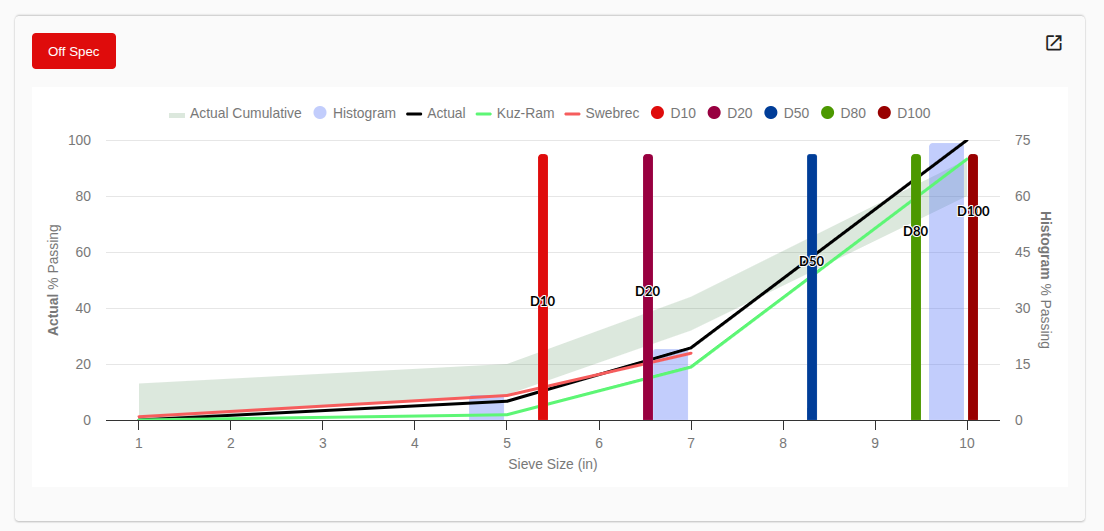
3. Alert Trigger Logic:
- The system calculates the percentage of samples that are Off Spec.
- If this value exceeds the configured alert, it triggers an Off Spec Alert Email.
Example
-
Configured Off Spec Alert : 50%
-
Total Data Intervals (Samples): 10
-
Off Spec Intervals: 6
-
Calculated Off Spec Percentage: 60%
✅ Since 60% > 50%, an Off Spec Alert Email will be sent to the configured address.
Related Articles
Setting Emails for Automatic Shift Summary Email Reports
Setting Emails for Automatic Shift Summary Email Reports Navigate to Settings: Click on "Settings" option from menu bar. Go to Shifts Tab: From Settings click on the "Shifts" tab. Add/Edit Shift Details: In the Shifts tab, you'll find an option to ...Device Offline Alert
Overview : This feature enables users to define a custom time threshold (e.g., 2 hours), and an alert will be issued immediately once a device has been continuously offline for that custom define duration. Steps to set off line alert configuration. ...Import Your Data/Live Interval Tag via Email
Overview: This tutorial explains how to easily upload your interval tag data by simply sending an email with a CSV attachment. This process is fully automated, so your data will be stored in our system without any extra steps. Steps to Import ...Netra - Shift Analytics
Strayos Netra - Shift Analytics Feature Navigate to Settings: Click settings option in the menu bar. Go to Shifts Tab: Within the settings section, locate the "Shifts" tab. Click on it to access the Shift Management interface. Add a Shift: In the ...Slab and Threshold Counts
Slab and Threshold Counts Features Overview: This documentation provides instructions for how to set Slabs and Threshold for a particular device and extract insights from Netra cloud dashboard. Steps to Set Slab and Threshold: Navigate to Settings: ...