Setting Emails for Automatic Shift Summary Email Reports
Setting Emails for Automatic Shift Summary Email Reports
- Navigate to Settings: Click on "Settings" option from menu bar.
- Go to Shifts Tab: From Settings click on the "Shifts" tab.
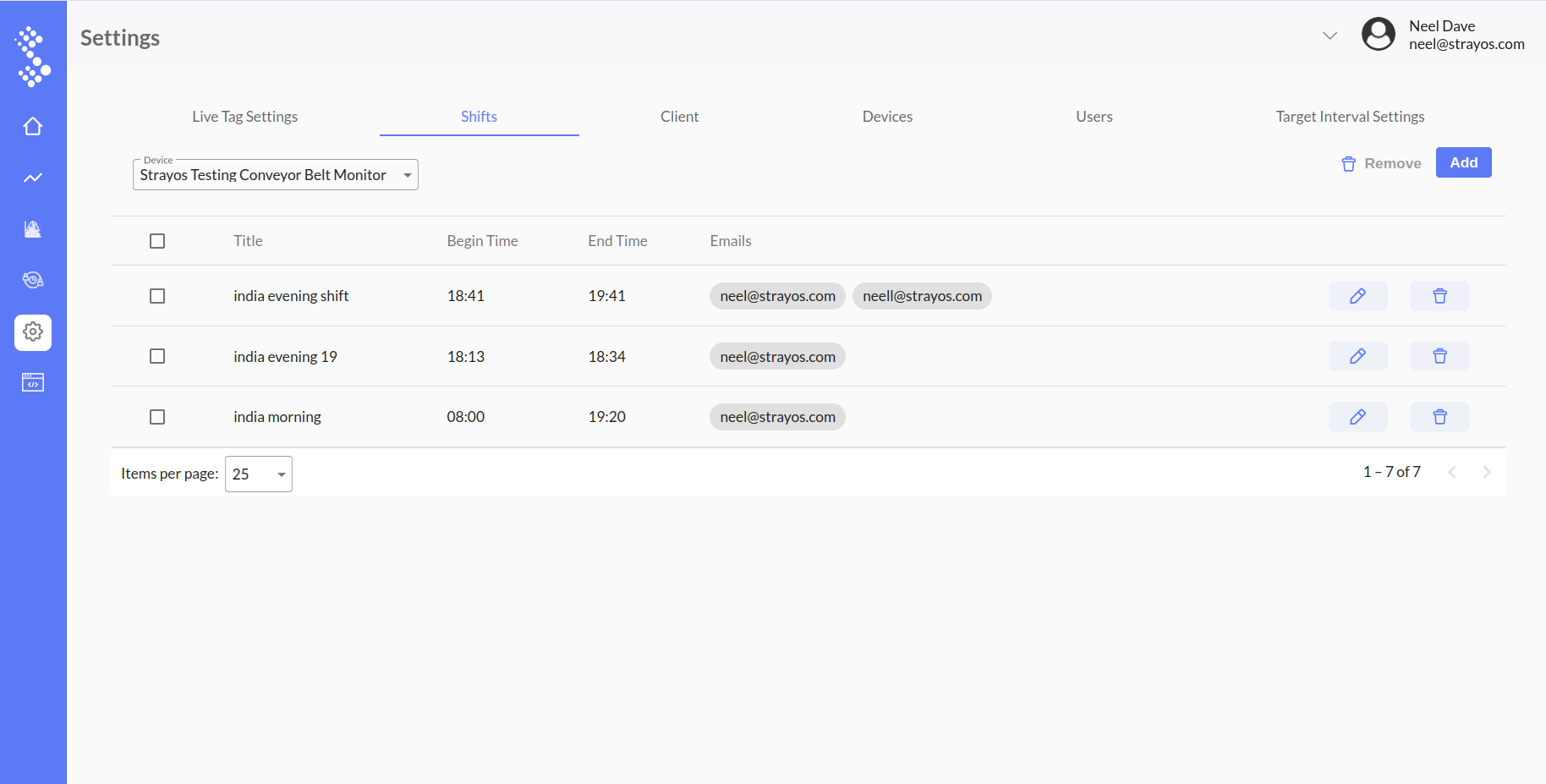
- Add/Edit Shift Details: In the Shifts tab, you'll find an option to add a new shift and also you can edit shift details too. Click on the "Add" button to begin filling in the shift details. Fill in the necessary information for the shift:
- Title: Provide a descriptive title for the shift.
- Begin and End Time: Specify the start and end times for the shift, defining the time interval for which the report will be generated.
- Alert Email: These are the email address where the PDF report will be sent automatically after the shift has ended.Note: for multiple email addresses enter comma separated email address (For eg. abc@amail.com, xyz@bmail.com , cde@ymail.com ).
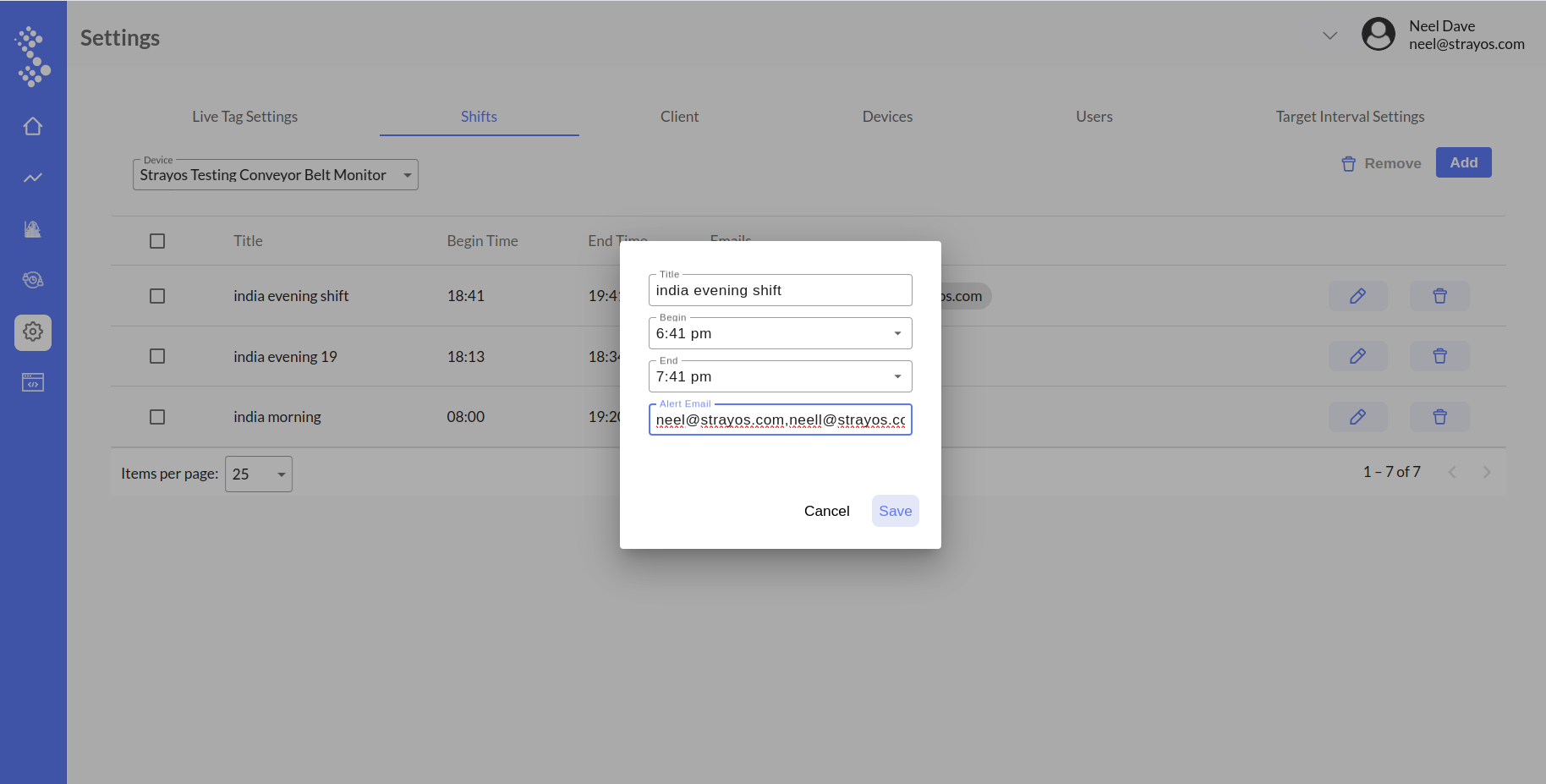
- Receive PDF Report: Once you've added the shift details and specified the emails, the system will automatically generate a PDF report at the end of the shift daily.
Related Articles
Netra - Shift Analytics
Strayos Netra - Shift Analytics Feature Navigate to Settings: Click settings option in the menu bar. Go to Shifts Tab: Within the settings section, locate the "Shifts" tab. Click on it to access the Shift Management interface. Add a Shift: In the ...
How to Enable Daily Summary Report Settings
How to Enable Daily Summary Report Settings Step 1: Go to - User Preferences Click on the arrow down icon by navigating to the top-right corner of the navigation bar and select the option labeled "User Preferences”. Step 2: Navigate to Email Settings ...
Total Payload
Total Payload Go to the Menu Bar and select Settings. In the Settings panel, go to the Devices tab. Here, you can add or edit devices. While adding or editing a device, enter the required density value in the provided field. After entering the ...
Slab and Threshold Counts
Slab and Threshold Counts Features Overview: This documentation provides instructions for how to set Slabs and Threshold for a particular device and extract insights from Netra cloud dashboard. Steps to Set Slab and Threshold: Navigate to Settings: ...
Timeline Chart with Custom Sizes
Timeline Chart with Custom Sizes Navigate to Analytics: Click on the " Analytics" option from the menu bar. From the Analytics section, click on the "PSD Timeline" tab. In the PSD timeline chart, you will find options for D values and Custom Sizes. ...