How to Design Drill Hole Patterns in Strayos
How to Design Drill Hole Patterns in Strayos: Step-by-Step Guide
Designing drill and blast patterns in Strayos gives you a range of flexible tools to suit your site and drilling needs. Whether you want to draw lines, pick points, create polygons, trace crests, or upload existing data, Strayos makes it easy to plan and execute precise drilling layouts.
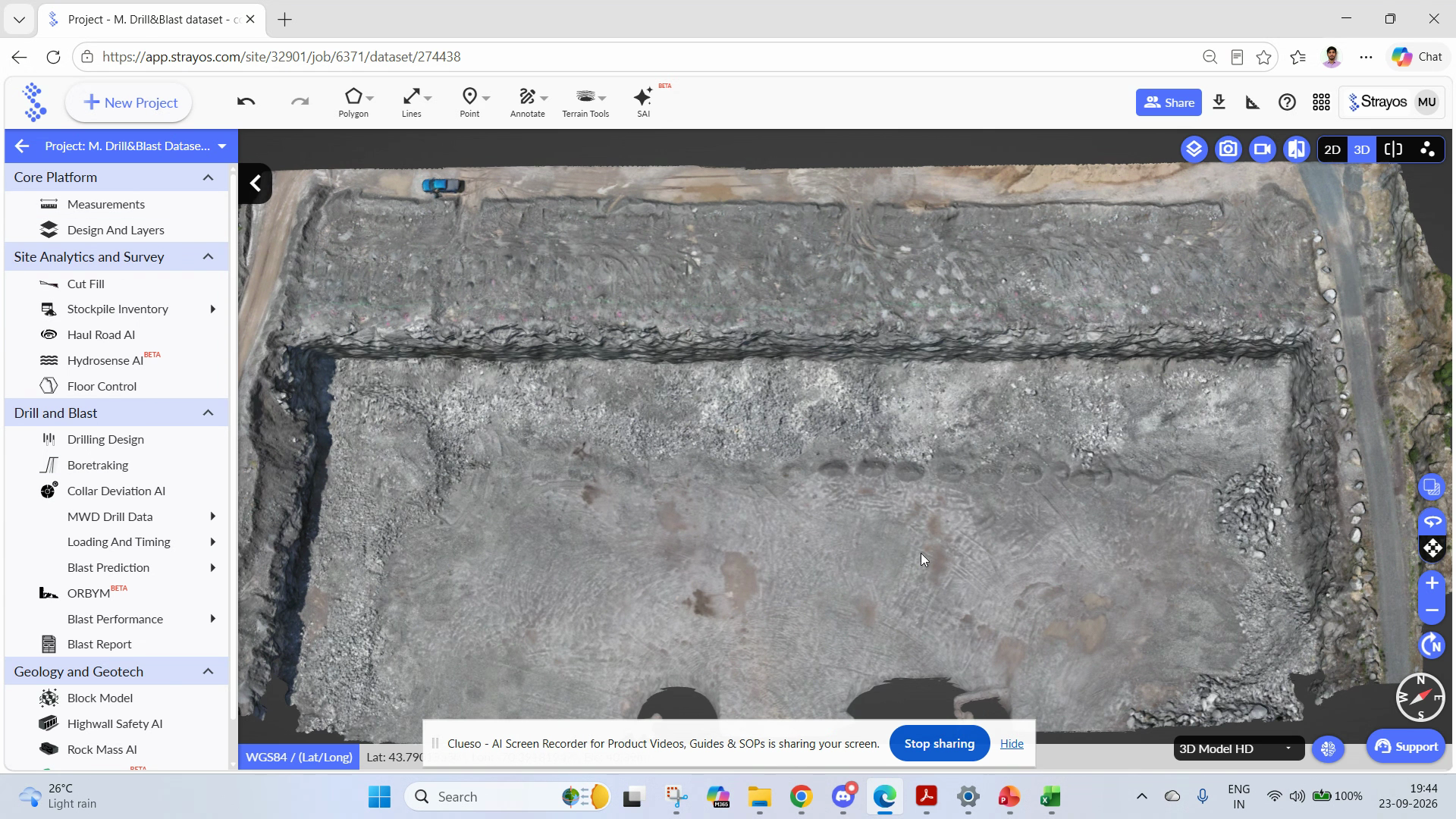
Step 1: Open your 3D project and find the drill and blast options.
In your Strayos project, look for the Drill and Blast section to get started.
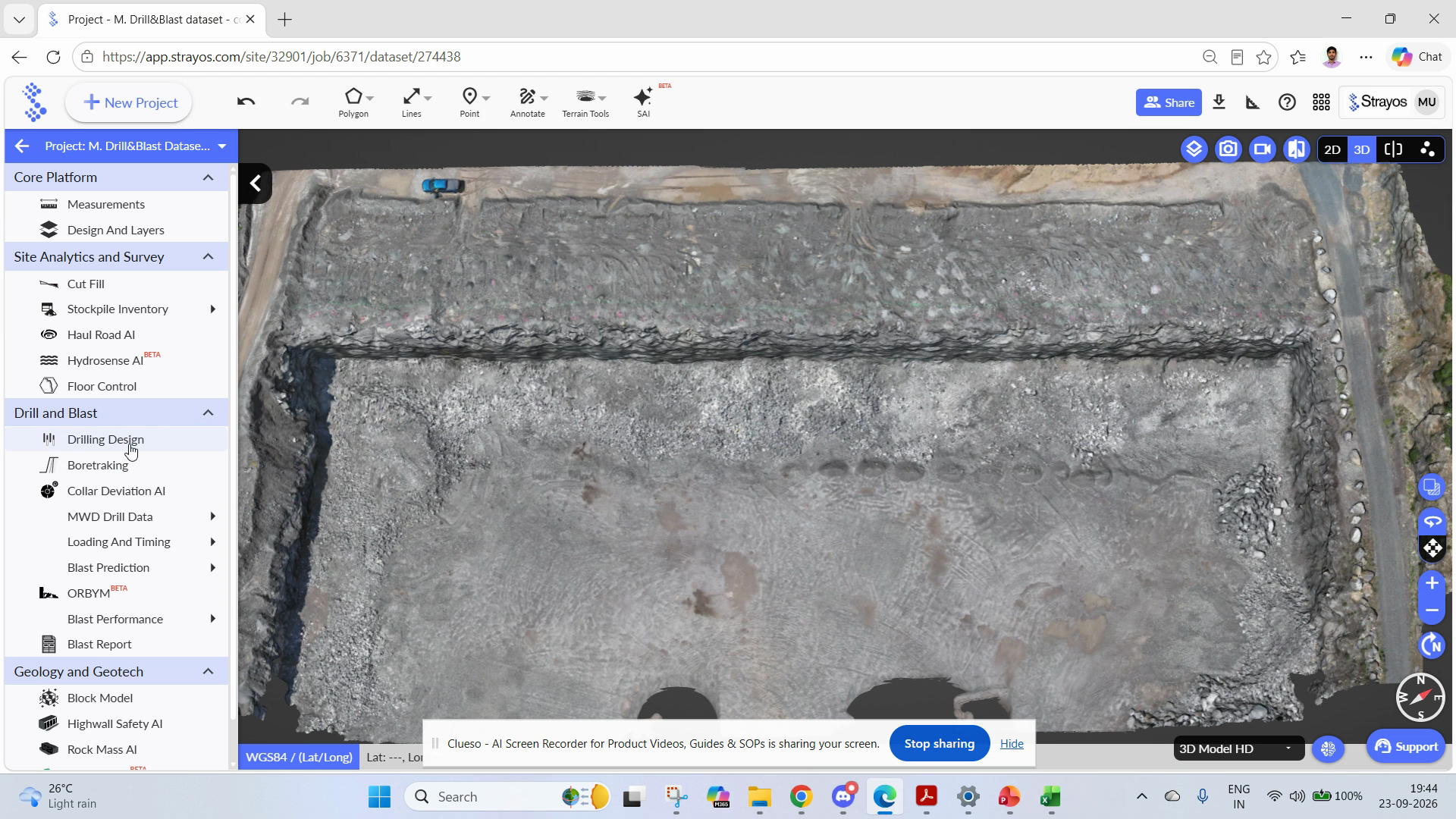
Step 2: Go to Drill Design.
Find and select Drill Design where you’ll see several different drill design planning methods.
Method 1: Draw Line AB
Step 1: Start Line Drawing.
Click Draw Line AB and position your starting point on the bench.
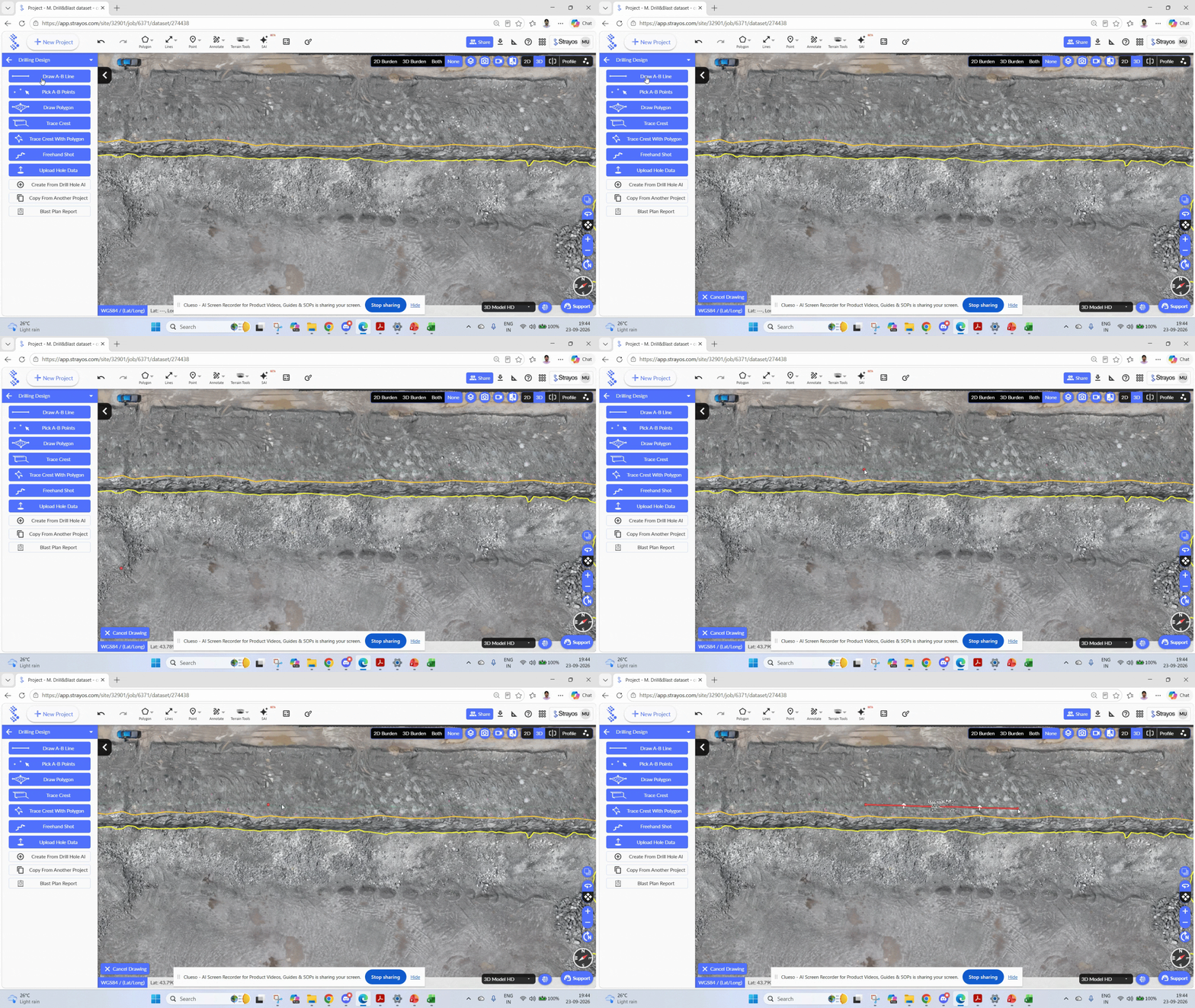
Step 2: Place and finish the line.
Double-click to finish placing your line.
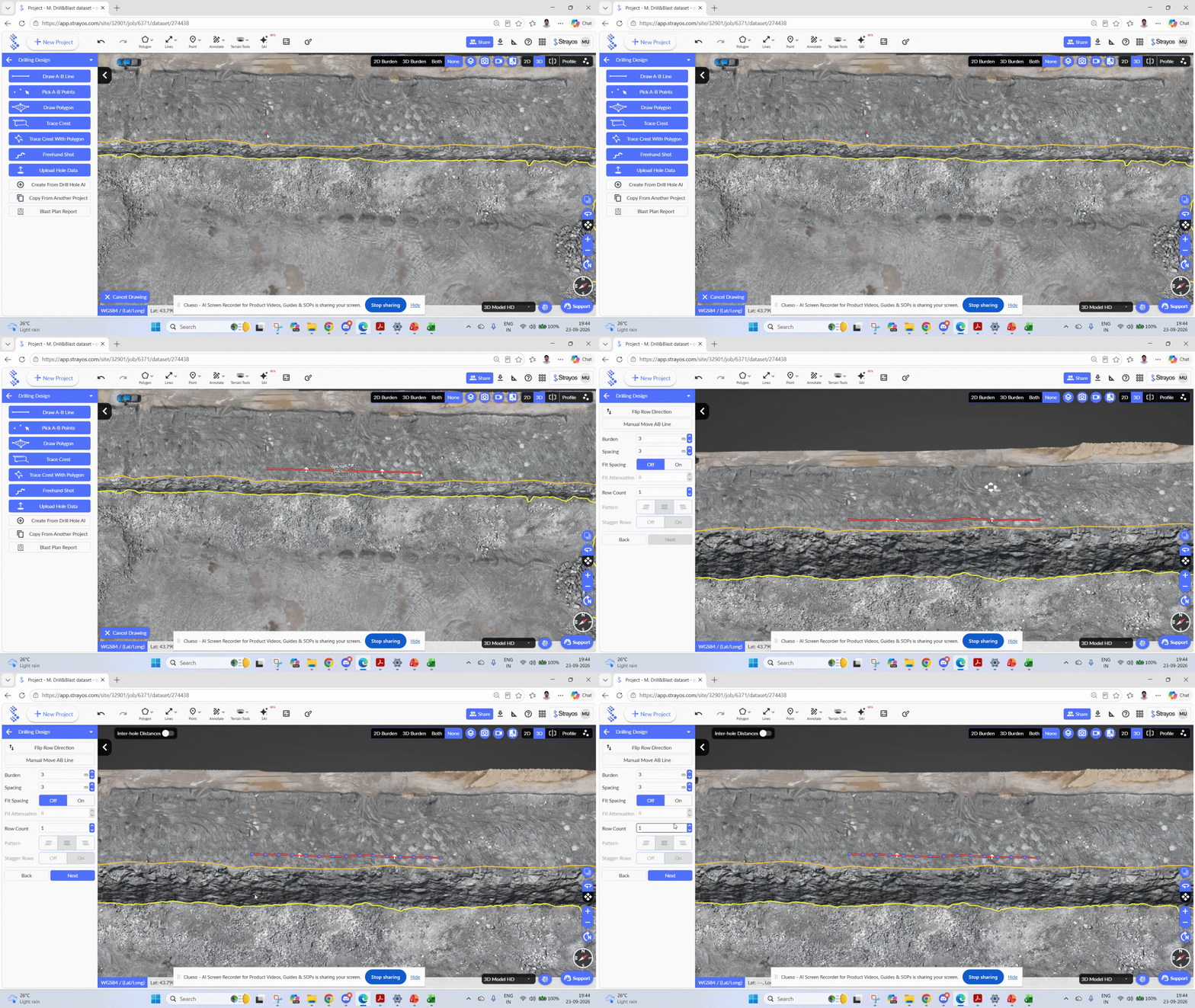
Step 3: Set the number of rows.
Enter how many rows you need.
Step 4: Flip direction and set spacing.
Use the Flip Direction option if needed. Set burden and spacing values (e.g., 3 and 3.5). Toggle Fit Spacing if you want Strayos to adjust hole positions automatically.
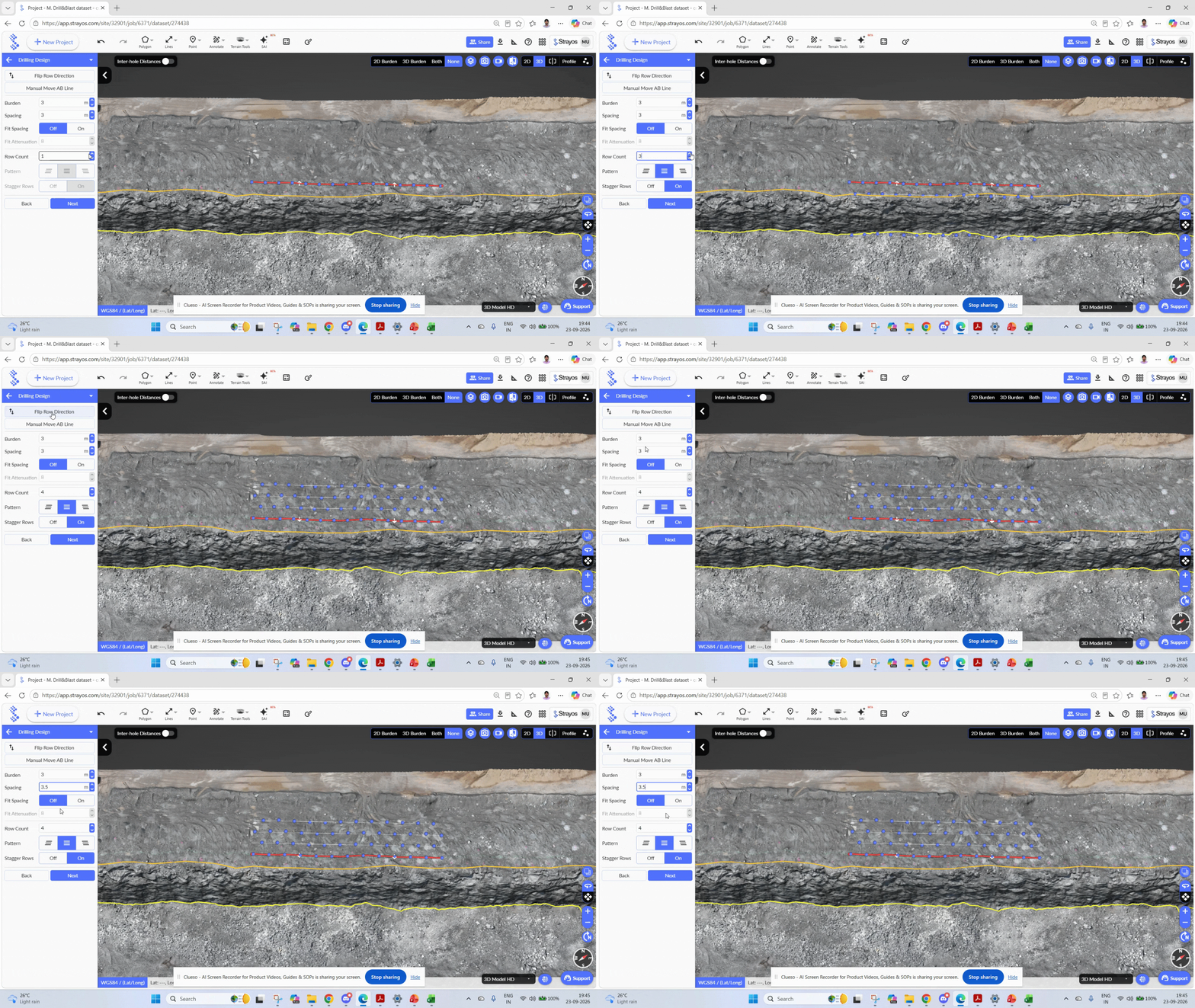
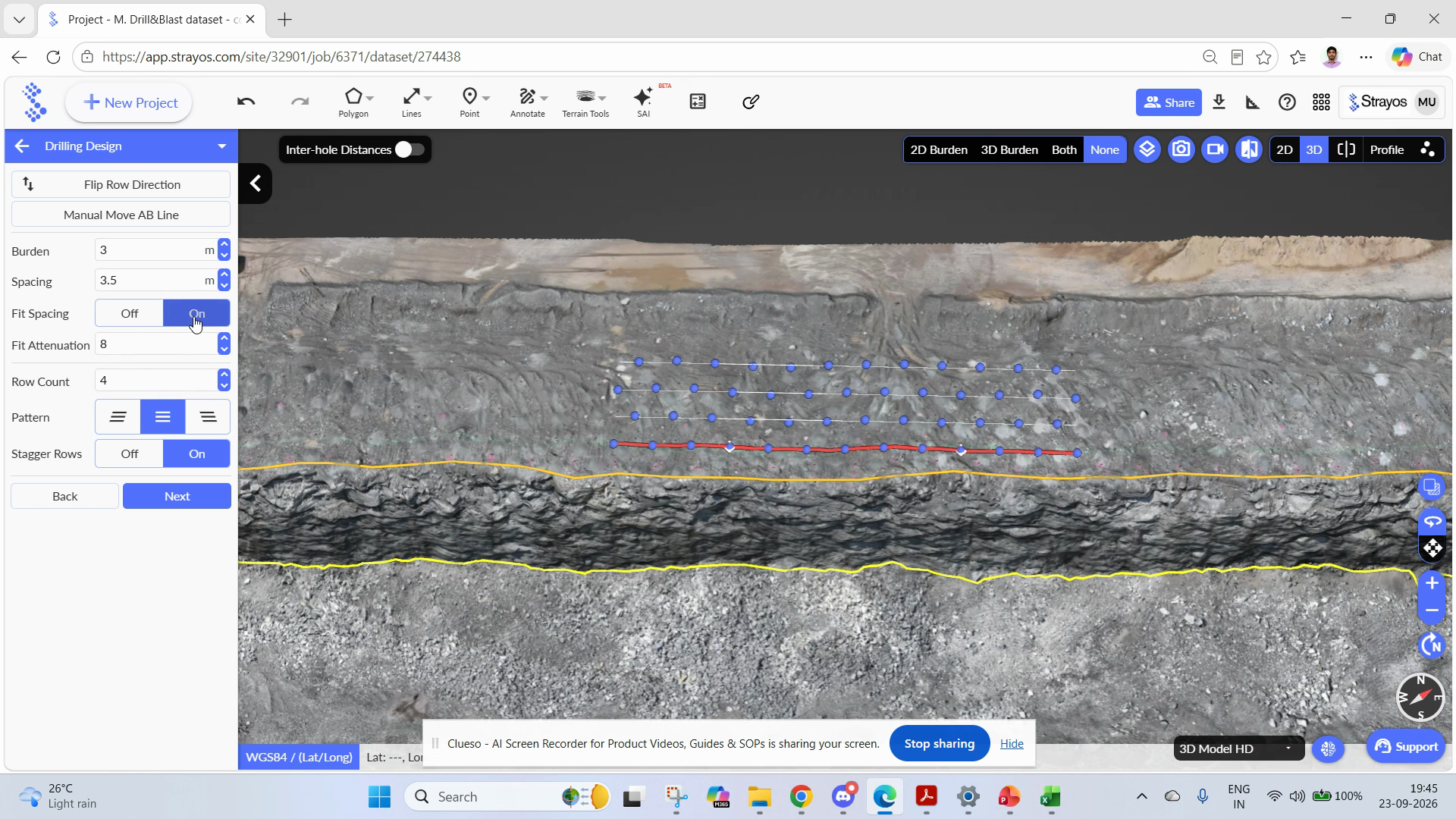
Step 5: Choose your drill pattern.
Choose between Staggered or Centered rows with the toggle, then click Next.
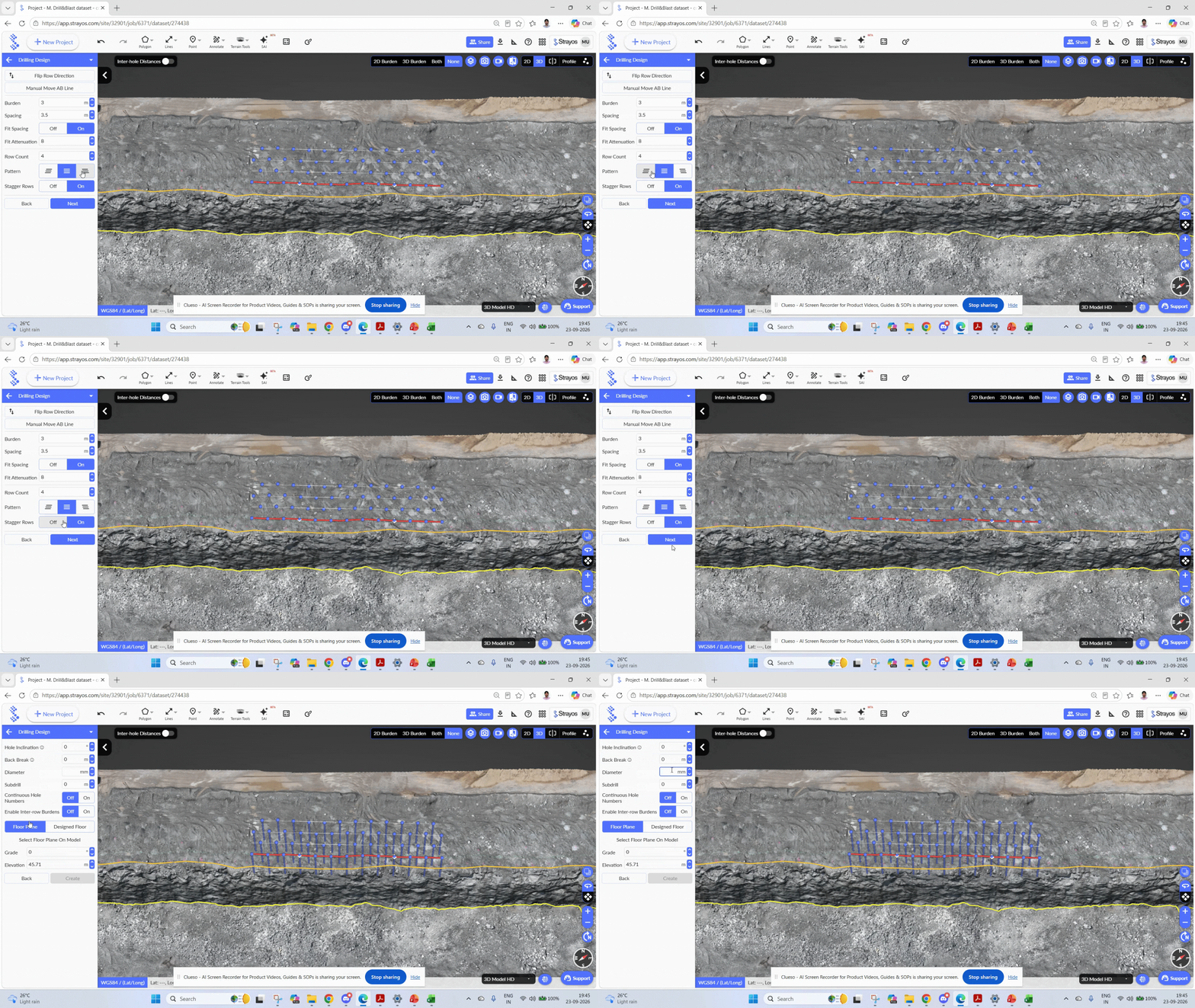
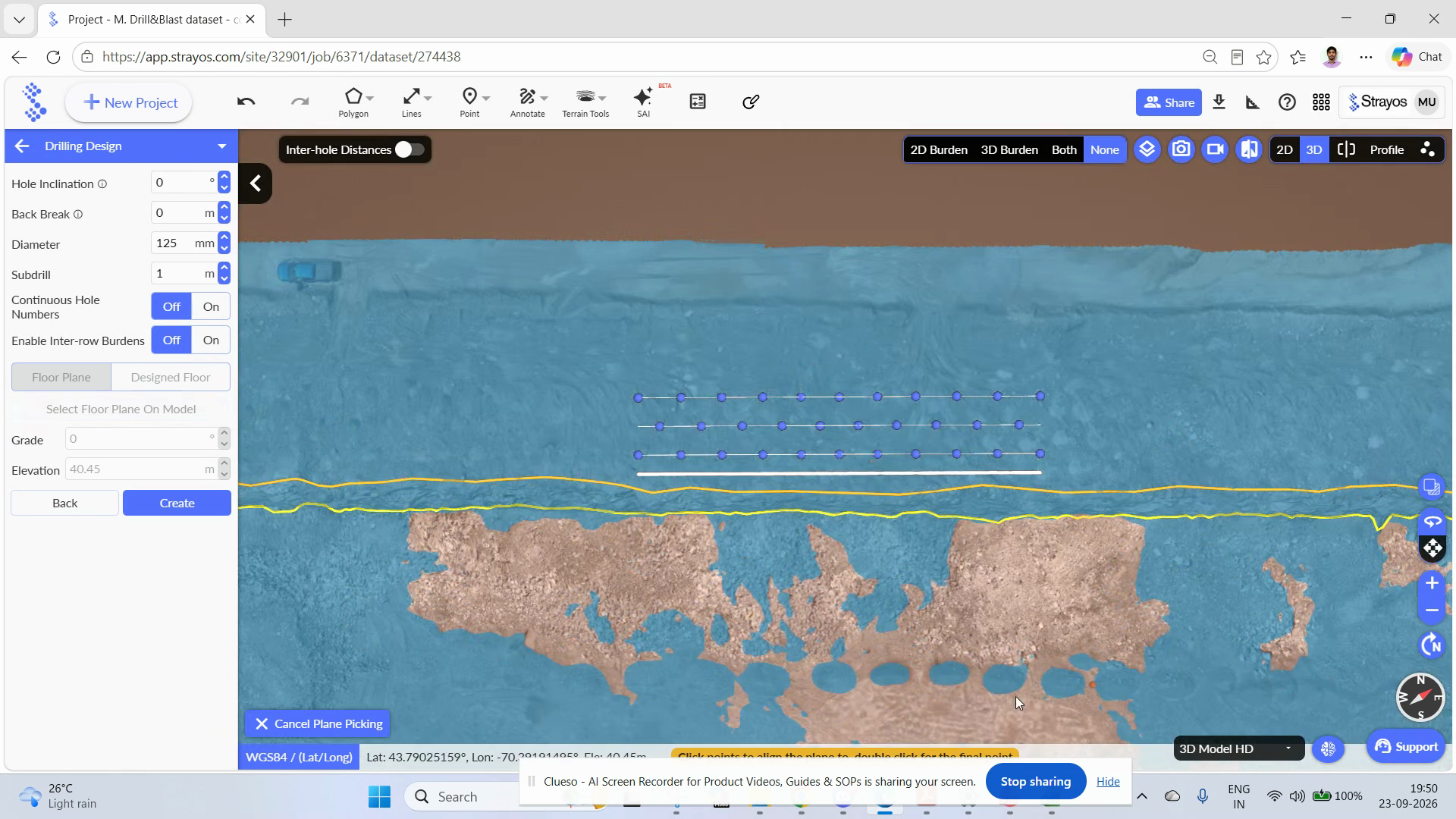
Step 6: Set diameter and subdrill.
Enter the hole inclination, back break (if required), drill diameter and subdrill values.
Step 7: Select floor plane.
Pick how you want to set the floor plane:
- Enter the elevation directly
- Upload a design file
- Select the floor plane on your model
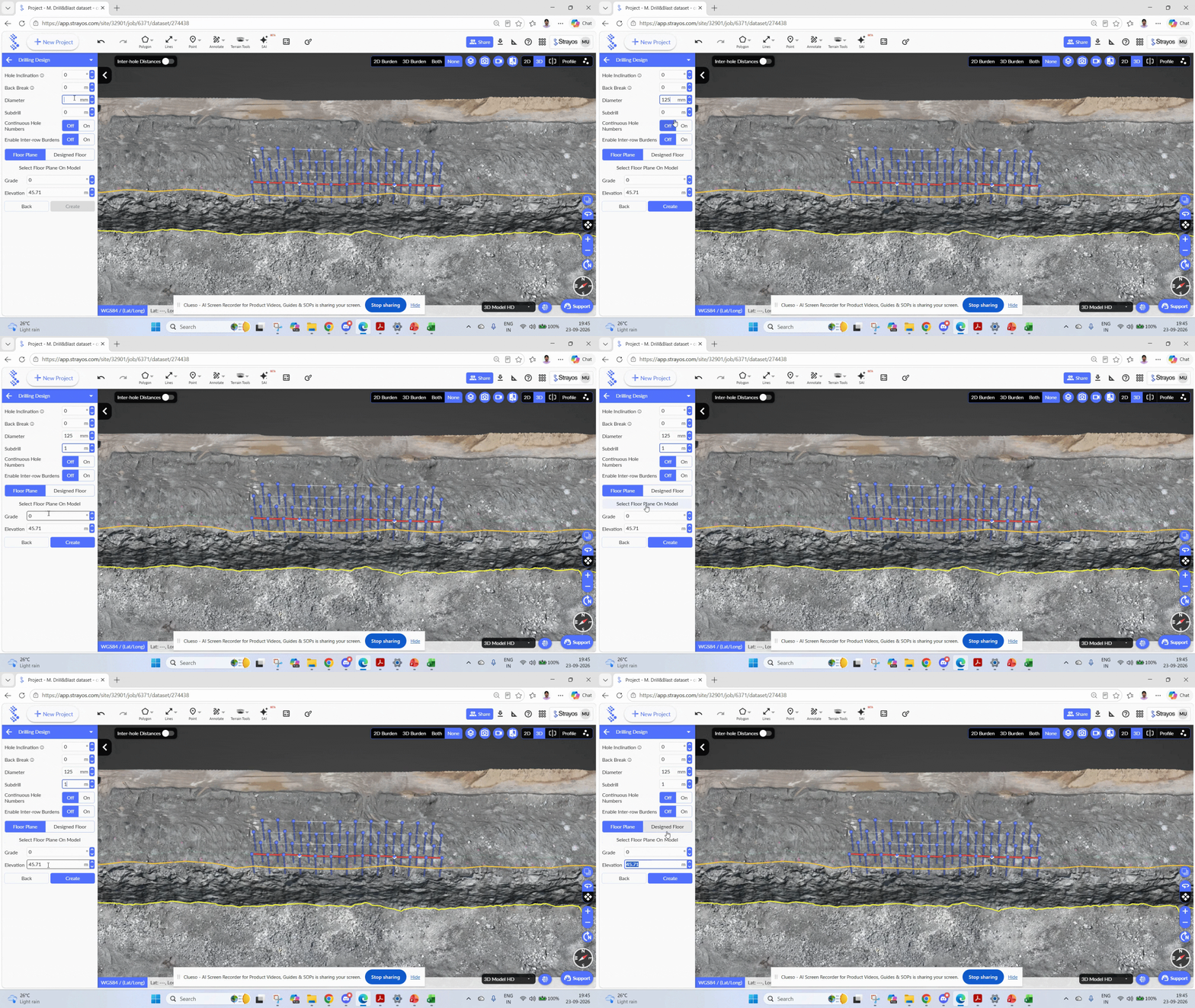
Step 8: Selecting Floor plane on the model
For selecting floor plane on the 3D model itself, click to select your surface, double-click to finalize, then click Finish Plane Editing to finish the floor plane selection
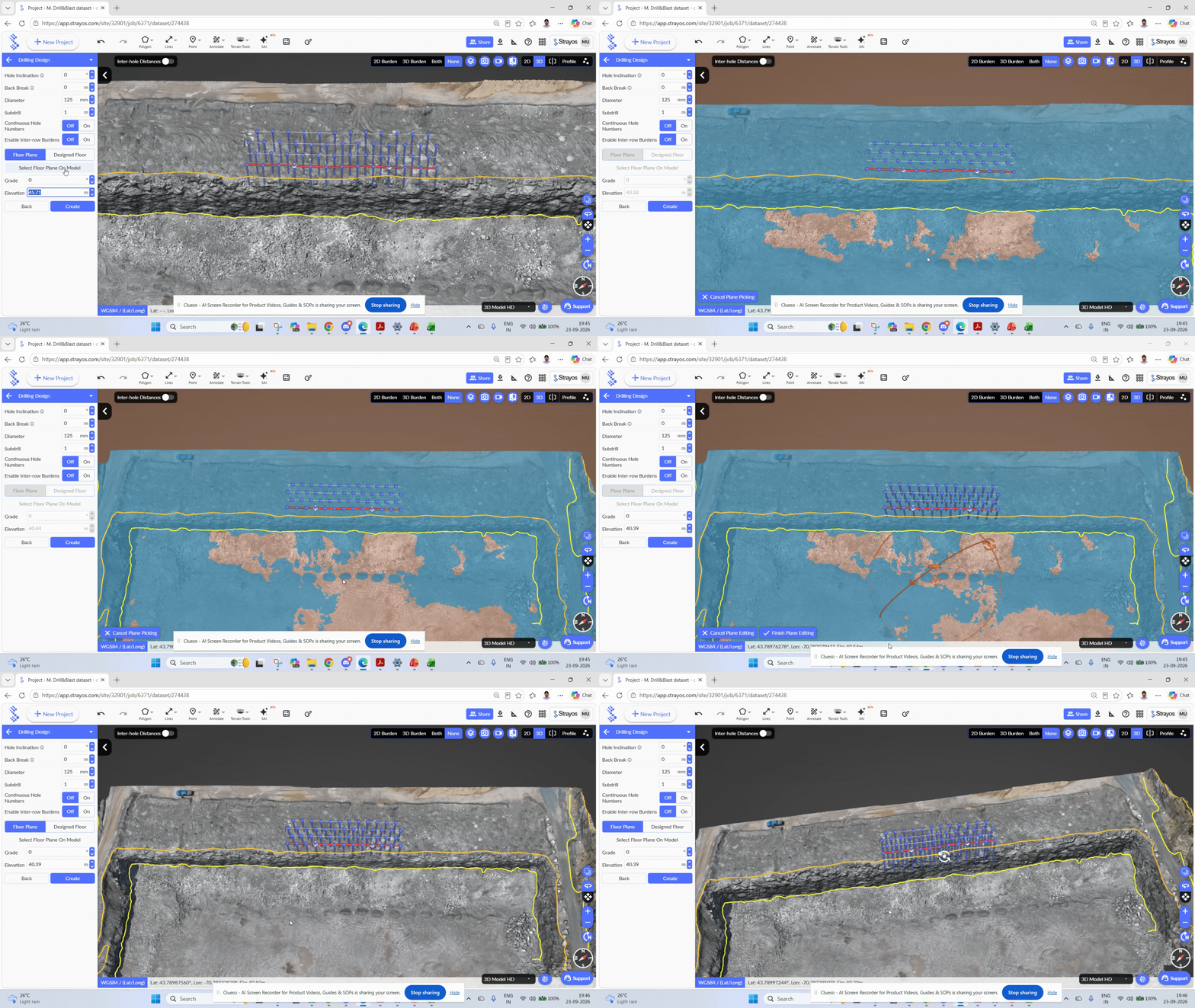
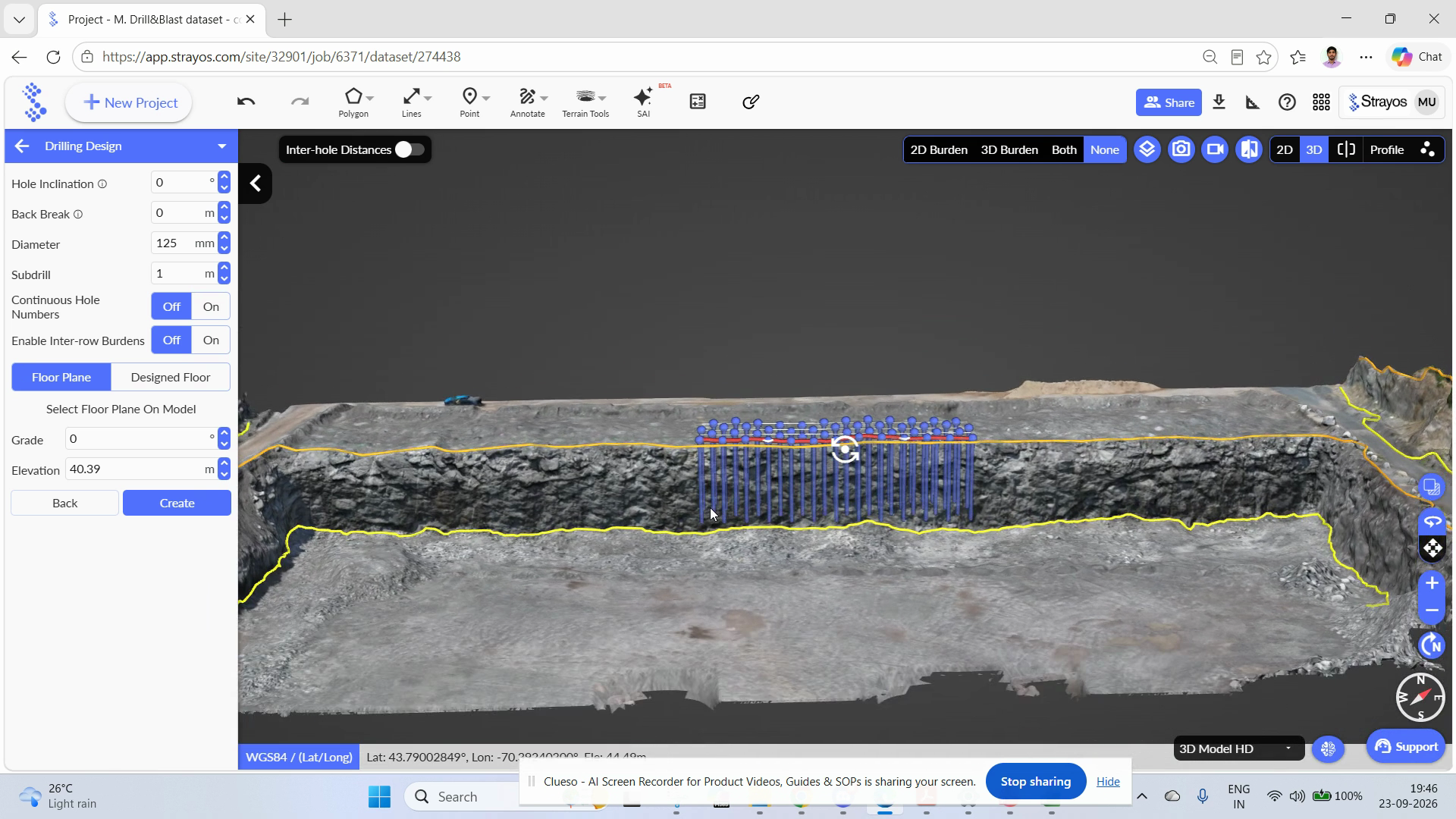
Step 9: Review generated holes.
Strayos now generates your drill holes.
Step 10: Save your design.
Click Create to finalize. Click save to create a checkpoint of that design.
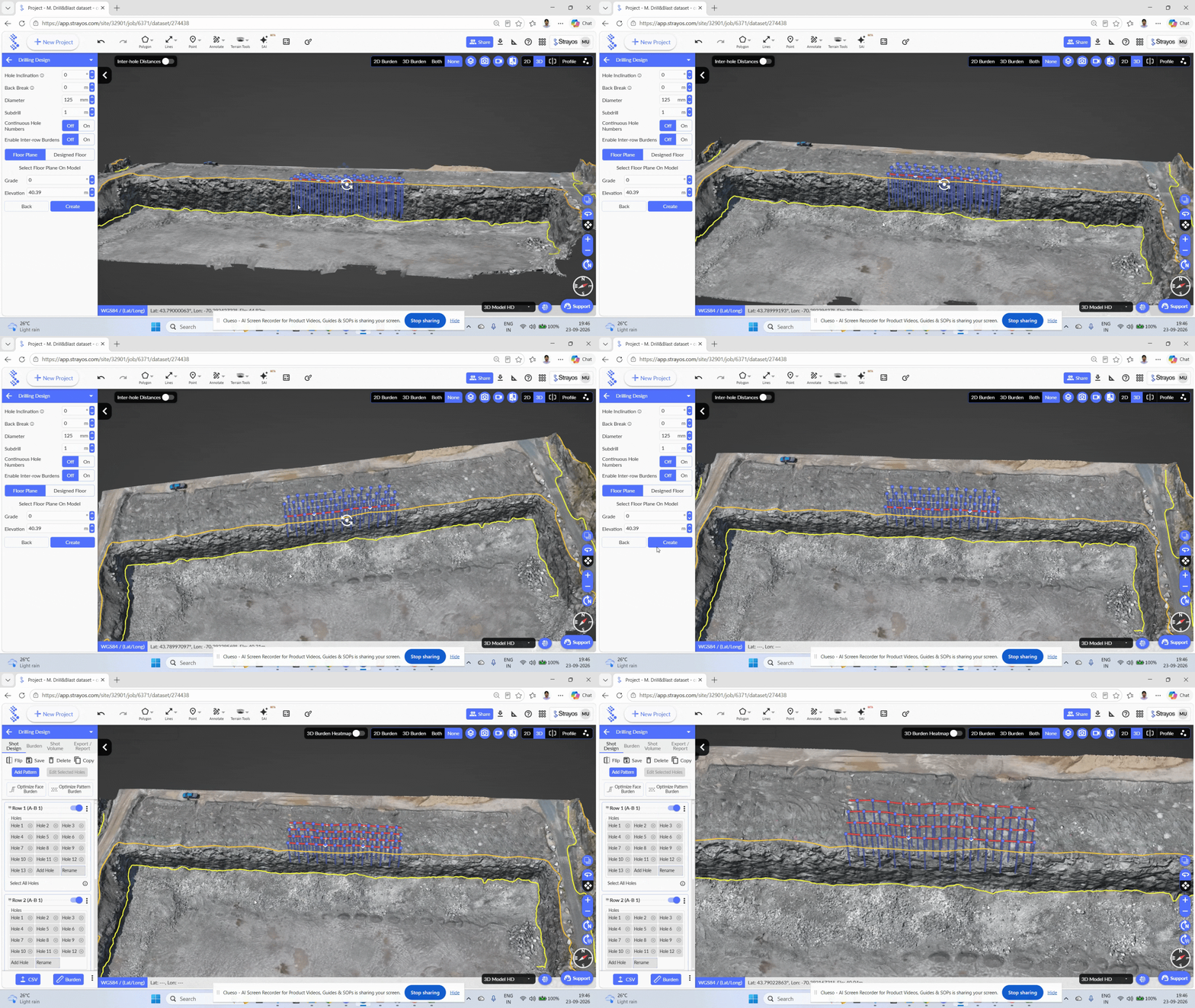
Note: Click "Save" to create a checkpoint. Checkpoints are useful to save different designs which you can retrieve.

Method 2: Pick AB Points
Step 1: Place Points.
Select Pick AB Points, then place your A and B points.
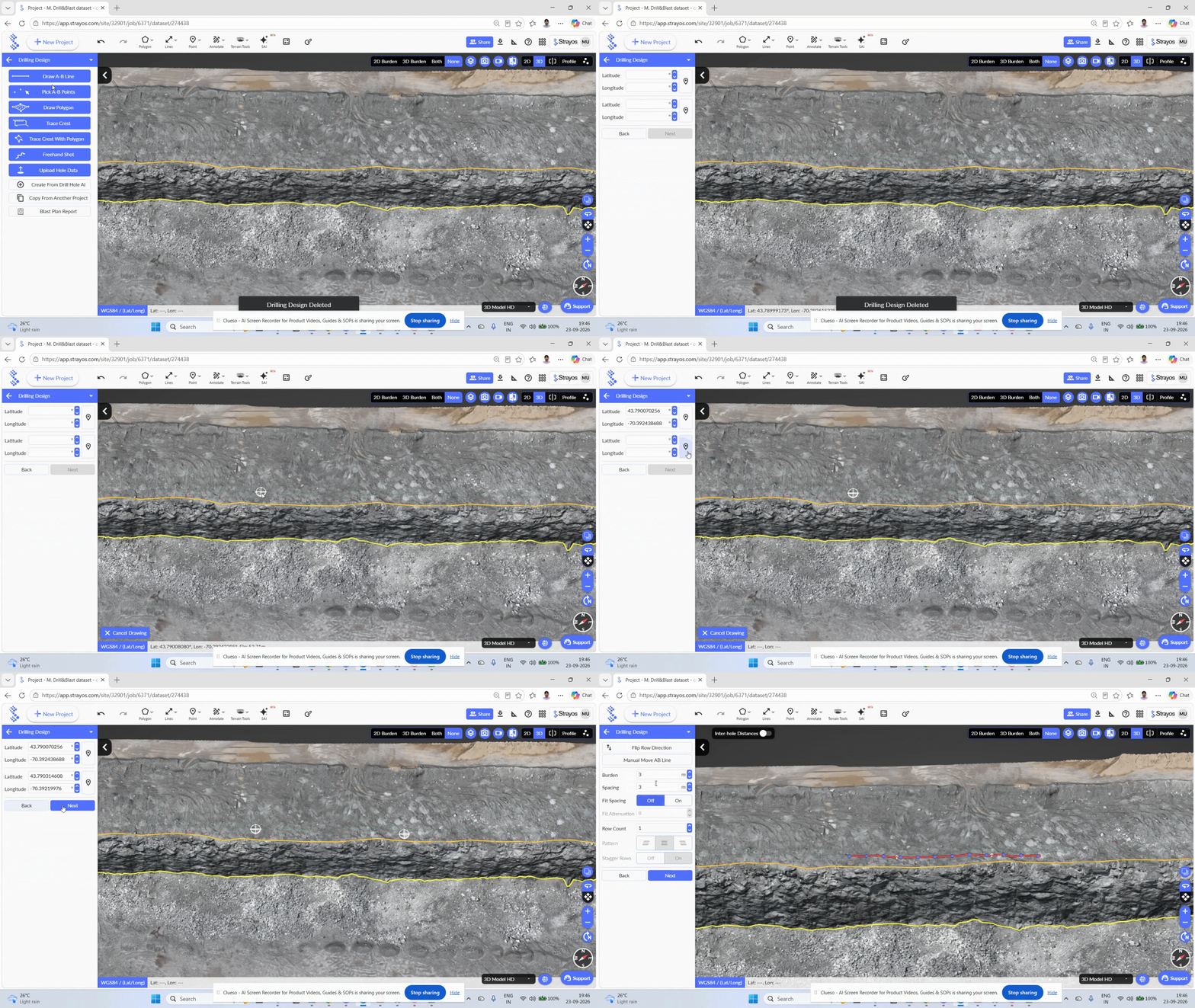
Step 2: Continue setup.
Click Next, flip direction, add rows as before. The drill plan now follows your AB direction. Set Burden, Spacing and rest of options.
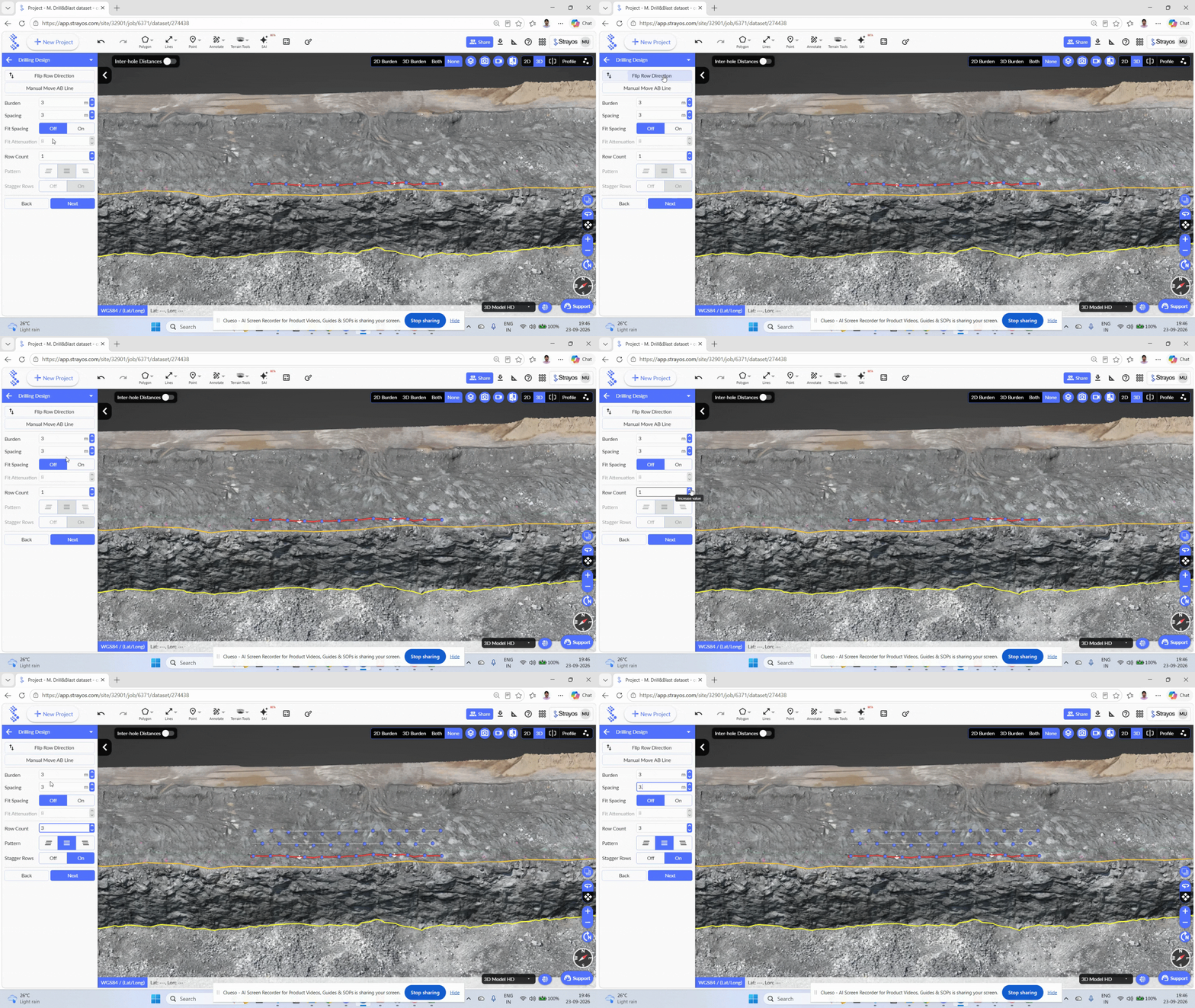
Next Steps: Continue Step 4 to Step 10 of Method 1 to get final drill design
Method 3: Draw Polygon
Step 1: Select Polygon tool.
Click Draw Polygon and outline your desired blast area. Double click to finish polygon.
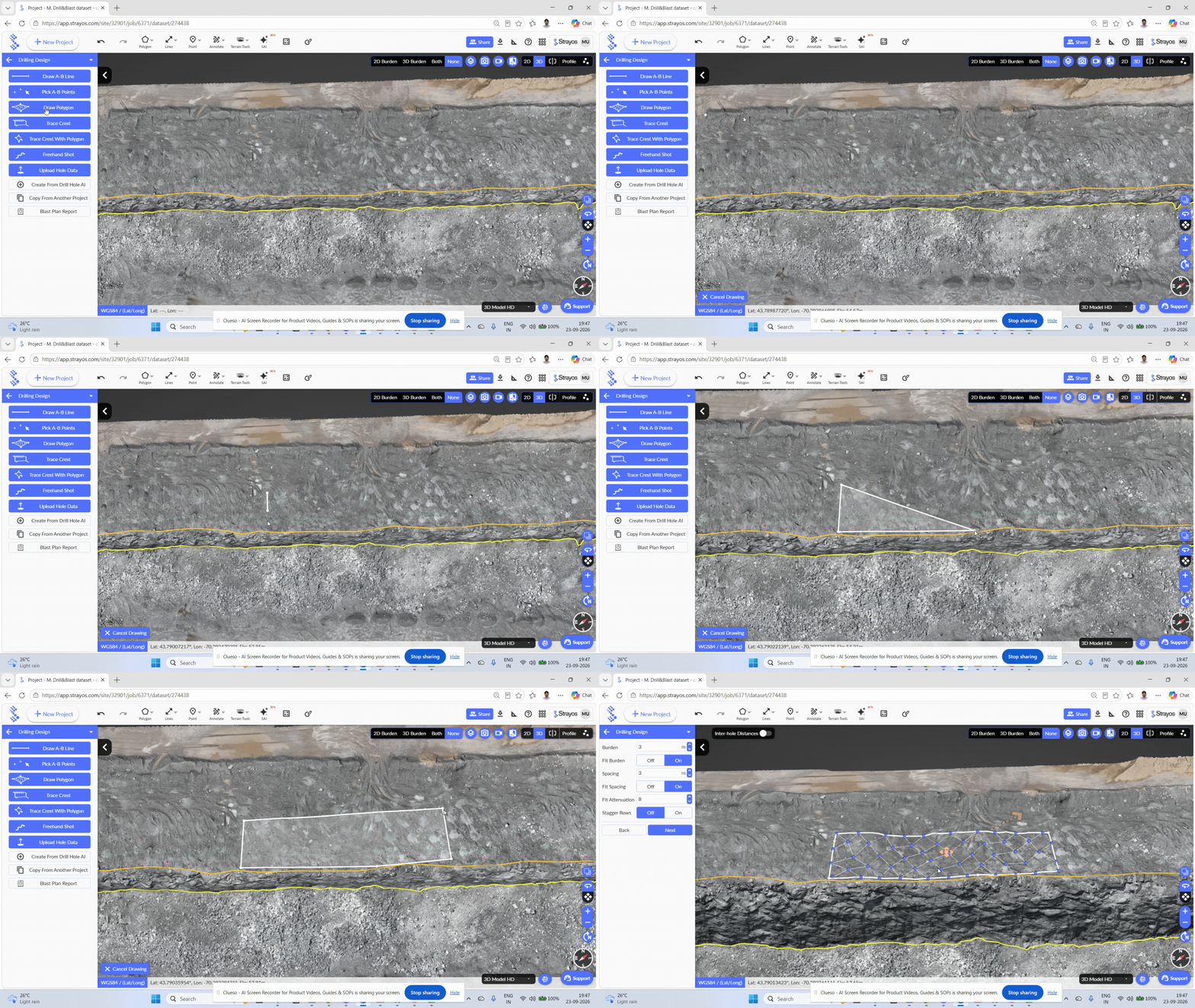
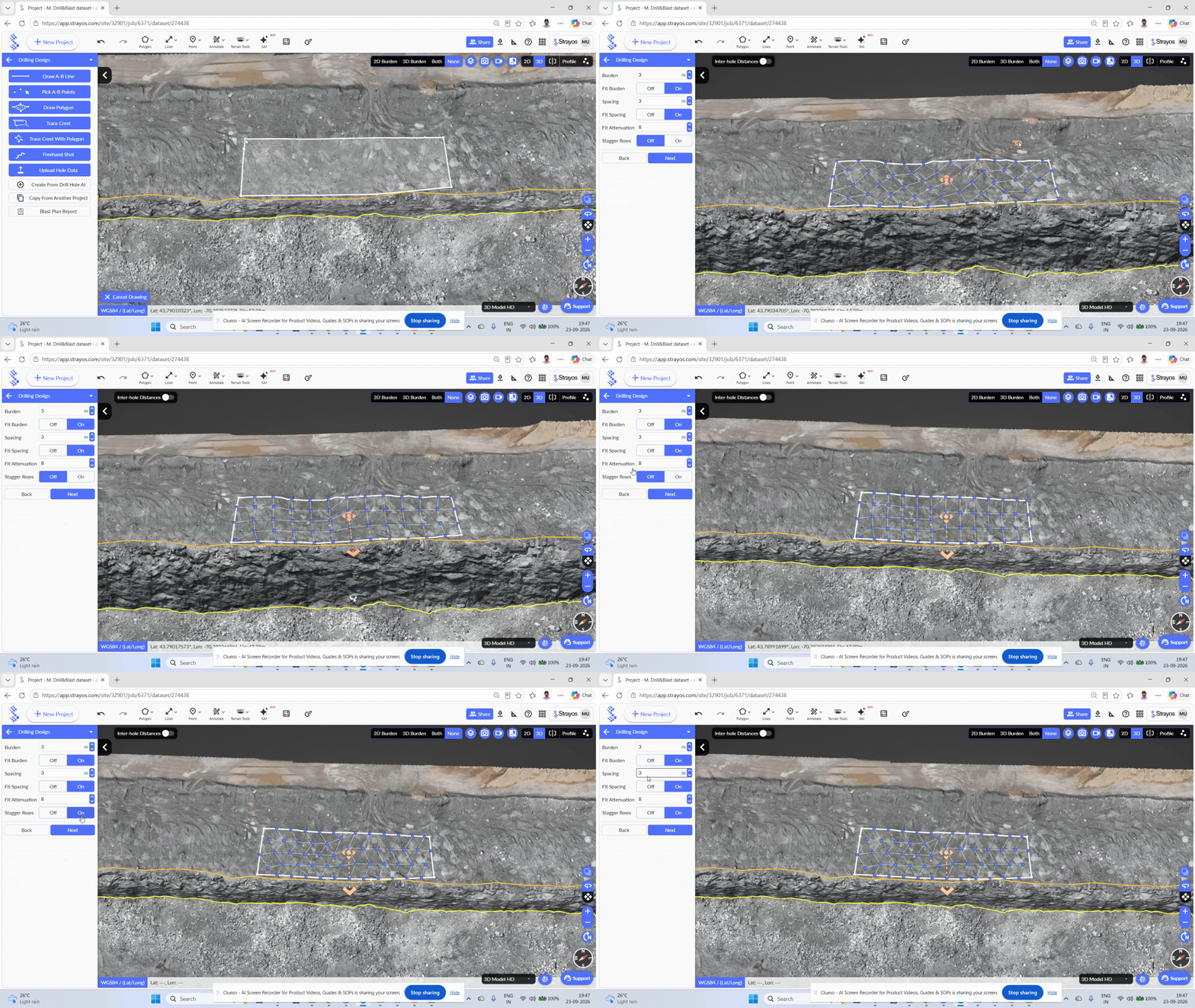
Step 2: Set direction and options.
Drag the arrow for drill direction to desired angle. Set the burden, spacing. Enable Staggered Rows if required. Click Next.
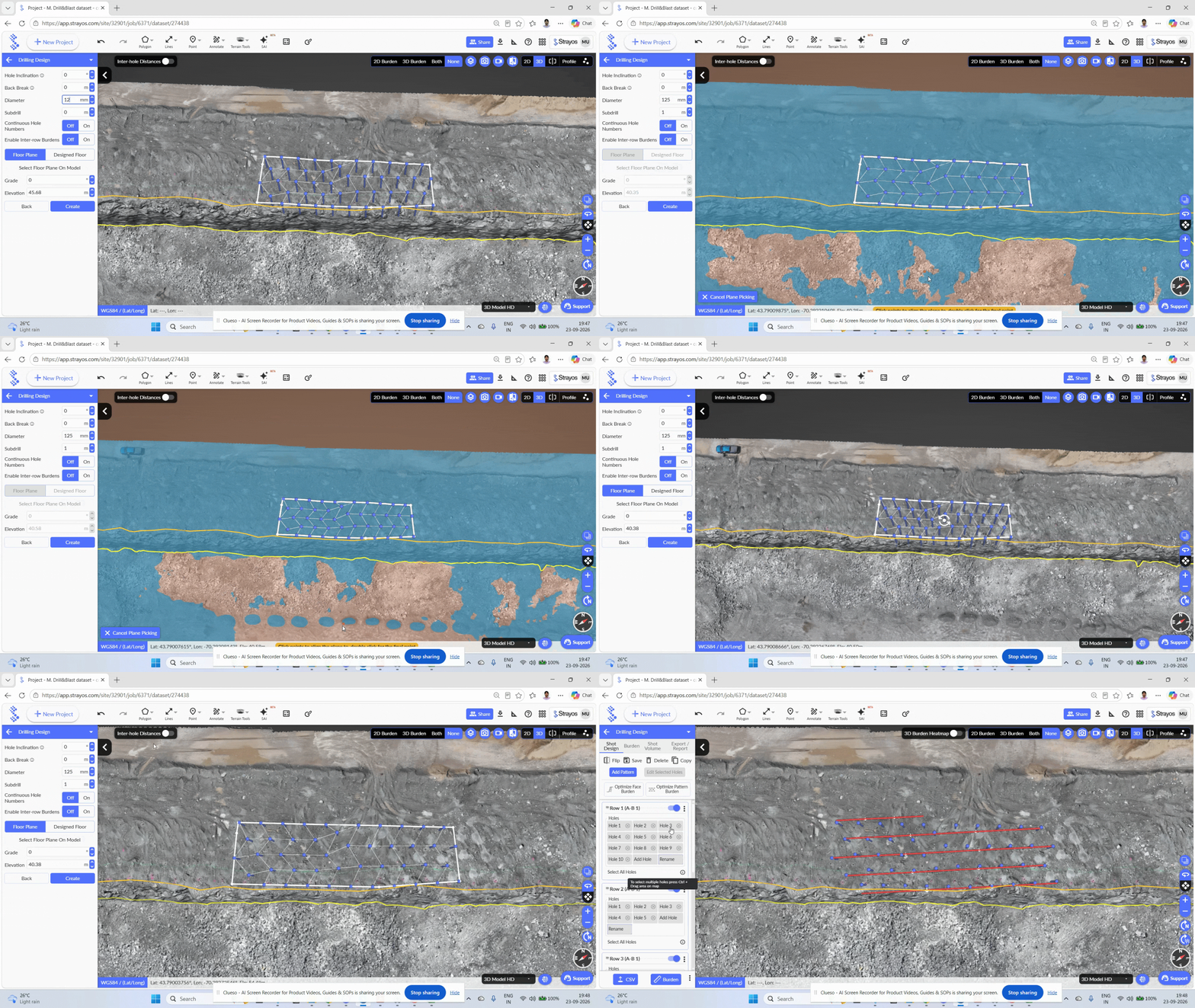
Step 3: Enter details and finish.
Enter Hole inclination, back break, diameter, subdrill, select appropriate floor plane and click create to finish the drill design.
Method 4: Trace Crest
Step 1: Use Trace Crest to place drill holes
- Since Strayos detects crest and toe lines, you have the option to design the drill holes based on the crest tracing.
- Select Trace Crest from the options.
- Drag along the crest of the bench. Double click to finish tracing.
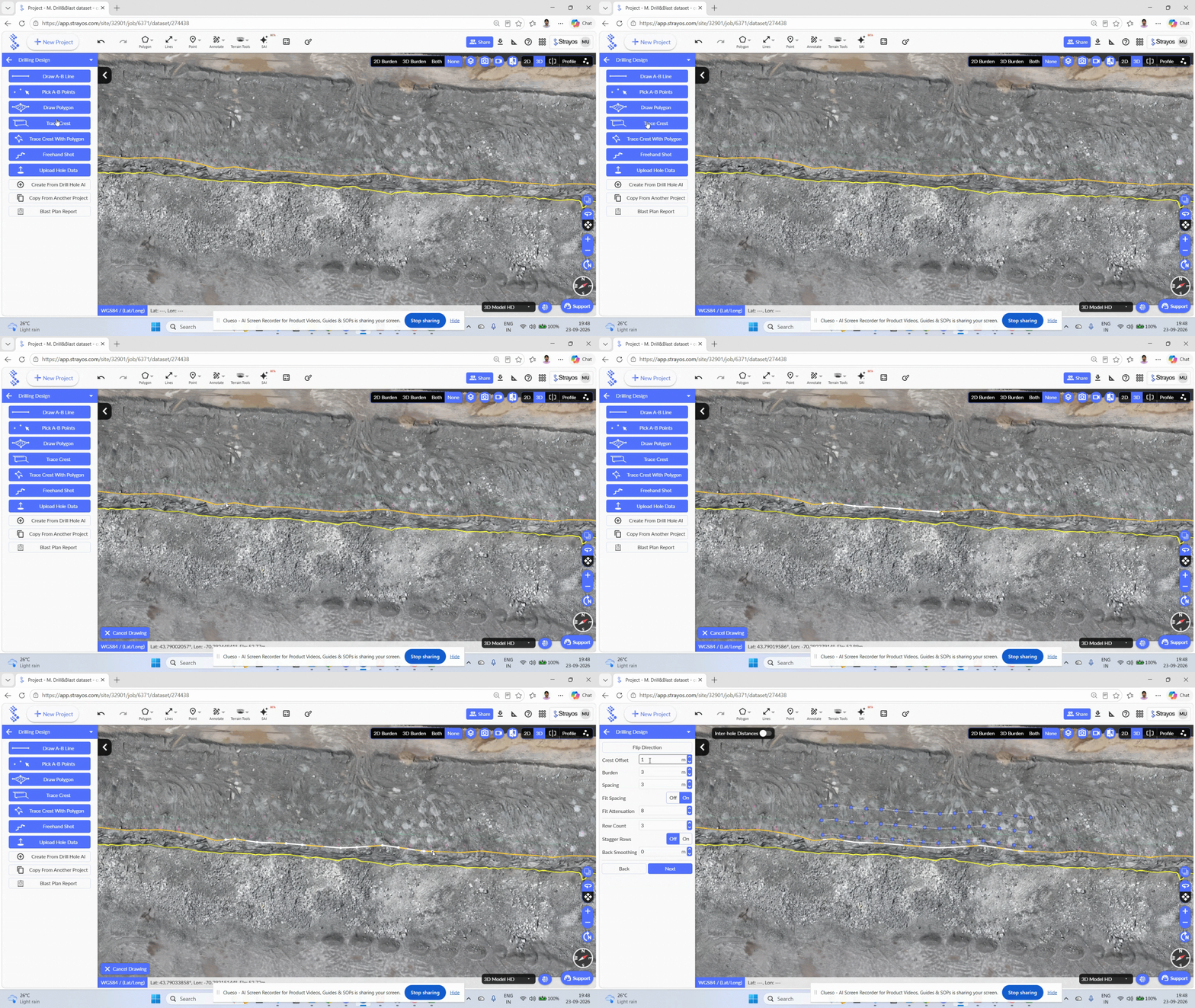
Step 2: Set the crest offset and design parameters
- Enter the crest offset to position the first line of drill holes from the bench face.
- Select the burden and spacing, staggered rows, click Next
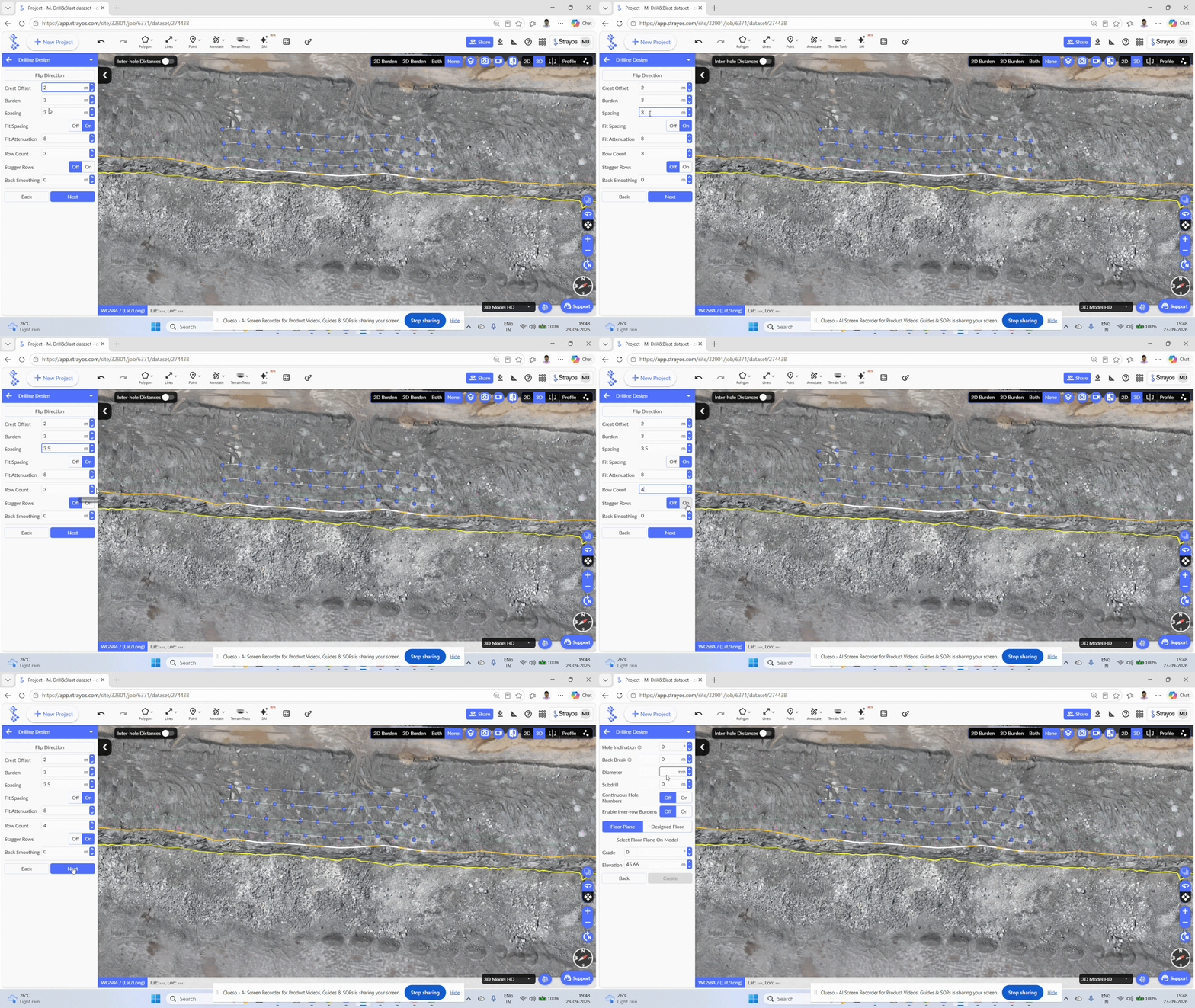
Step 3: Set the design parameters, floor level and finish
Enter the remaining design parameters like hole inclination, diameter, subdrill etc. Select the appropriate floor plane. Click create to finish the drill design.
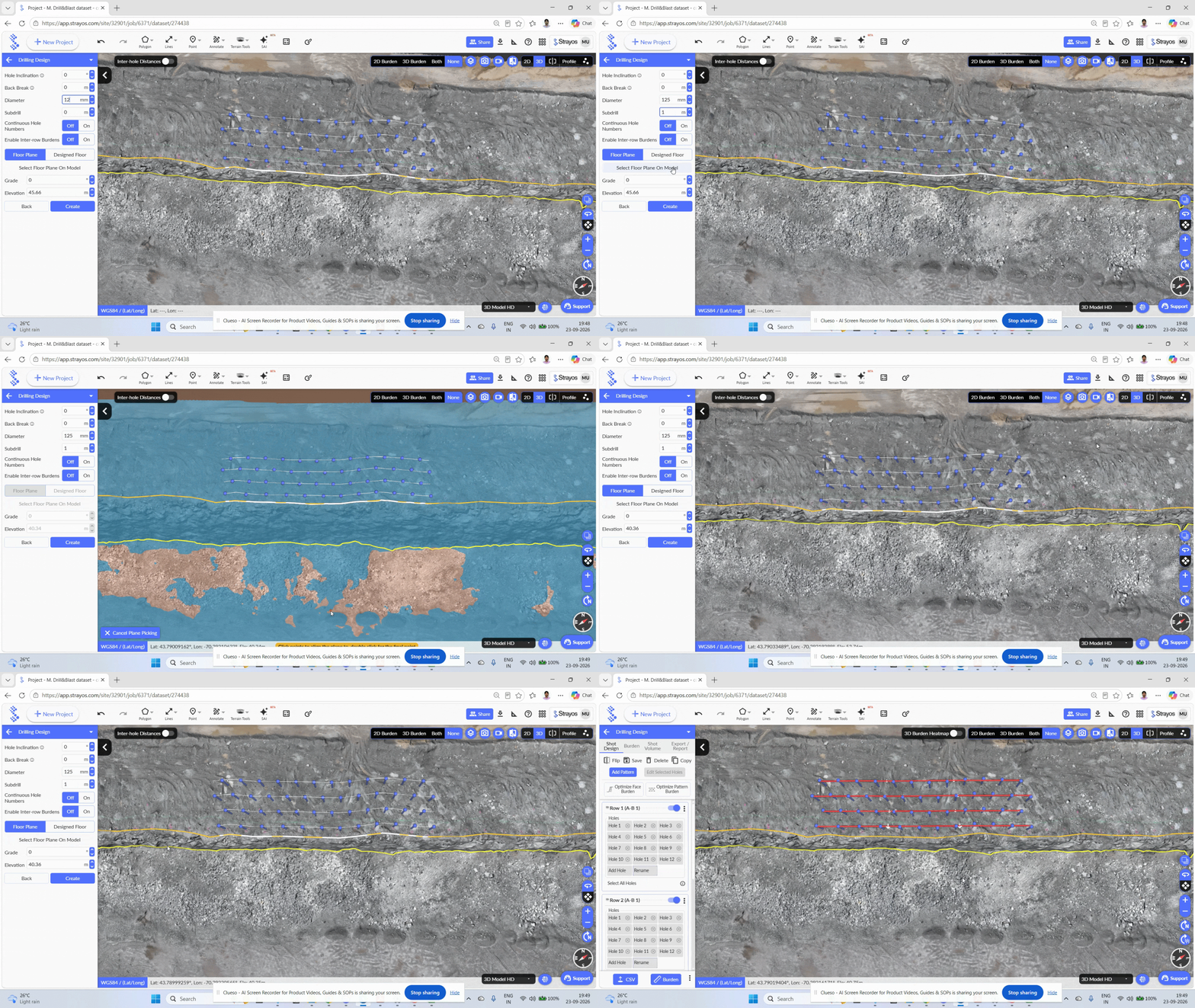
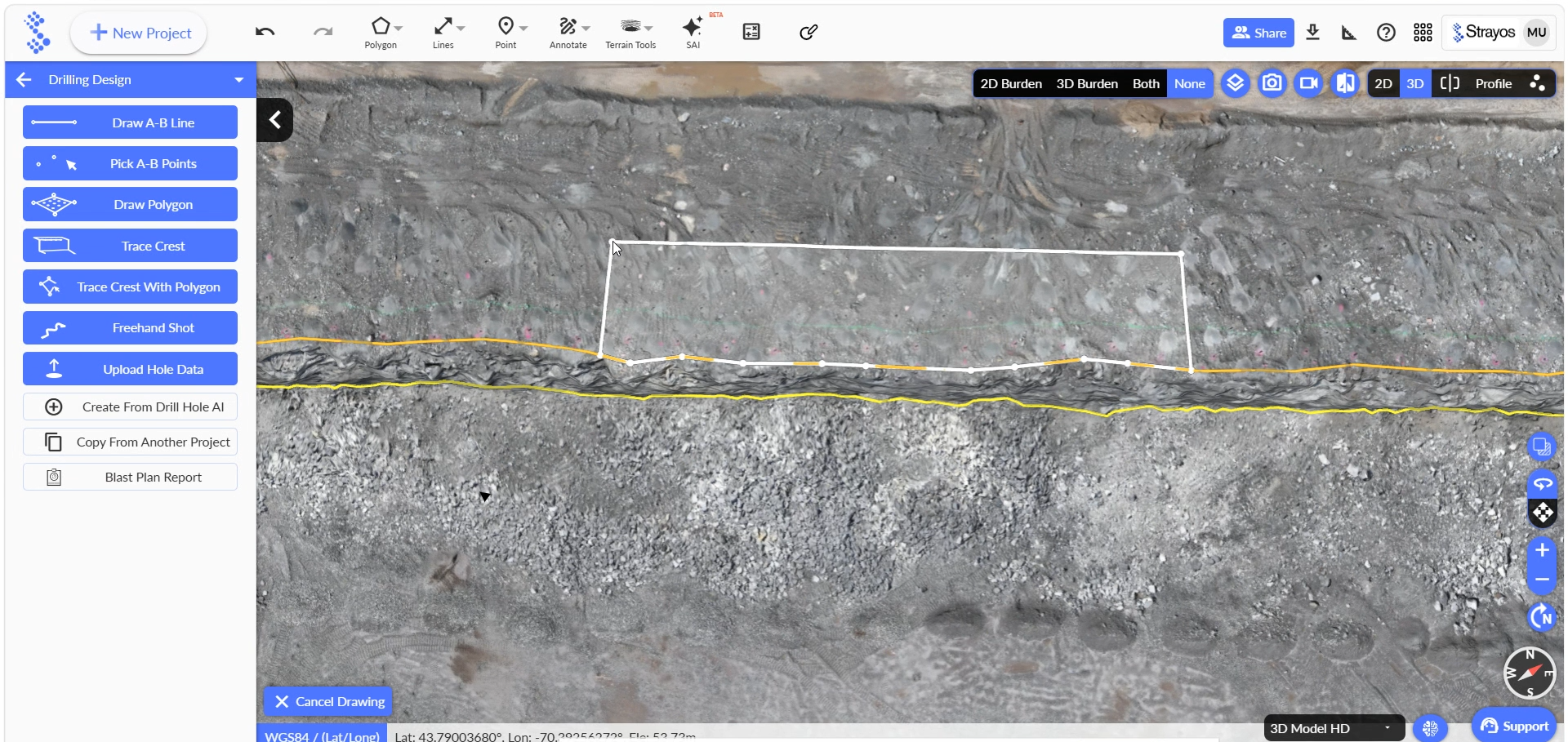
Method 5: Trace Crest with Polygon
Step 1: Choose Trace Crest with Polygon.
- This combines crest tracing and a defined polygon boundary in the back row. To design the drill, select the Trace crest with polygon option.
- Trace the crest to the desired position and move the cursor upward to create the polygon boundary. Double click to finish the polygon.
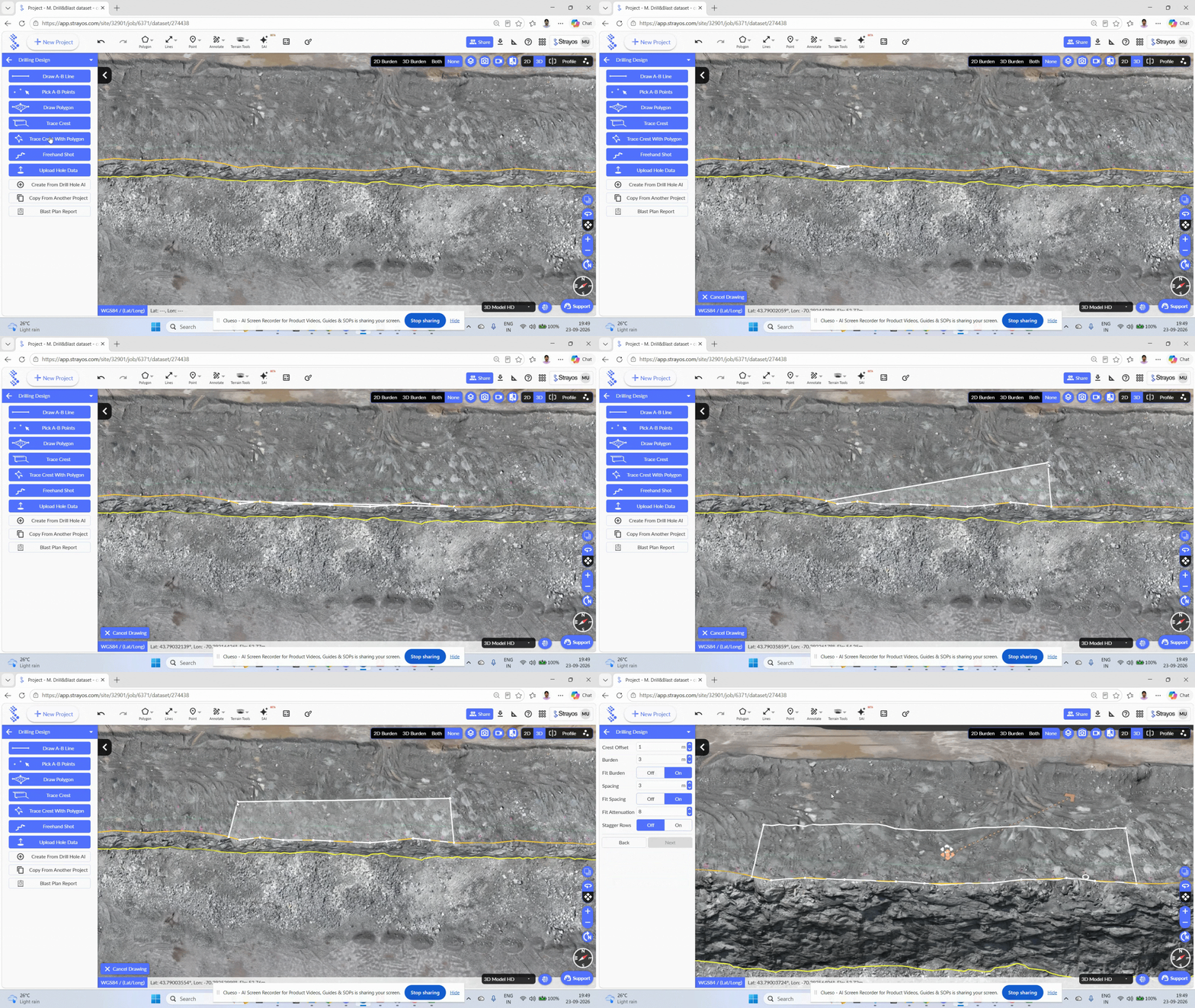
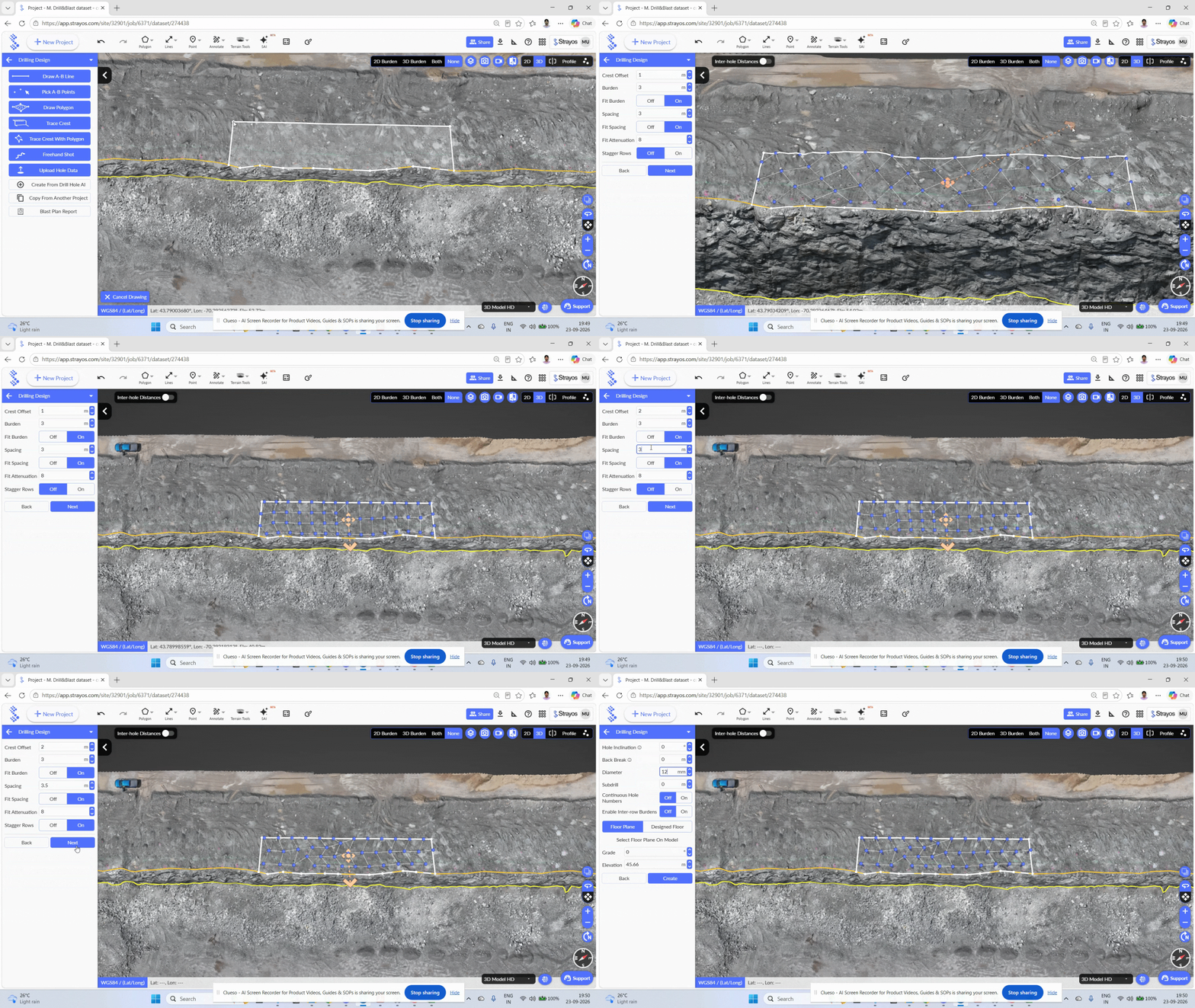
Step 2: Enter the crest offset and design parameters
Give the drill direction. Enter the crest offset, spacing, staggered rows, click Next.
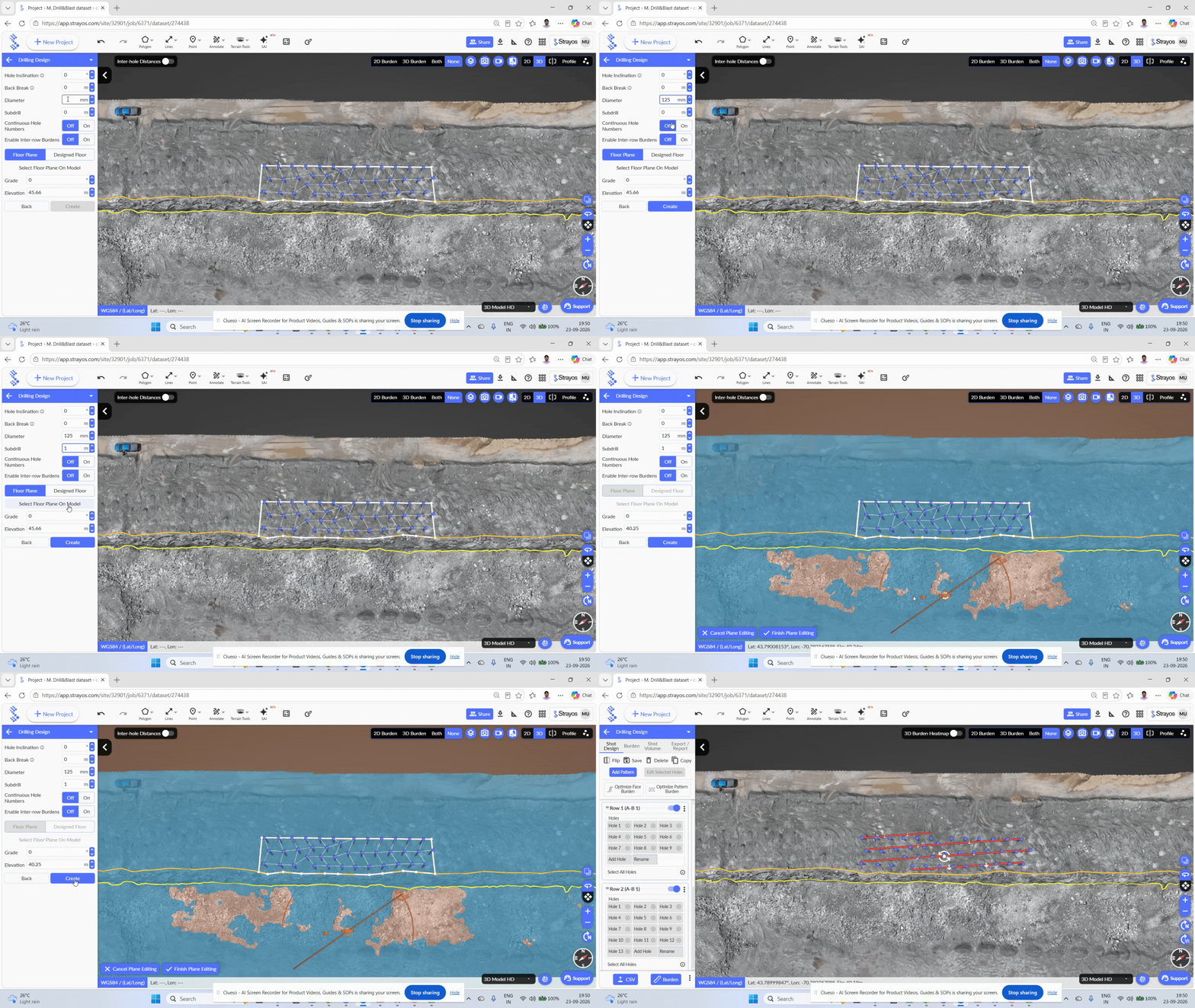
Step 3: Finalize and create holes.
Enter the remaining design parameters. Select appropriate floor plane. Click create to finish the drill design.
Method 6: Free Handshot
Step 1: Choose Free Handshot for custom lines.
- Select the Freehand shot. Draw a line freely and double click to finish.
- Set the appropriate crest offset, spacing, rows, and pattern layout options. Click Next
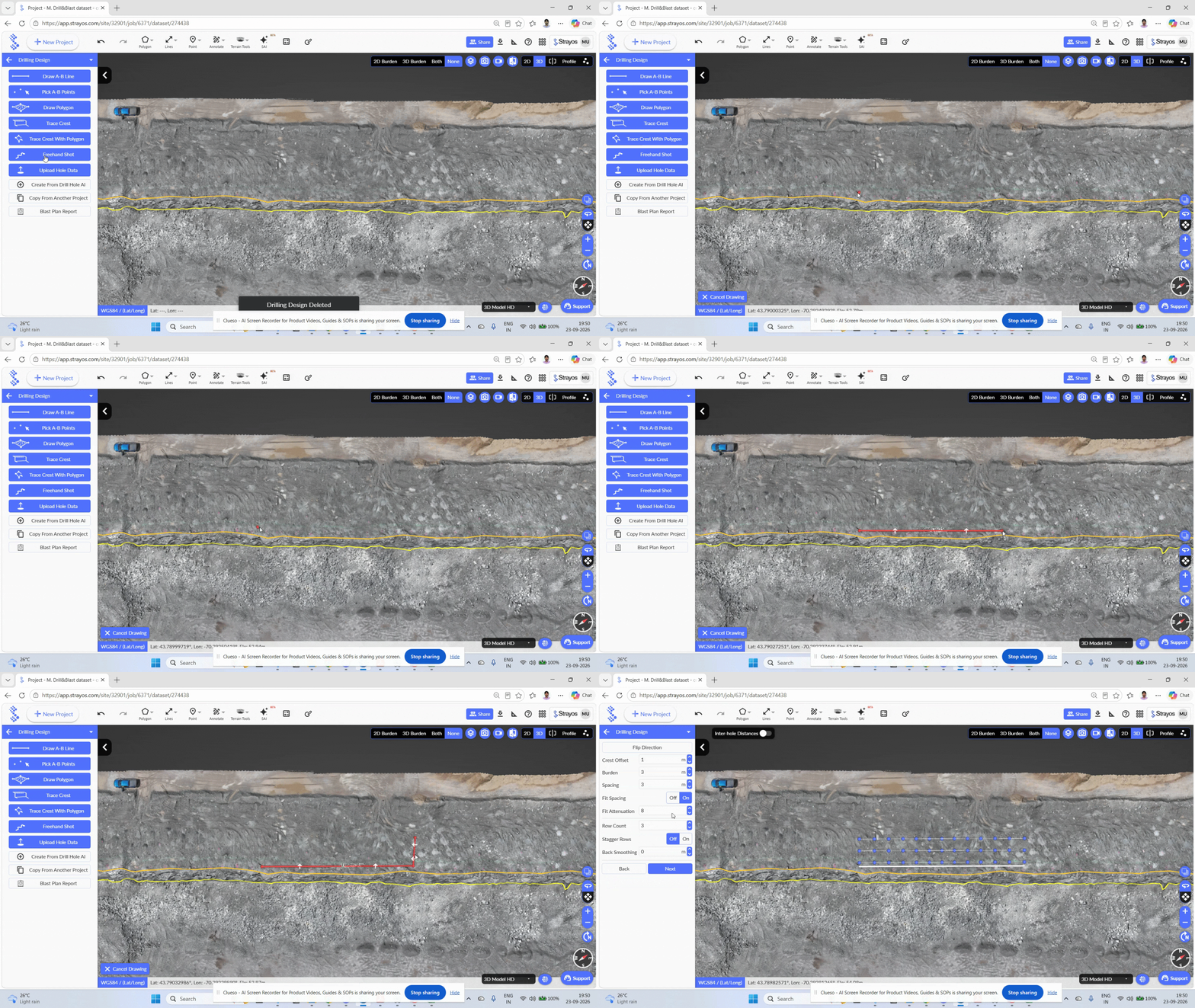
Step 2: Define drilling info and finish.
Enter remaining design parameters, select appropriate floor plane. Click Create to finish the drill design.
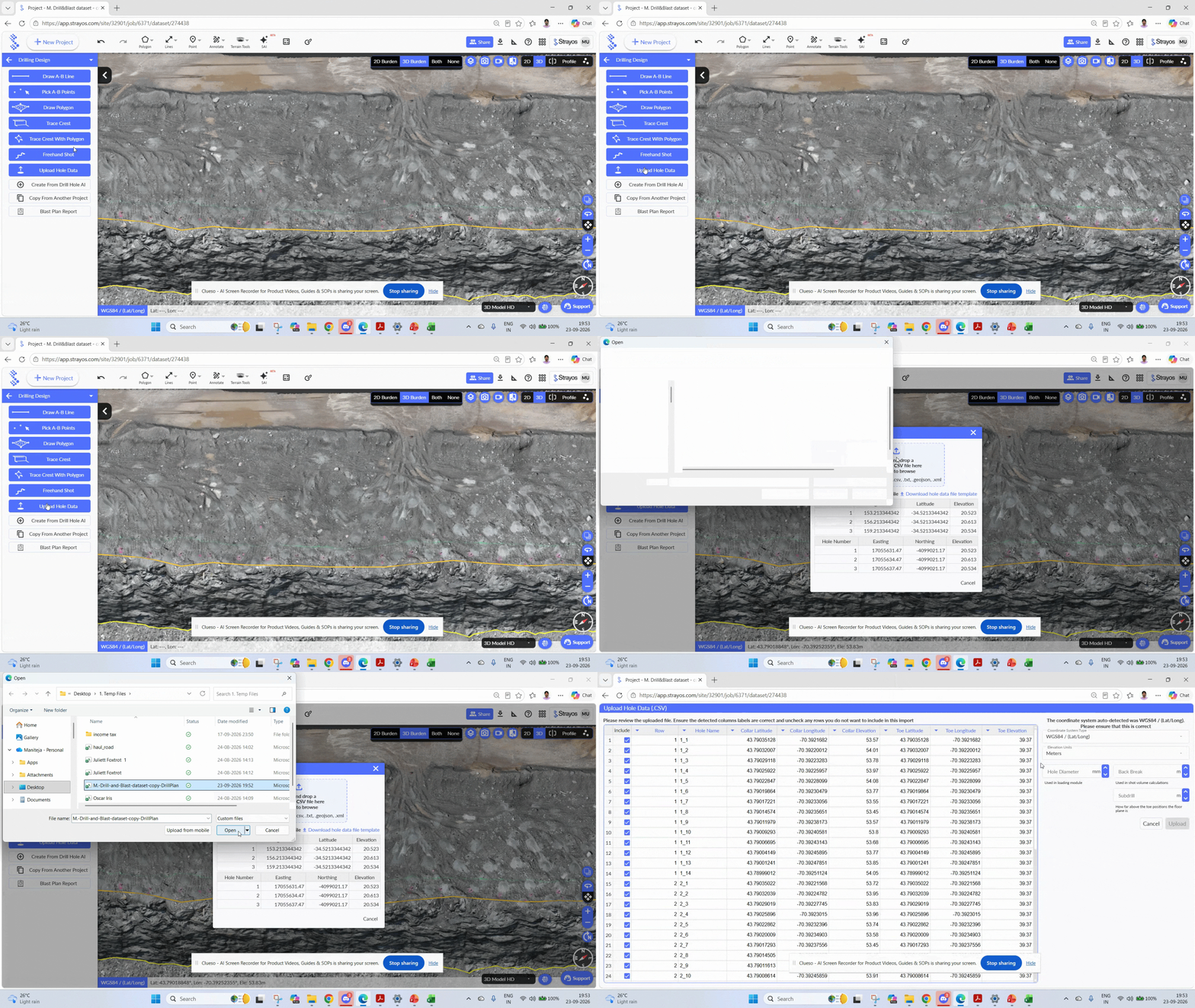
Method 7: Upload Hole Data
Step 1: Import from CSV.
Click Upload Hole Data. Select the drill hole plan .csv file and choose the correct design file.
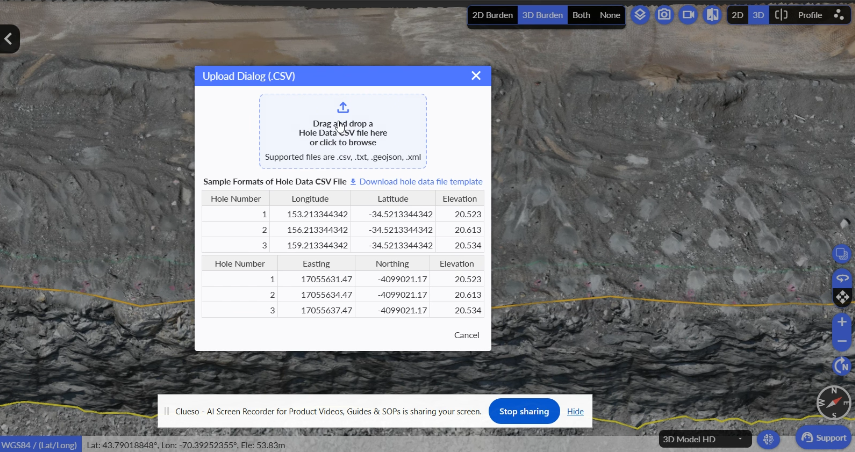
Note: Strayos platform accepts a defined format of drill design data in csv file. Download the template and prepare the drill plan accordingly.
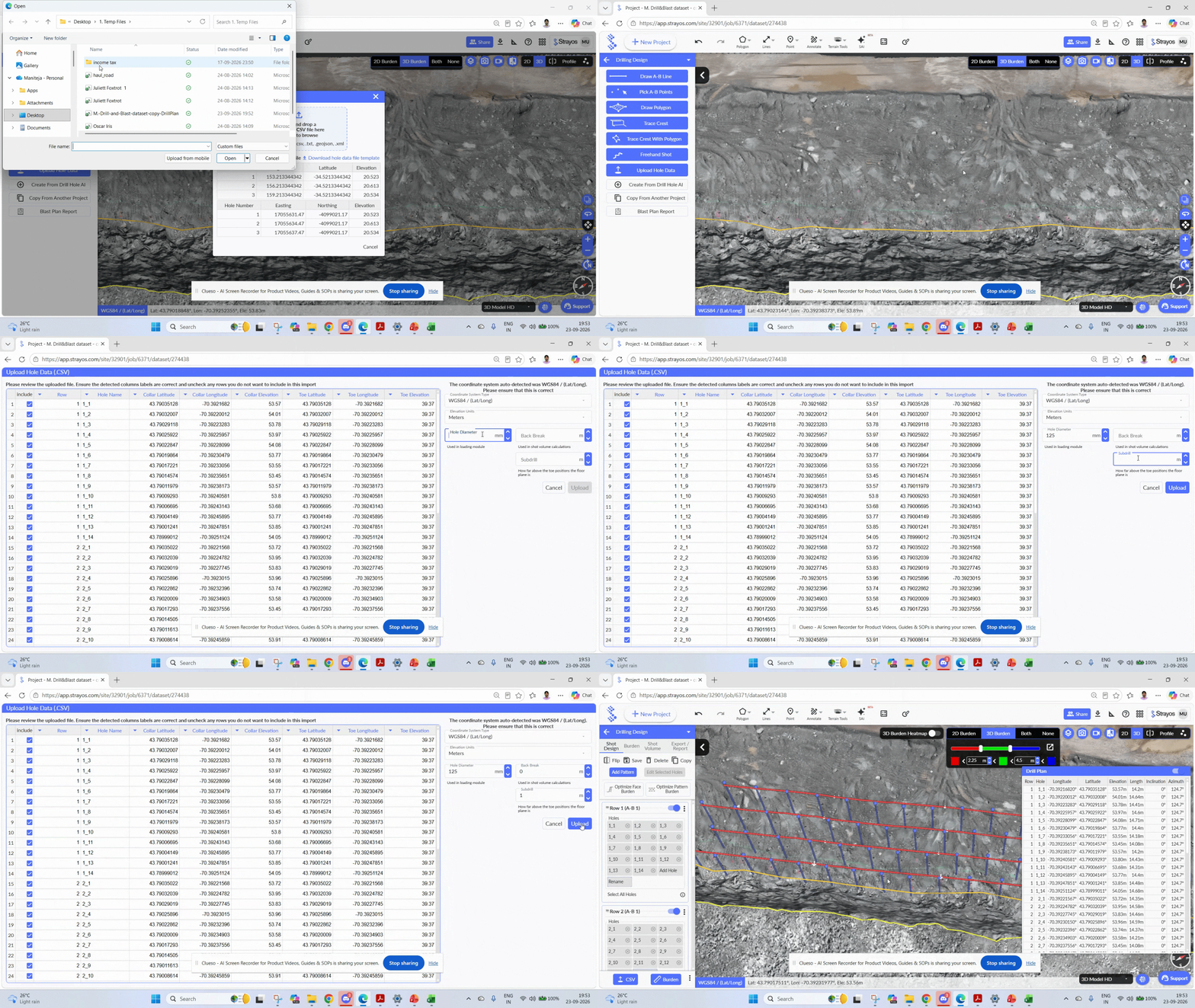
Step 2: Review and set design parameters
Review the file, set hole diameter, subdrill details, and click upload to finish the drill design.
Method 8: Create from Drill Hole AI
Note: The method is applicable only when there are drilled holes which clearly visible in the 3D bench model and Collar Deviation AI is turned on when uploading the raw drone images.

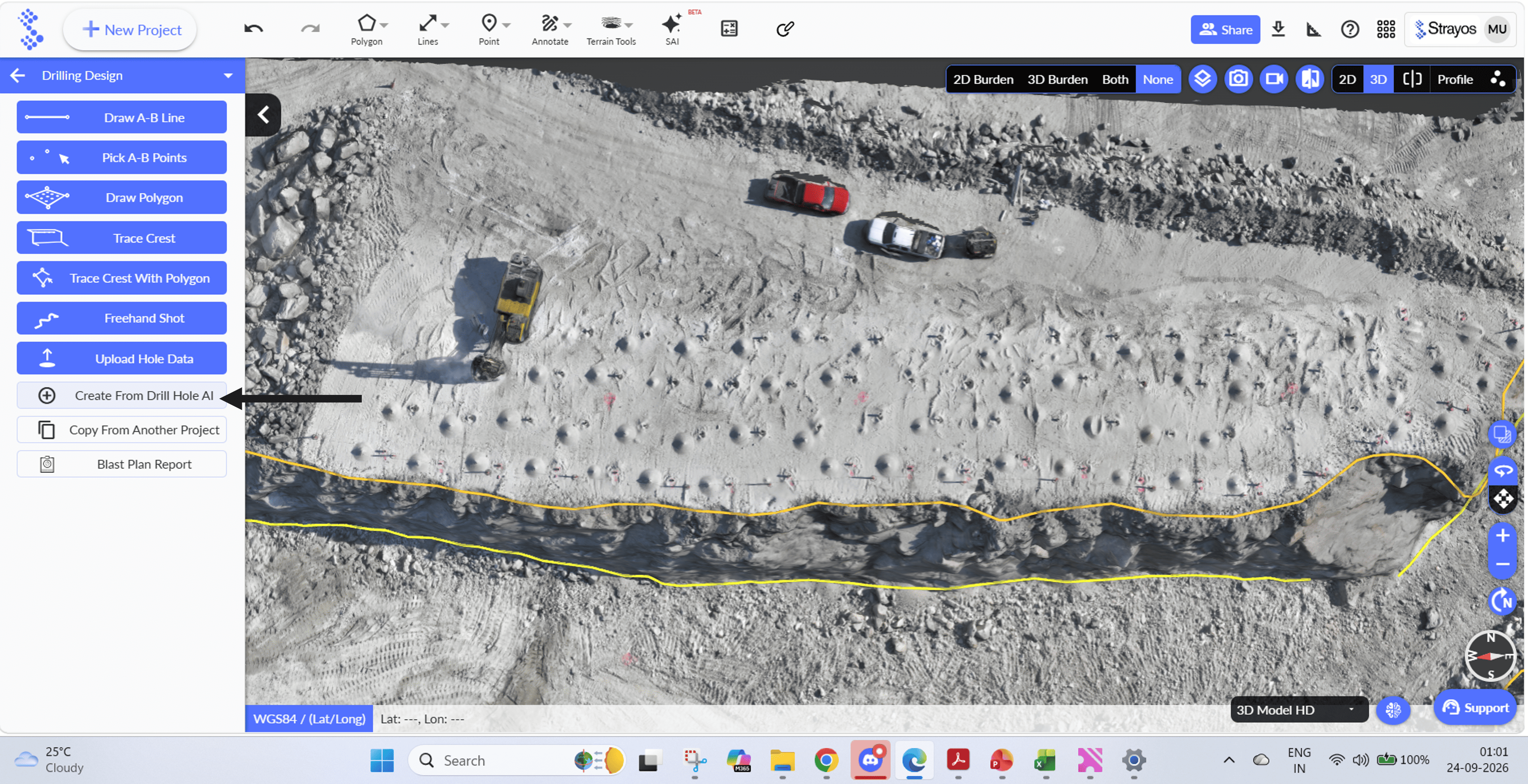
Step 1: Select Create from Drill Hole AI
Select the create from Drill Hole AI option. Strayos automatically detects the drill holes and displays them.
AI detected drill holes are displayed.
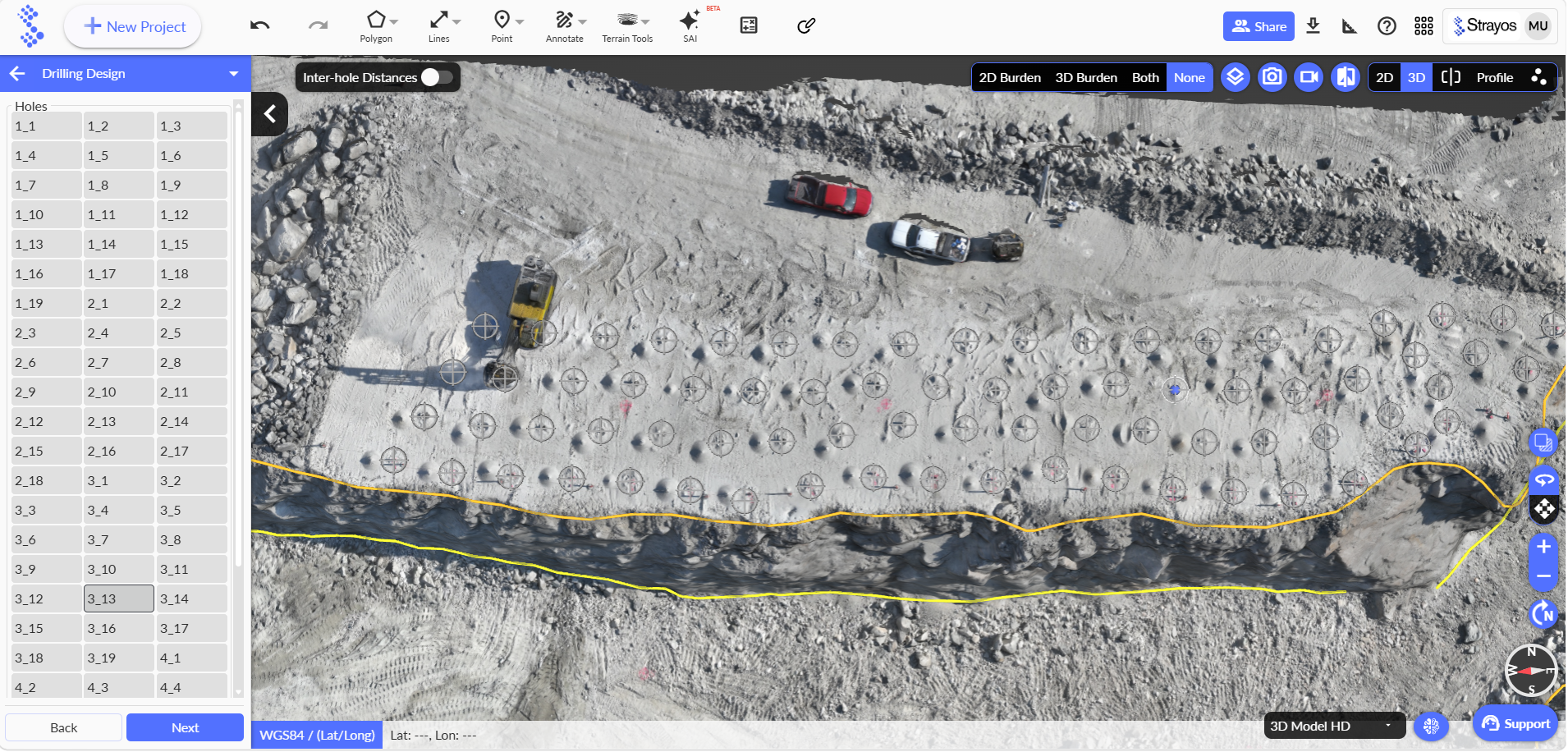
Step 2: Select the detected holes
Select the detected holes one by one. Hold Shift key and left click on mouse to select the hole.
Select all the relevant detected drill holes. Click Next to show the final selected holes and click Next again.
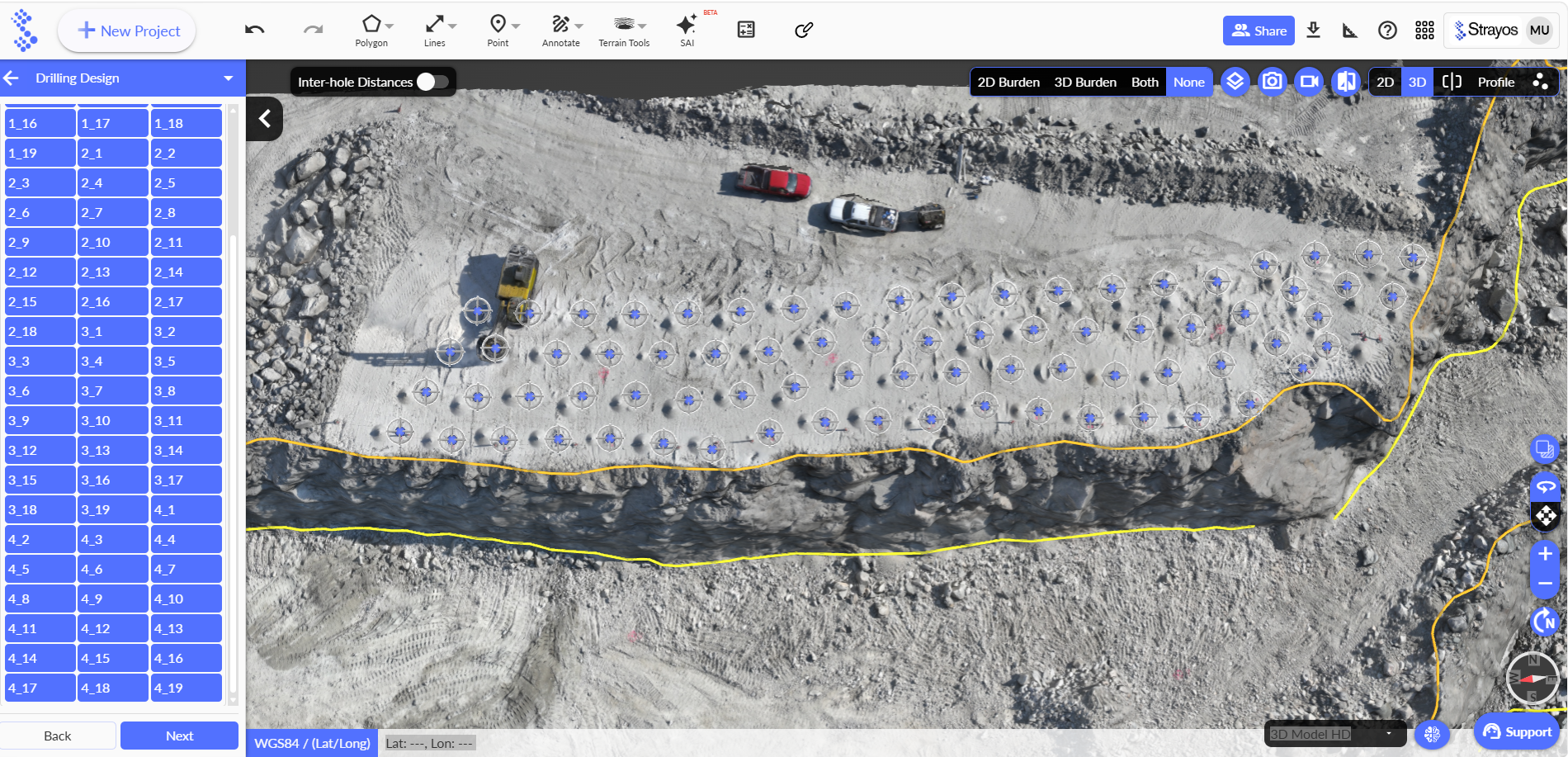
Step 3: Finalize and create the holes
Give the design parameters, select floor level and click create.
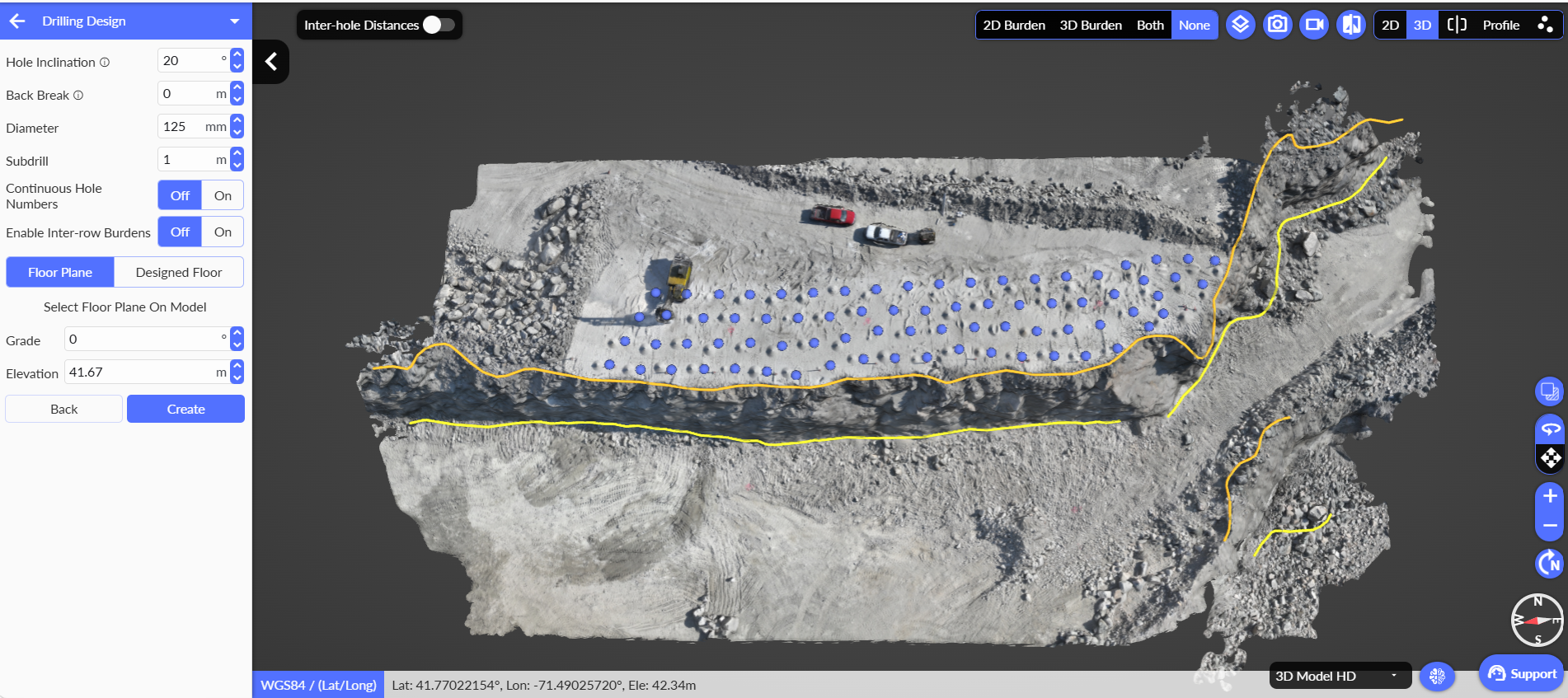
The final designed holes are displayed.
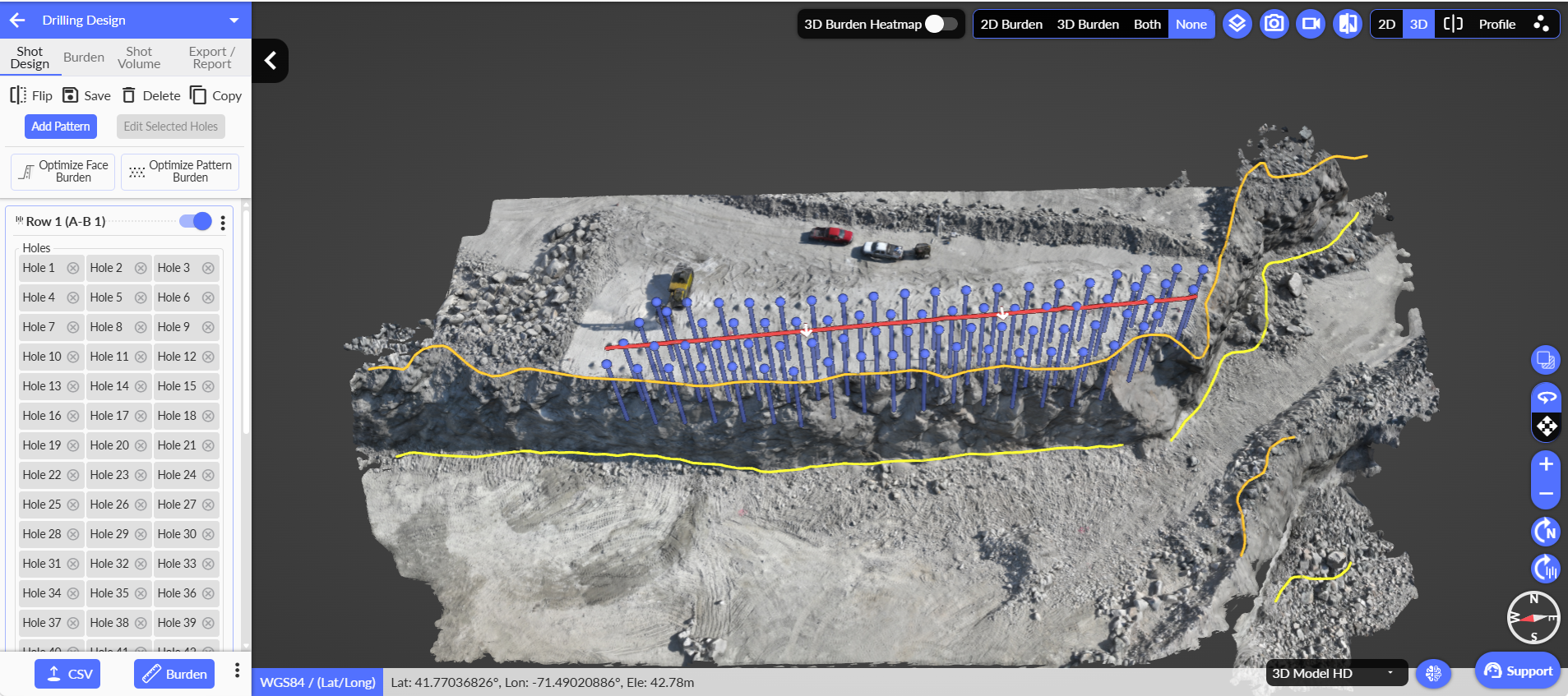
Additional Tool
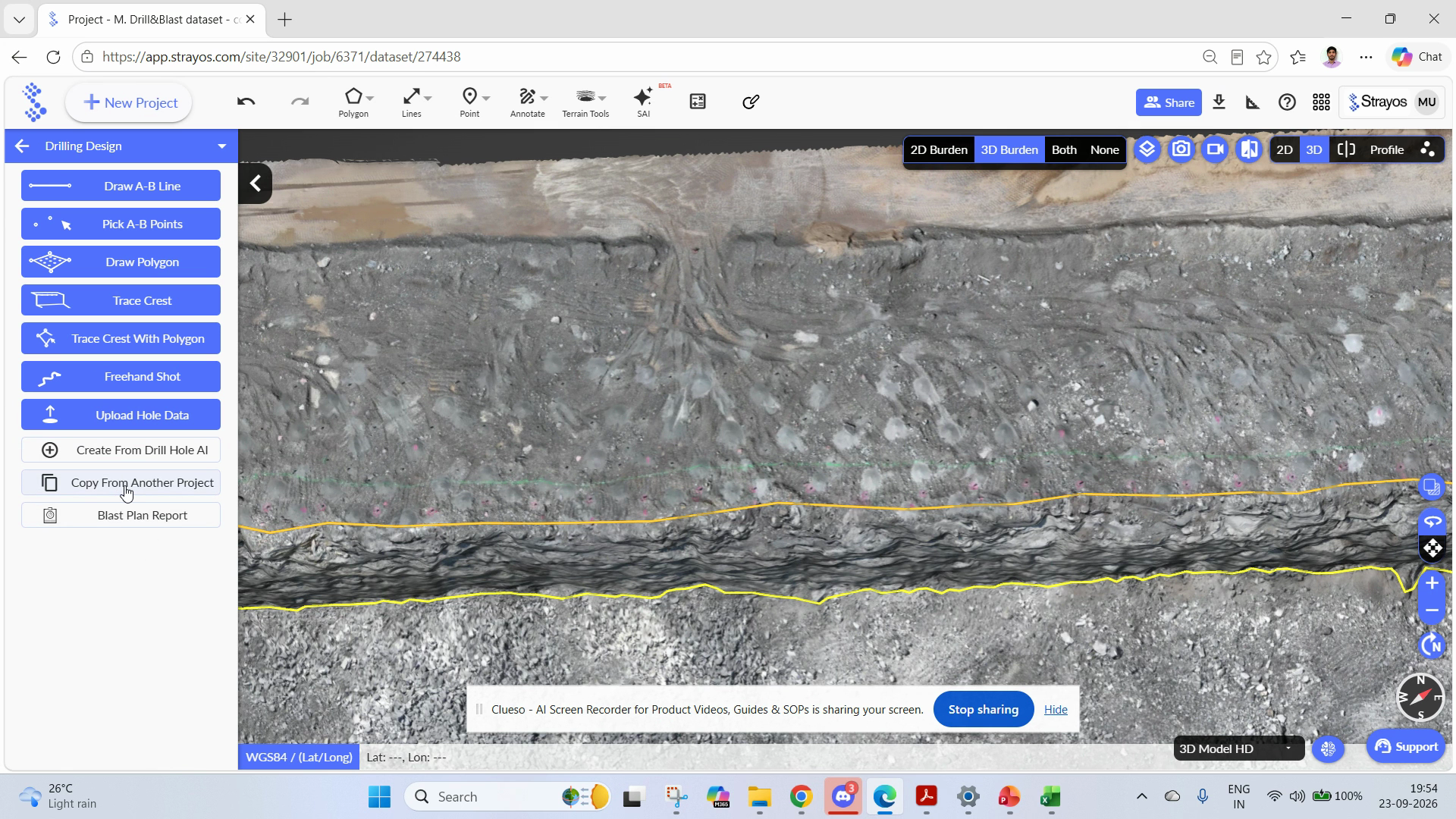
Strayos allows the copying of the drill design from another project of the same 3D model. Select the copy from another project
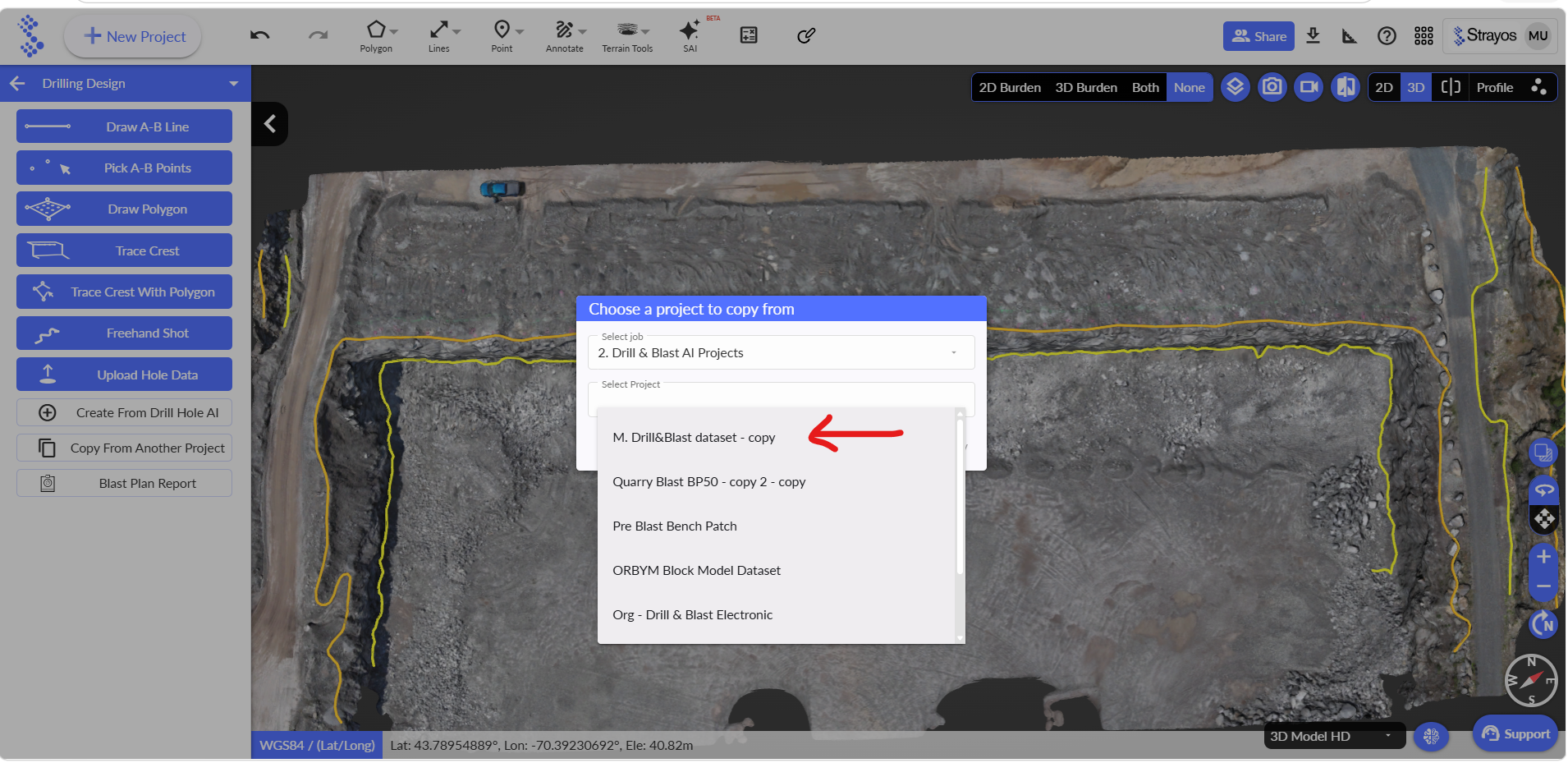
Select the copy dataset of the same 3D model.
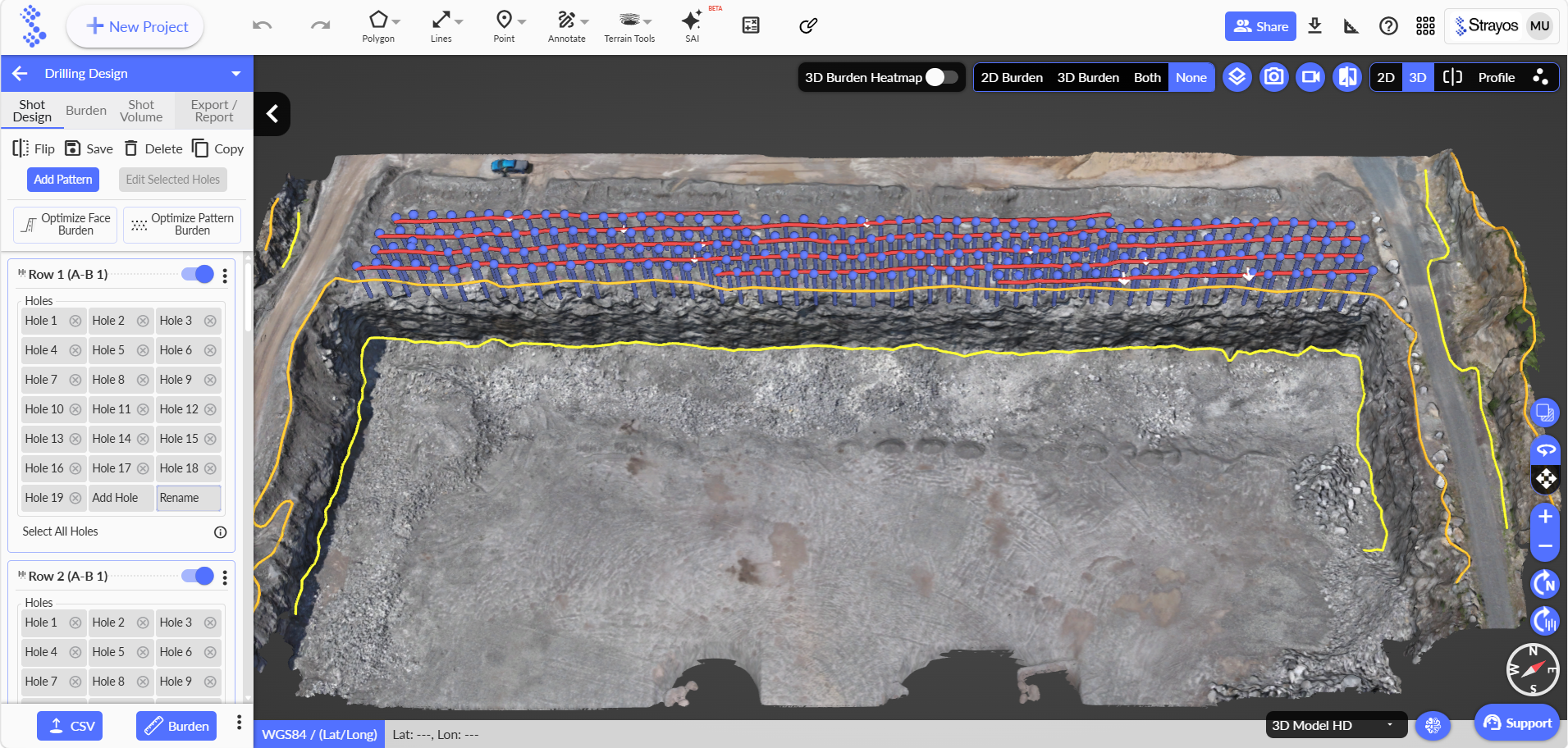
Click copy to copy and display the final design drill holes.

No matter which workflow you pick, drawing lines, tracing crests, uploading files, you’ll get powerful controls to optimize each blast for safety and efficiency.
Try different methods to find what suits your site and team best.