How to Create and Upload a New Project in the New Strayos UI
This workflow guides you through every step, from project creation to validation and upload in the new UI update.
1. Select the Survey Type
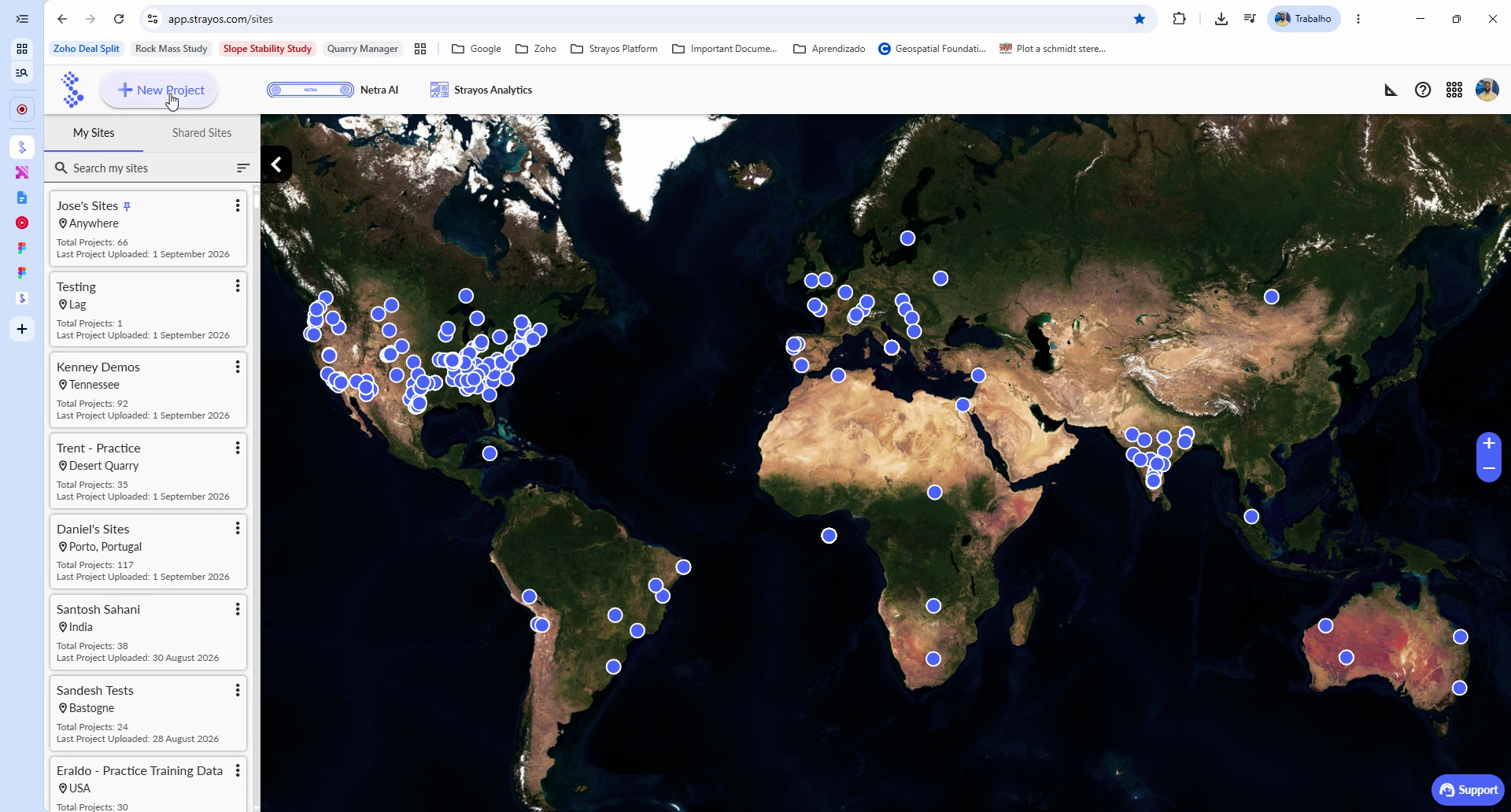
Step 1: Select New Project from the dashboard.
Step 2: Choose the survey type, such as Drill and Blast , Pit Survey or Stockpile Survey, for each one of them you can also select which word describe the best your current project. FOr isntance on a drill and blast survey the option "production" blasts can be selected and then click Next to continue.
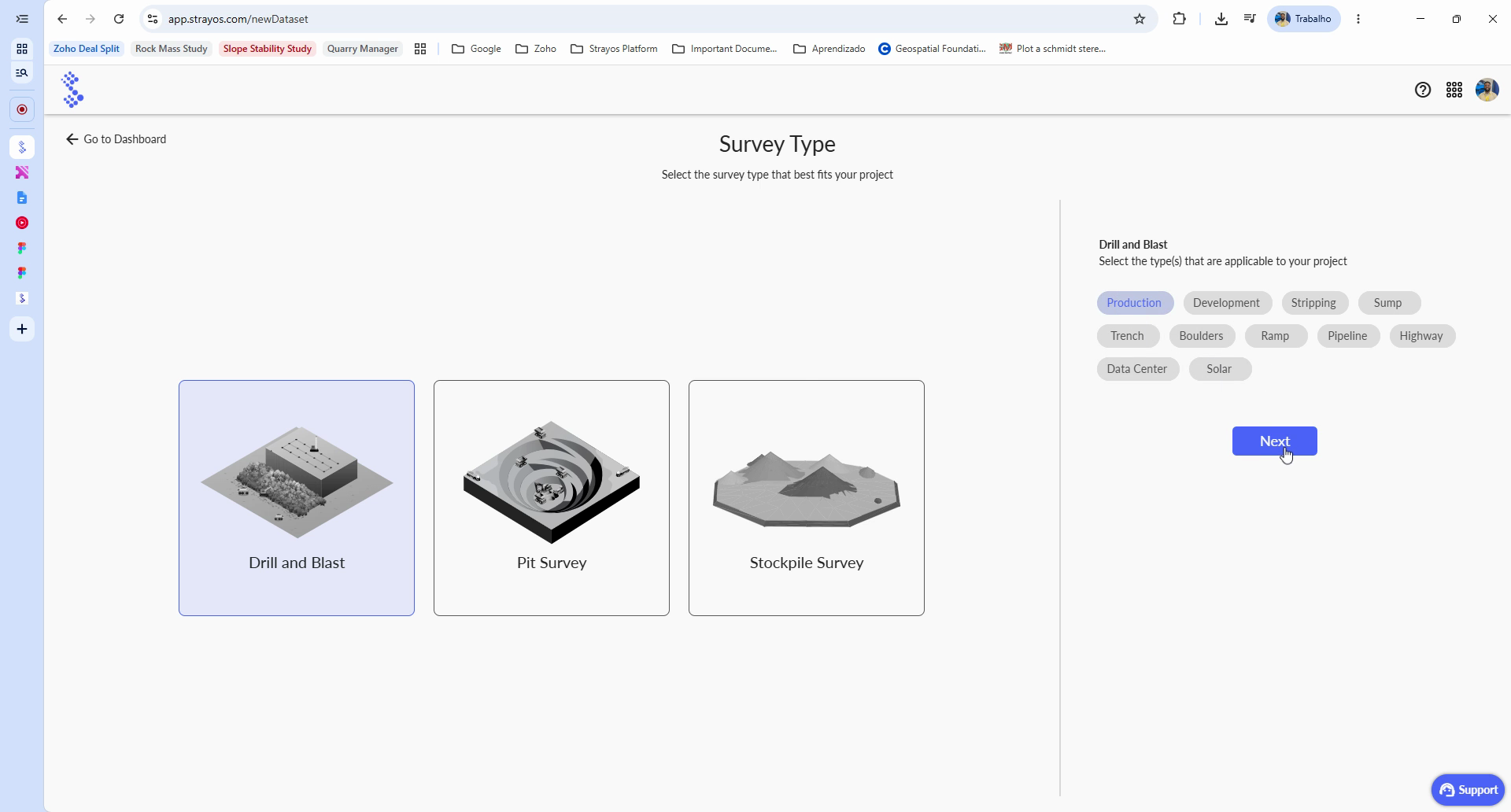
If you select a different survey type, the workflow and available AI tasks will update based on your choice.
2. Configure the Project and Upload Images
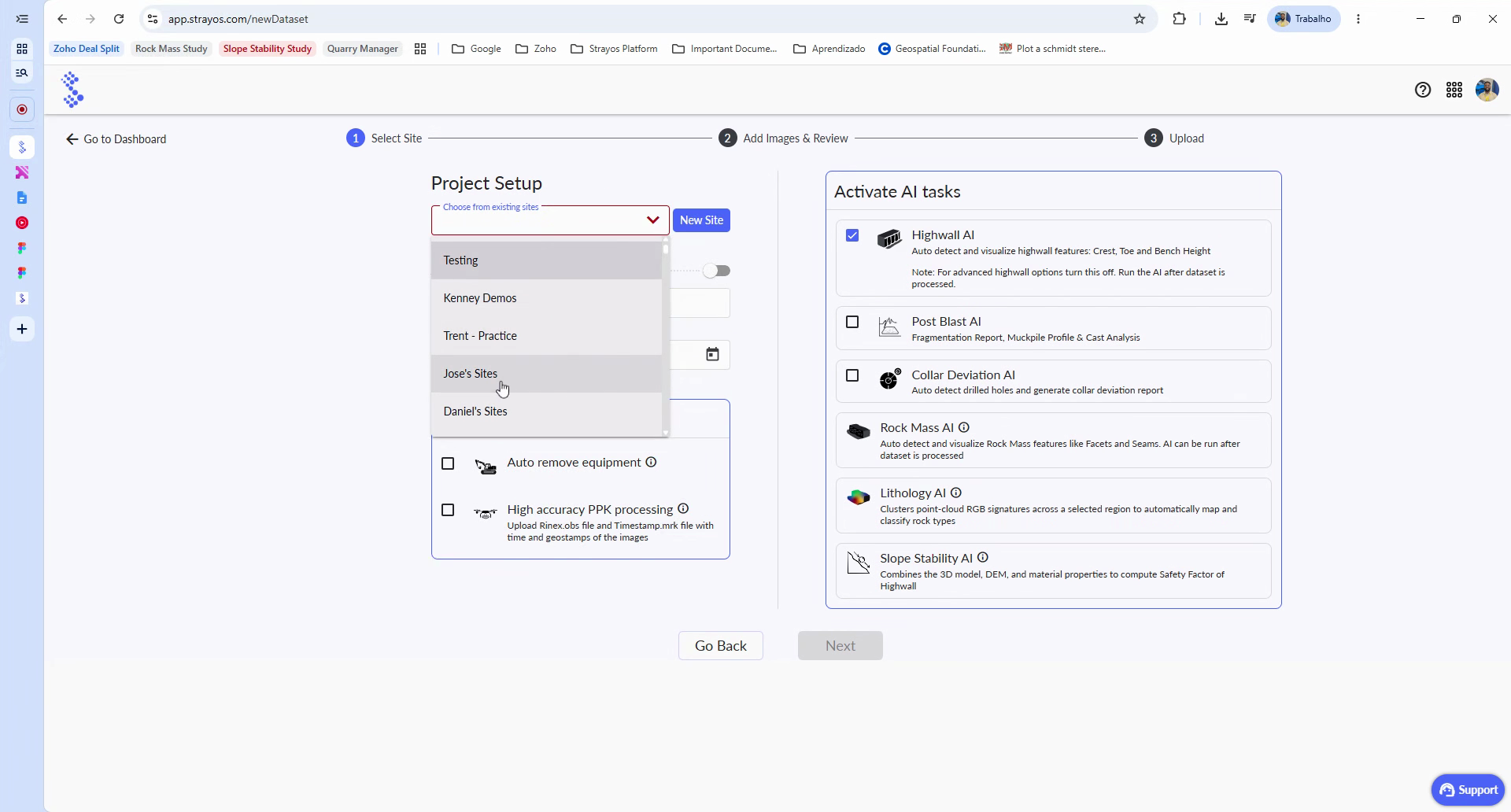
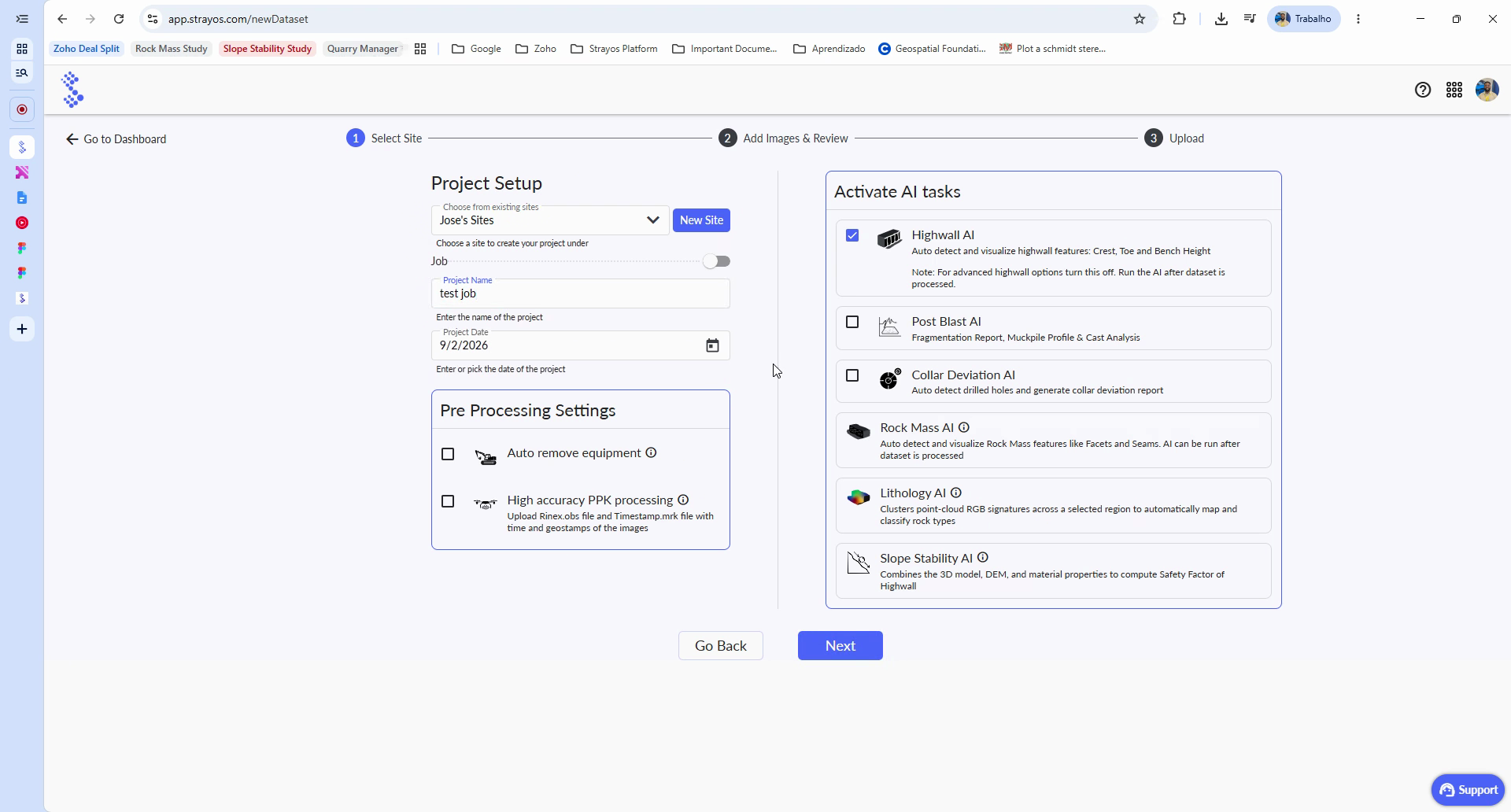
Step 1: Select your site from the Site dropdown.
Step 2: Enter the project name in the Project Name field.
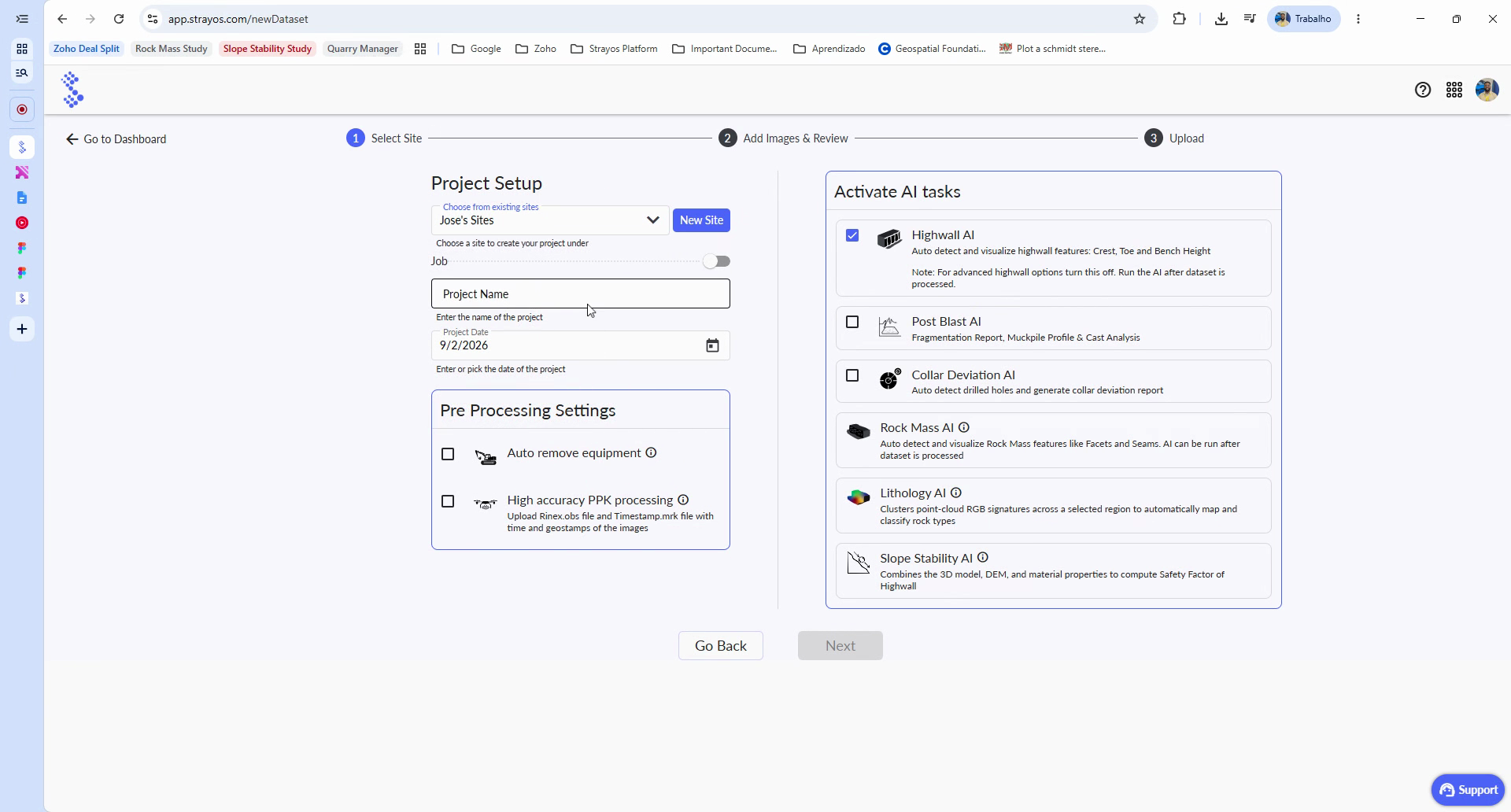
Step 3: Click Next to proceed.
Step 4: To upload images, drag your geotagged JPEG files into the upload area or use the file browser.
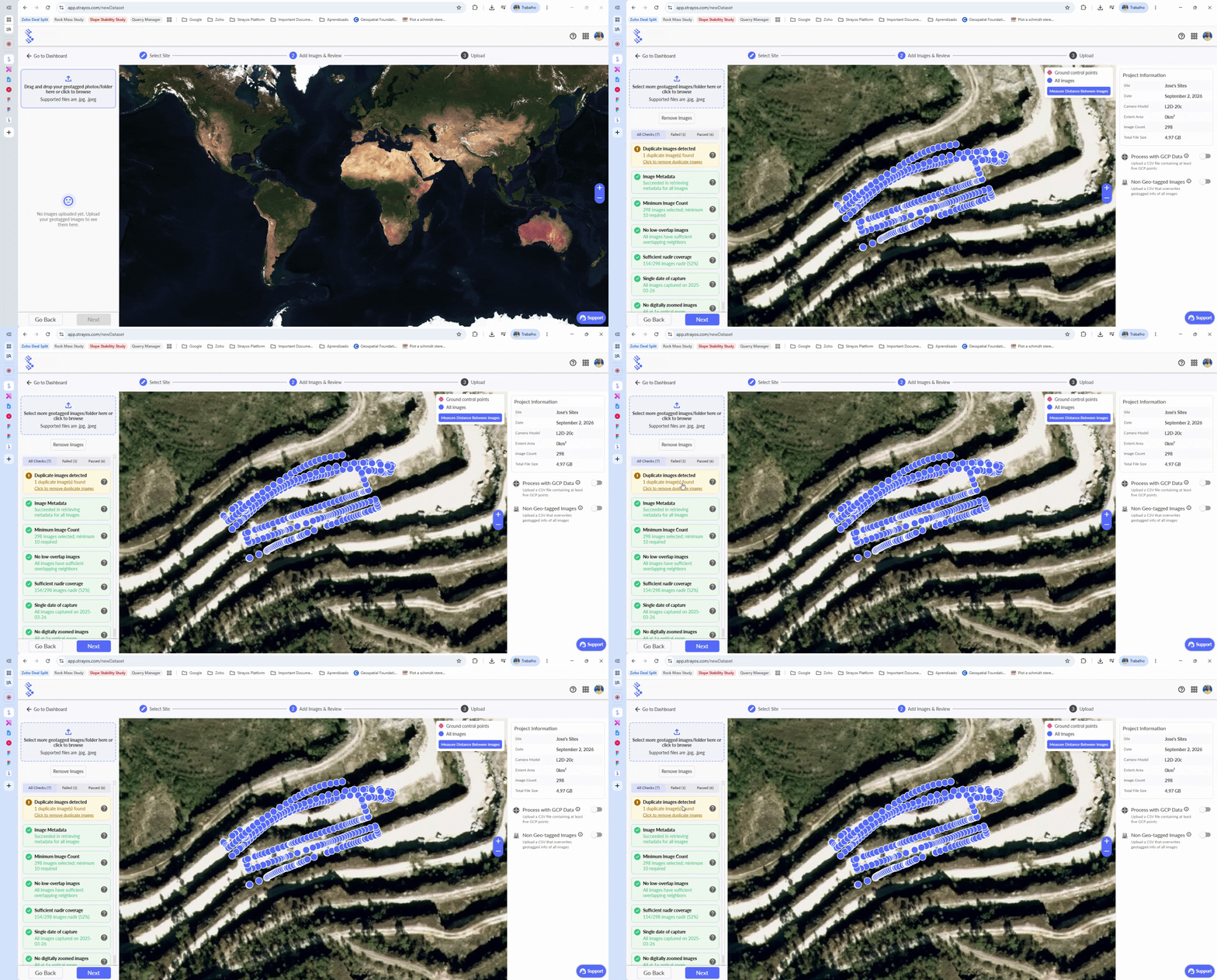
Uploading begins and progress is shown on-screen.
3. Review Images and Add GCP Data
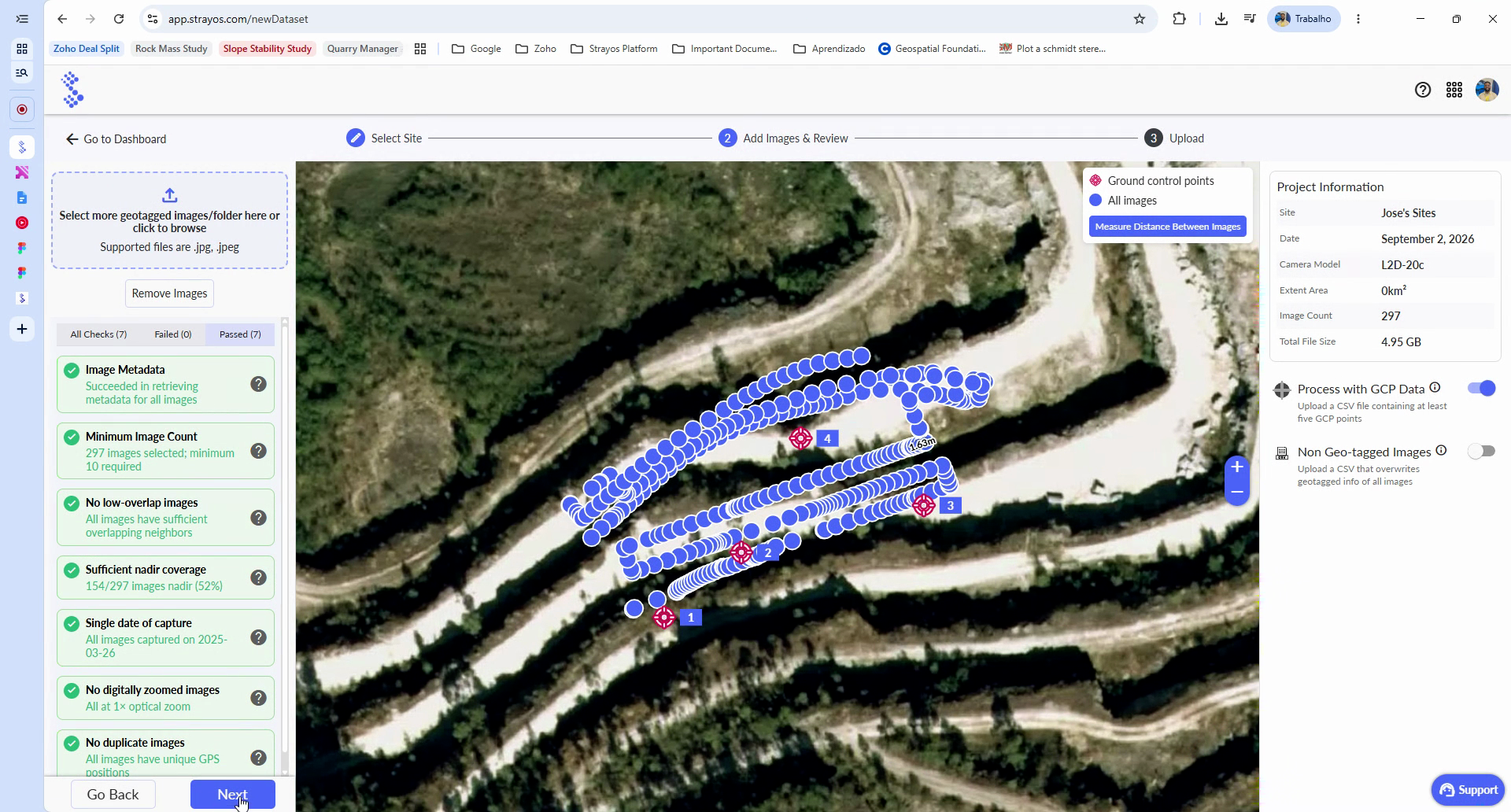
Step 1: After upload, review the automated image check panel. The system checks for issues like duplicate images.
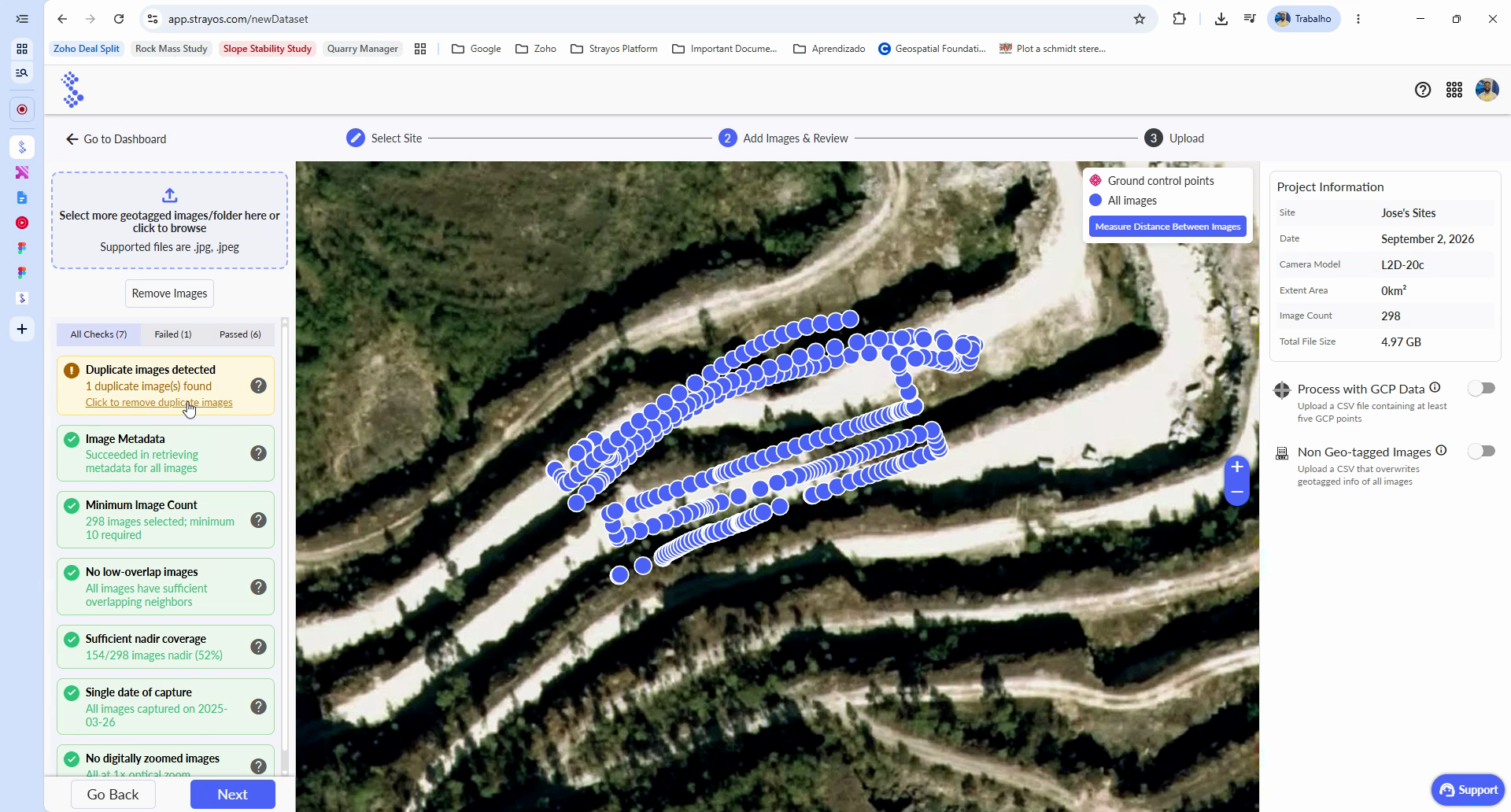
Step 2: Open any failed check, then address flagged images as needed.
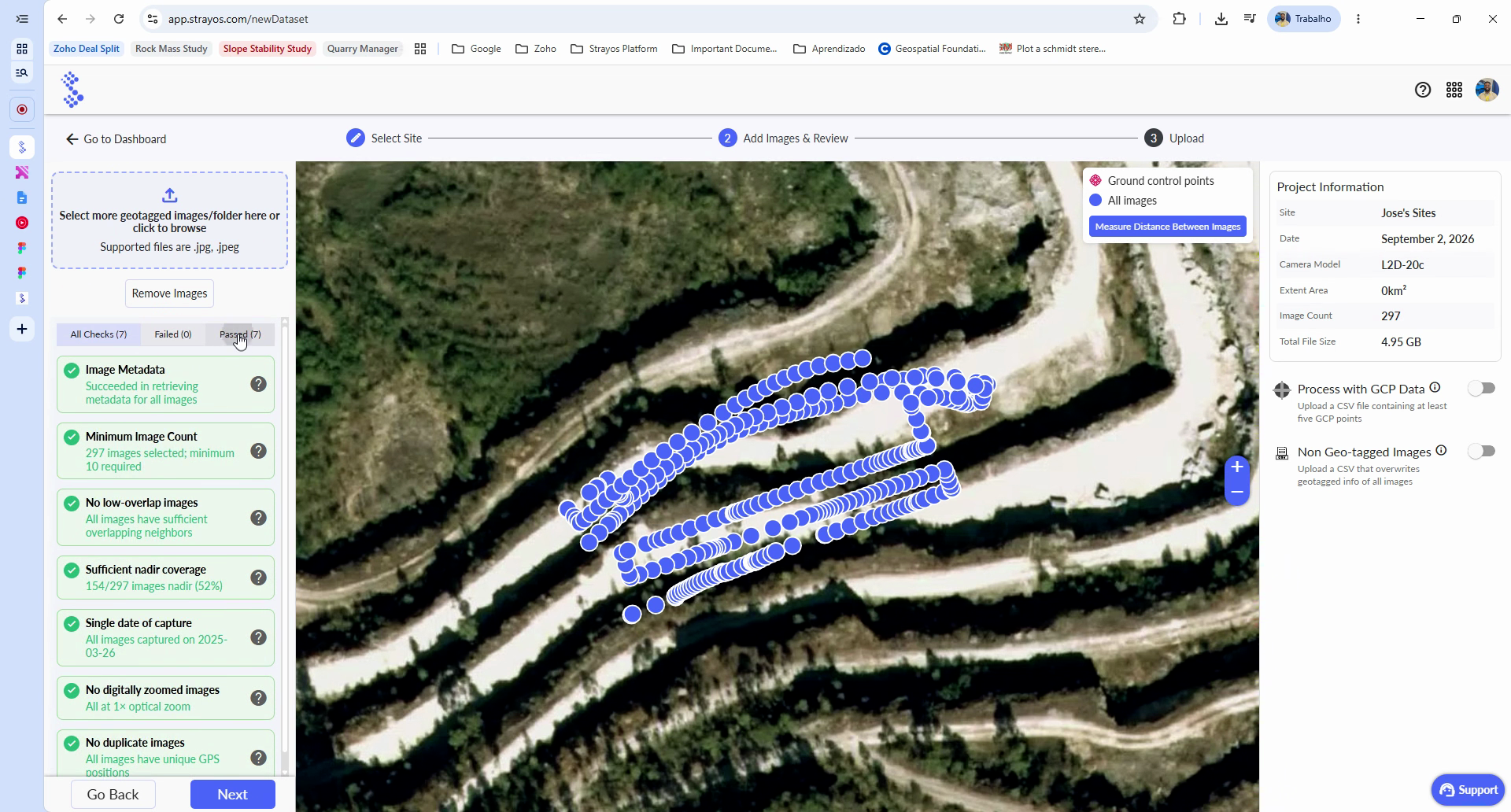
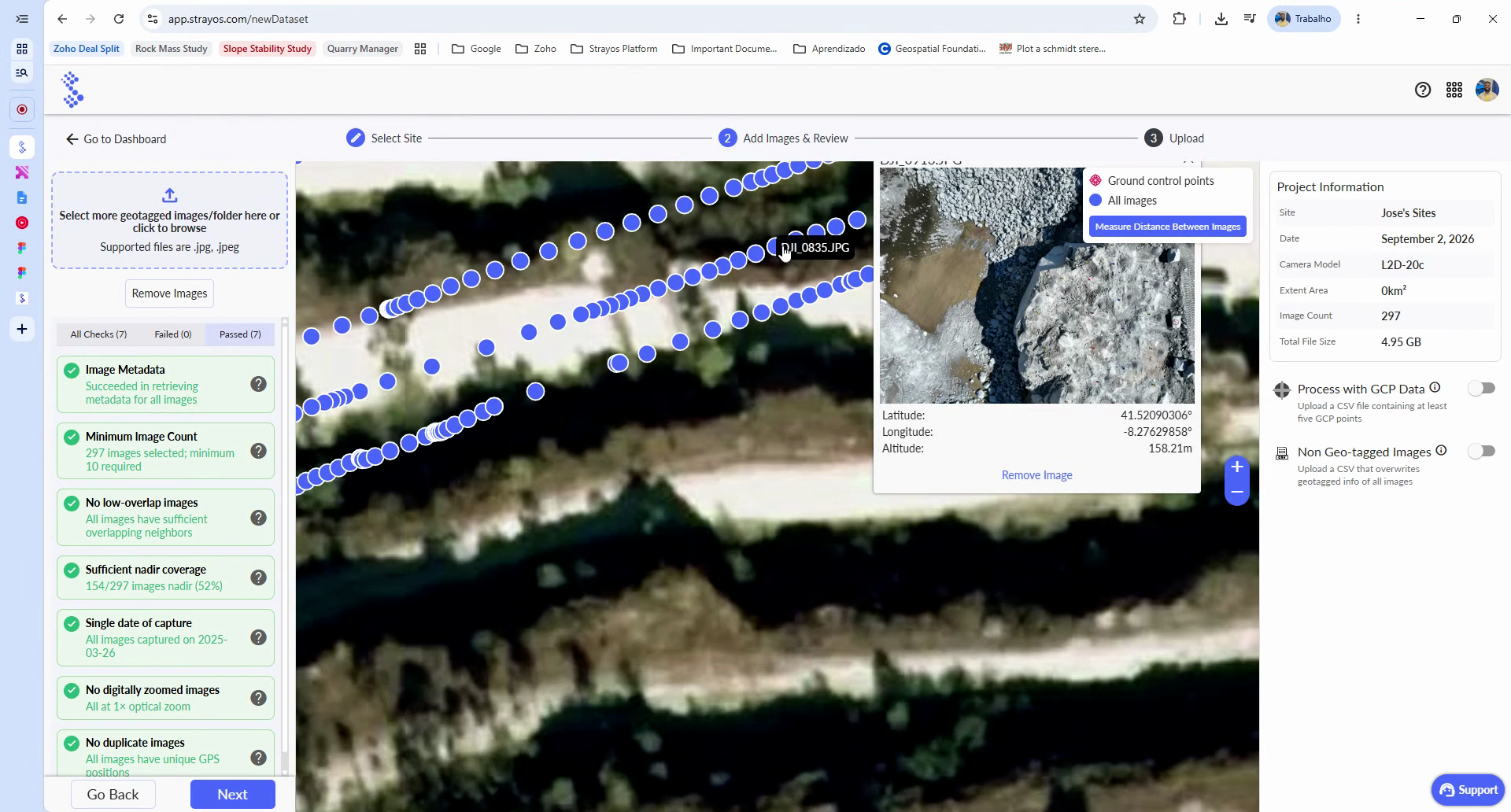
Step 3 (optional): Preview image details by clicking any uploaded photo.
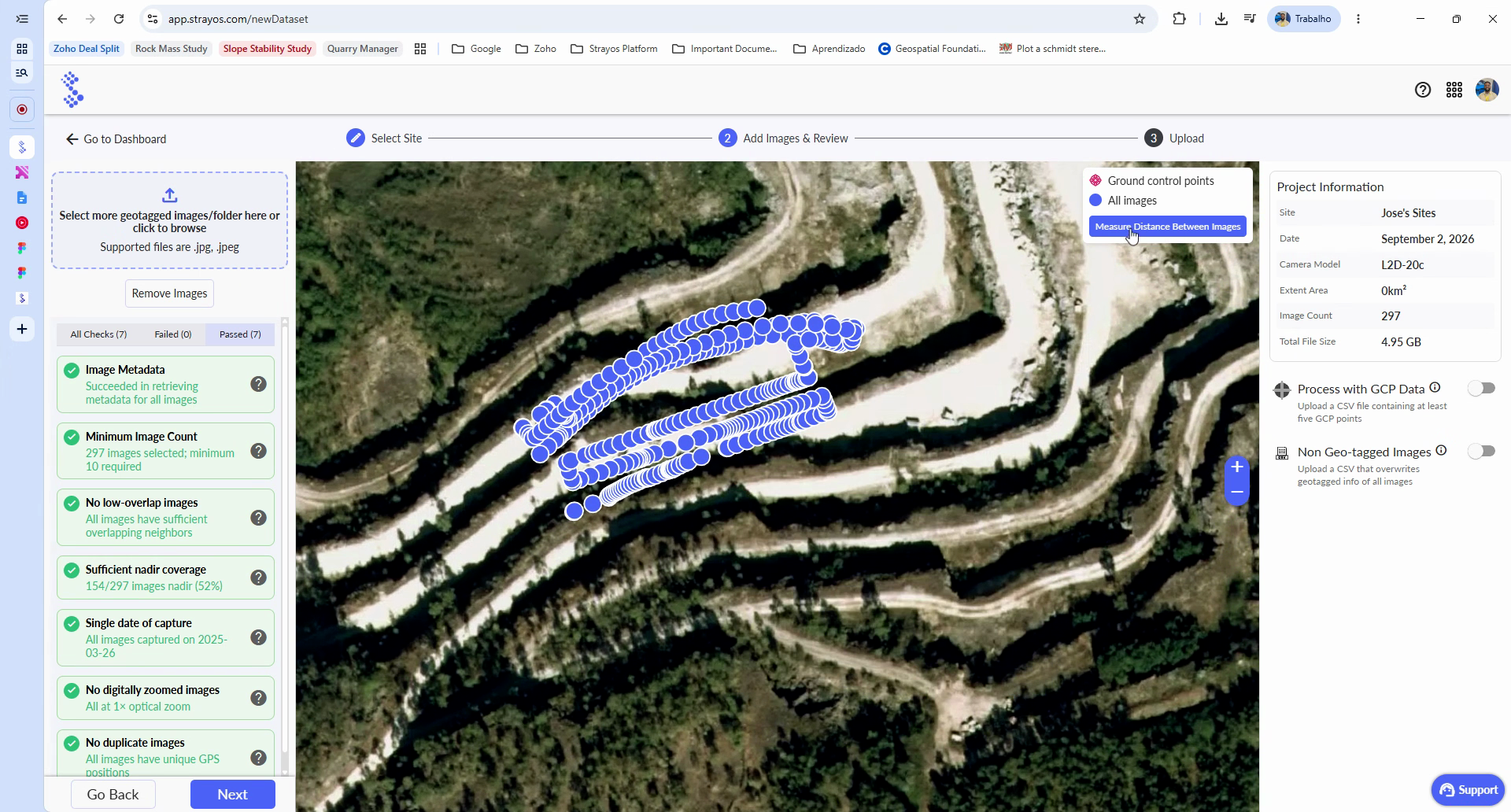
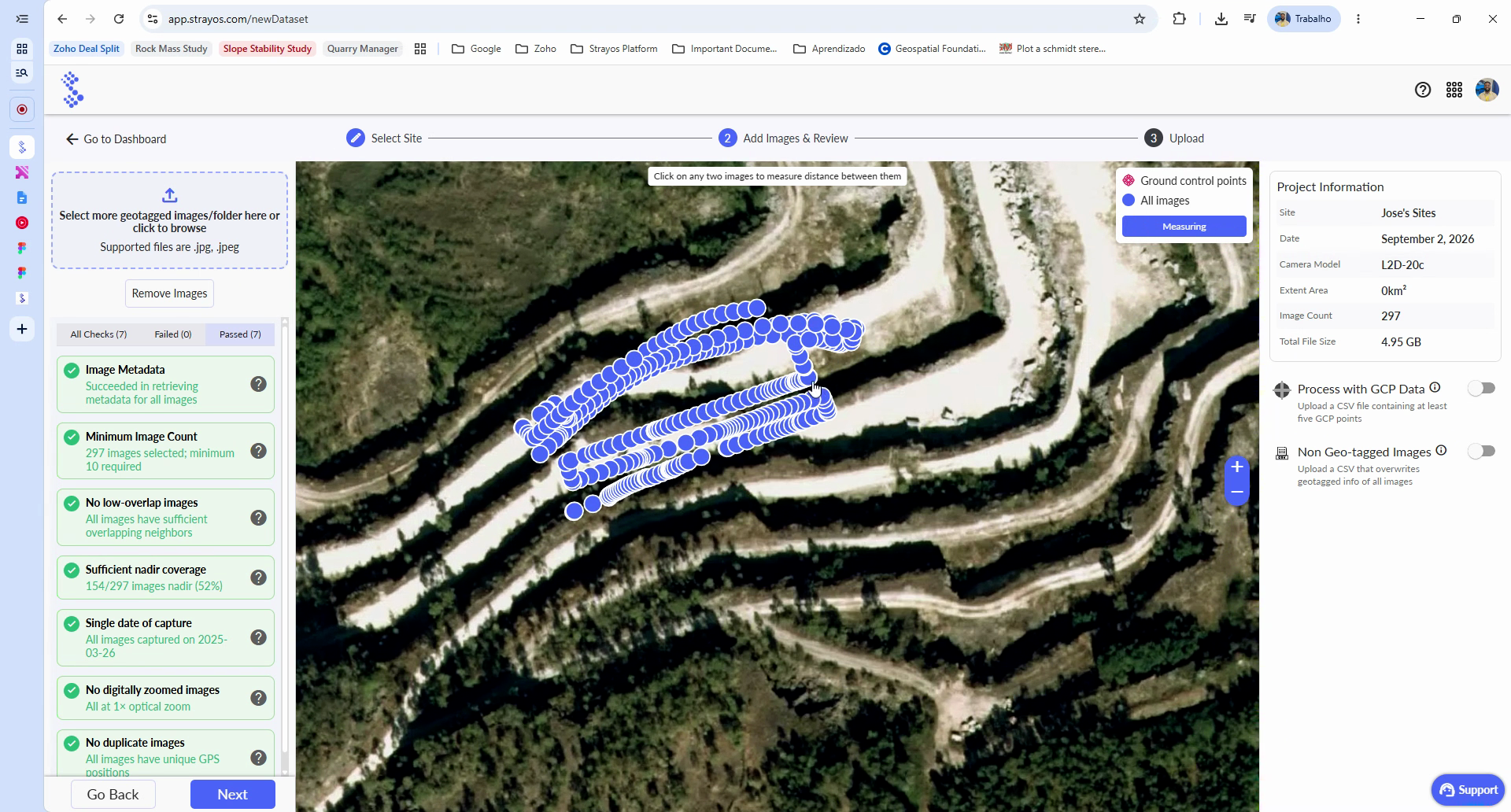
Step 4 (optional): Use the distance measurement tool between photos for reference only.
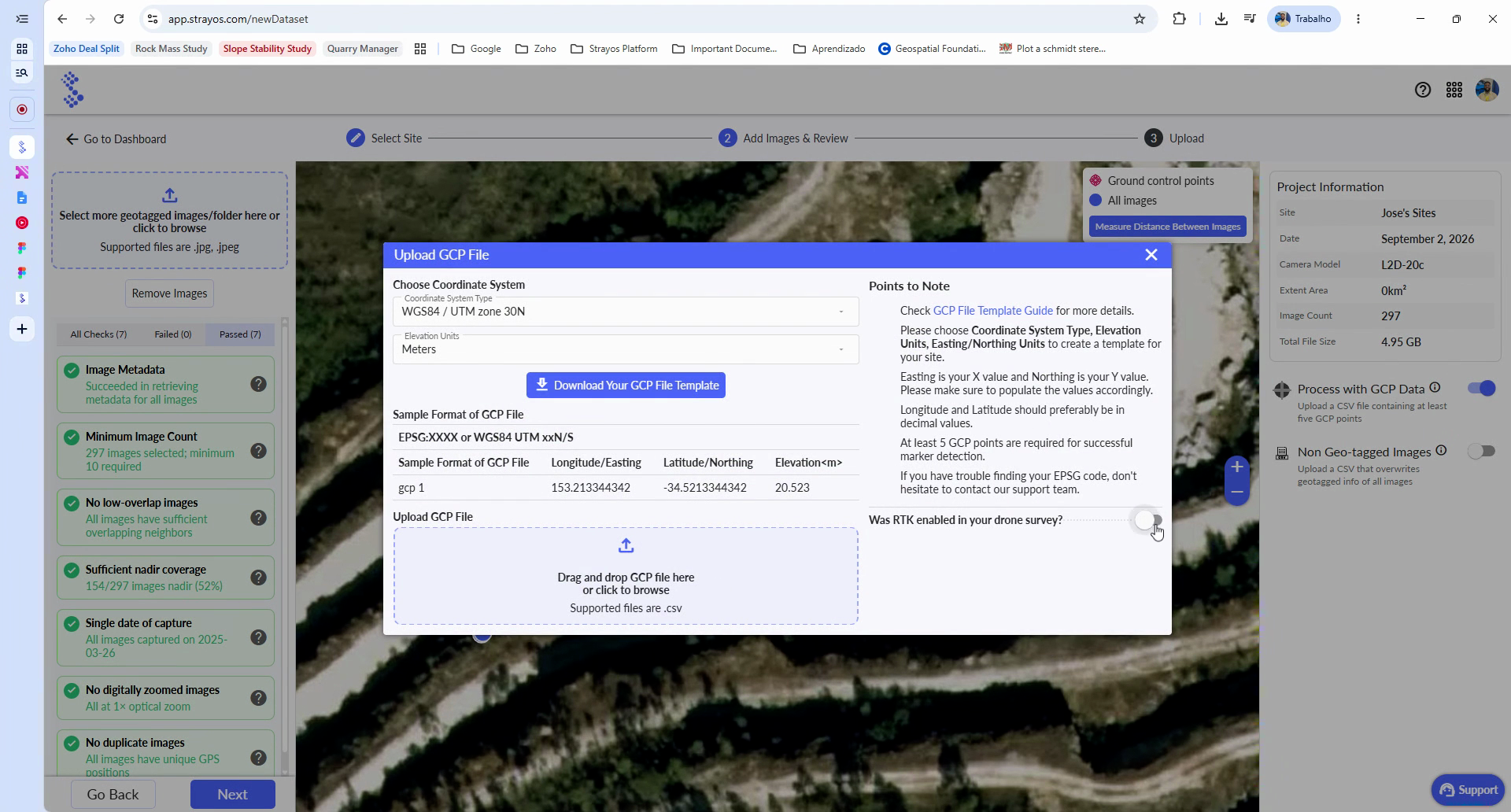
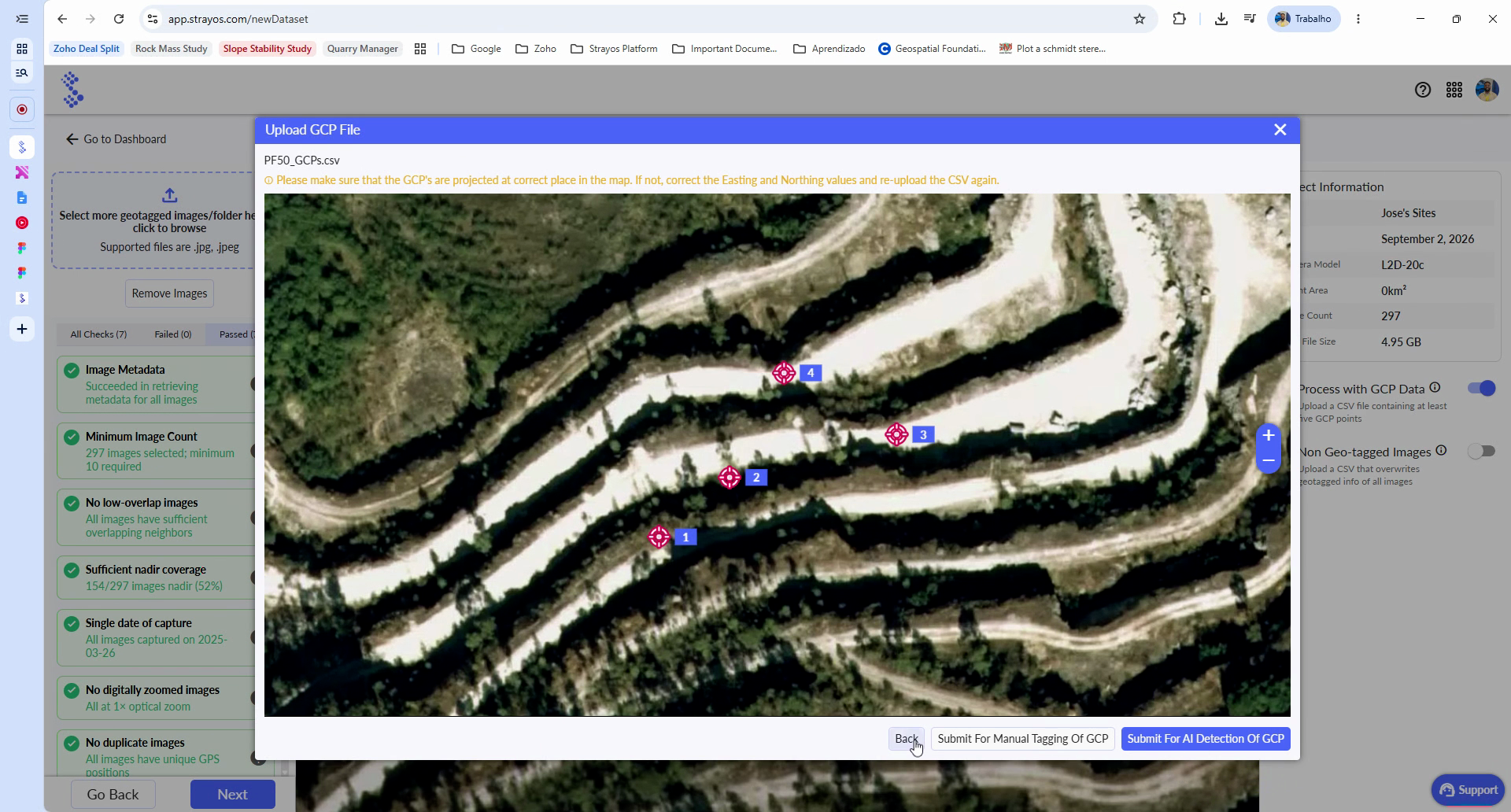
Step 5: For GCP data, click to add your GCP flight and upload the file.
Step 6: Submit for manual tagging or click Submit AI detection.
4. Complete the Upload
Step 1: Click Next to finish and automatically upload your project files for processing.
Once you’ve completed these steps, your project setup, image validation, and GCP configuration (if included) are complete. Strayos will now process your images and project parameters as selected.