How to Calibrate Elevation of your 3D model in Strayos
How to Calibrate Elevation of your 3D model in Strayos
The Calibrate Elevation tool in Strayos allows you to adjust the elevation of your 3D model to a known real-world elevation. By defining a single, highly accurate reference point, the platform will shift the entire 3D model up or down so that all elevations, bench heights, and volumes reflect your site's true local coordinates.
Why is Calibrate Elevation Needed?
Drone GPS systems, especially those without RTK/PPK capabilities, are generally accurate horizontally (X, Y) but can have margin of error in vertical (Z)/elevation, sometimes off by several meters. Even with RTK drones, there can be a vertical shift between the global satellite datum and your specific local mine grid.
Calibrating the elevation ensures that:
- Drill Depths are Accurate: Your hole depths and subdrill measurements are based on true bench elevations.
- Volume Calculations are Precise: Stockpile and pit volumes rely on accurate floor and surface elevations.
- Consistent Site History: It allows new models to perfectly align horizontally and vertically with past models or legacy site plans.
When Should You Use It?
You should use the Calibrate Elevation tool:
- After initial model processing: Before you begin any drill design, blast planning, or volume measurements.
- When GCPs were not used: If your flight was processed without Ground Control Points, this tool applies a quick vertical correction to fix drone altitude errors.
- Aligning to a Local Datum: When your site operates on a local coordinate system and you need to tie the model to a known benchmark.
How to Choose the Right Point for Calibration

- Use a Known Benchmark: The point must be a location where a surveyor has taken a highly accurate elevation reading (e.g., a marked survey peg, a permanent concrete pad, or a known GCP).
- Pick a Hard, Flat Surface: Avoid slopes, vegetation, dirt piles, or uneven terrain. Look for a flat, stable area like a paved road or a permanent structure.
- Ensure High Visibility: The point must be clearly visible and easily identifiable in both the 2D orthomosaic and the 3D model so you can click the exact pixel.
Step-by-Step Method: How to Calibrate Elevation in Strayos
Step 1: Open your 3D model in Strayos. Move to a known reference point/calibration point - the spot on your site where you have exact coordinates (latitude, longitude, and elevation).
Go to tools bar on top, choose Point > Coordinates Marker and place a marker (ex. calibration point) on this known reference point in the 3D model. Check the current elevation value of this point in the 3D model. You will use this value as base for adjustment. You can also place a test point anywhere to validate the results.
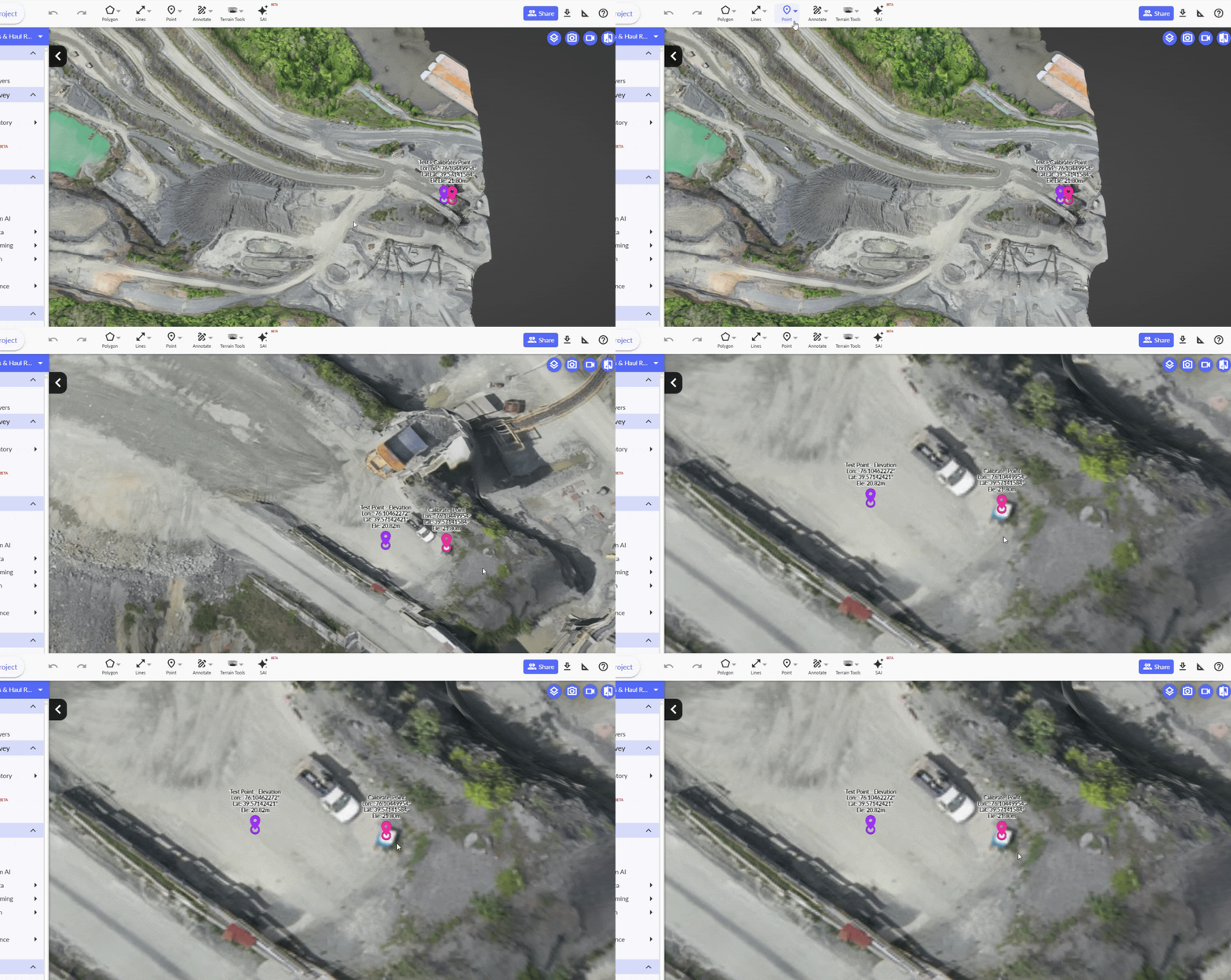
Step 2: Go to the tools bar, choose Point and select Calibrate Elevation. Place the marker exactly on your calibration point.
A pop-up shows the current elevation value in the model and asks for a custom elevation. Enter the actual elevation (ex. 22.5 m) in the custom elevation option. Click Save
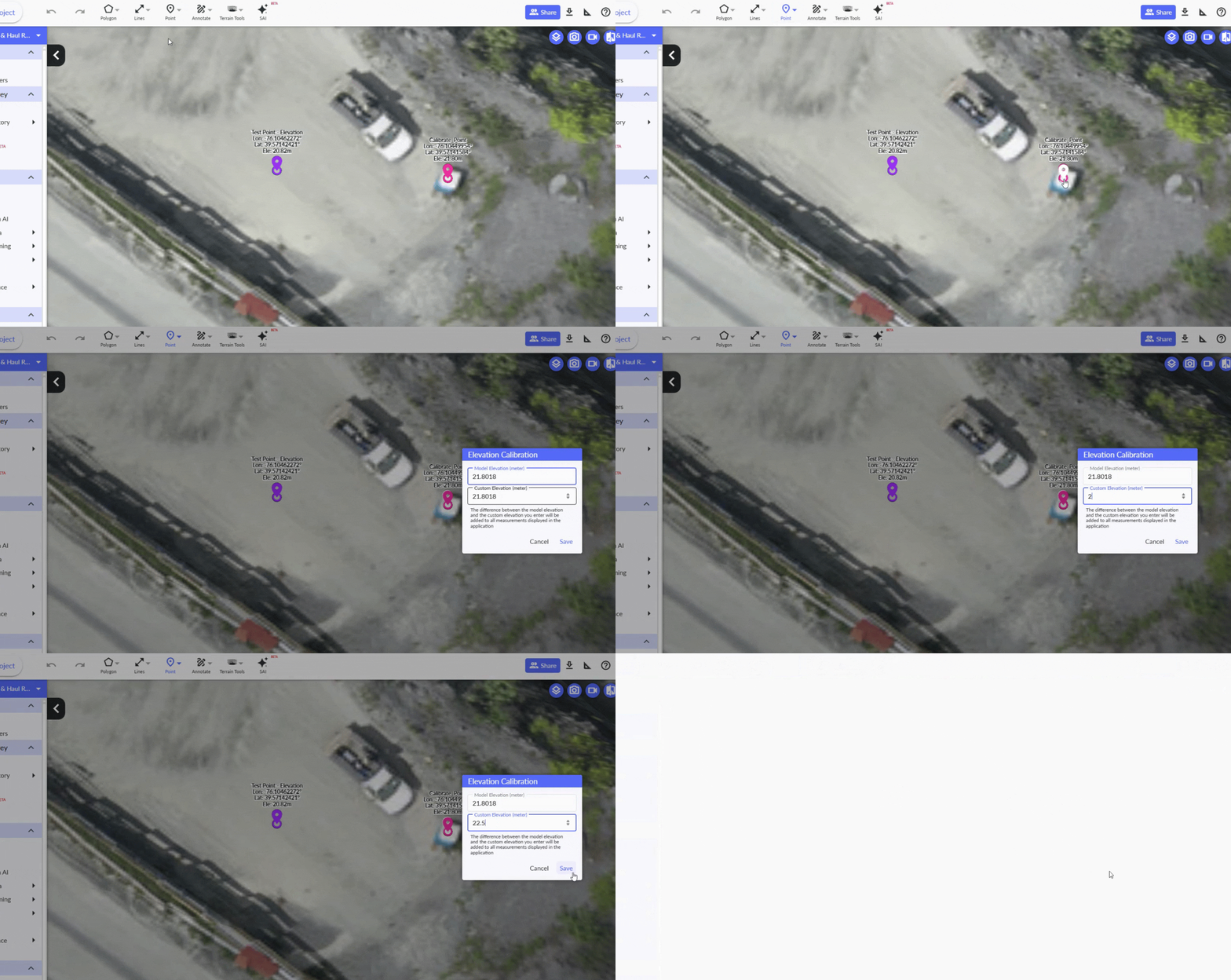
Step 3: Strayos will instantly adjust the elevation of the entire 3D model. Once the model reloads, review the elevation.
Confirm that your calibration and all surface points reflect the change. All subsequent measurements, drill designs, and profile lines will now reflect this calibrated elevation
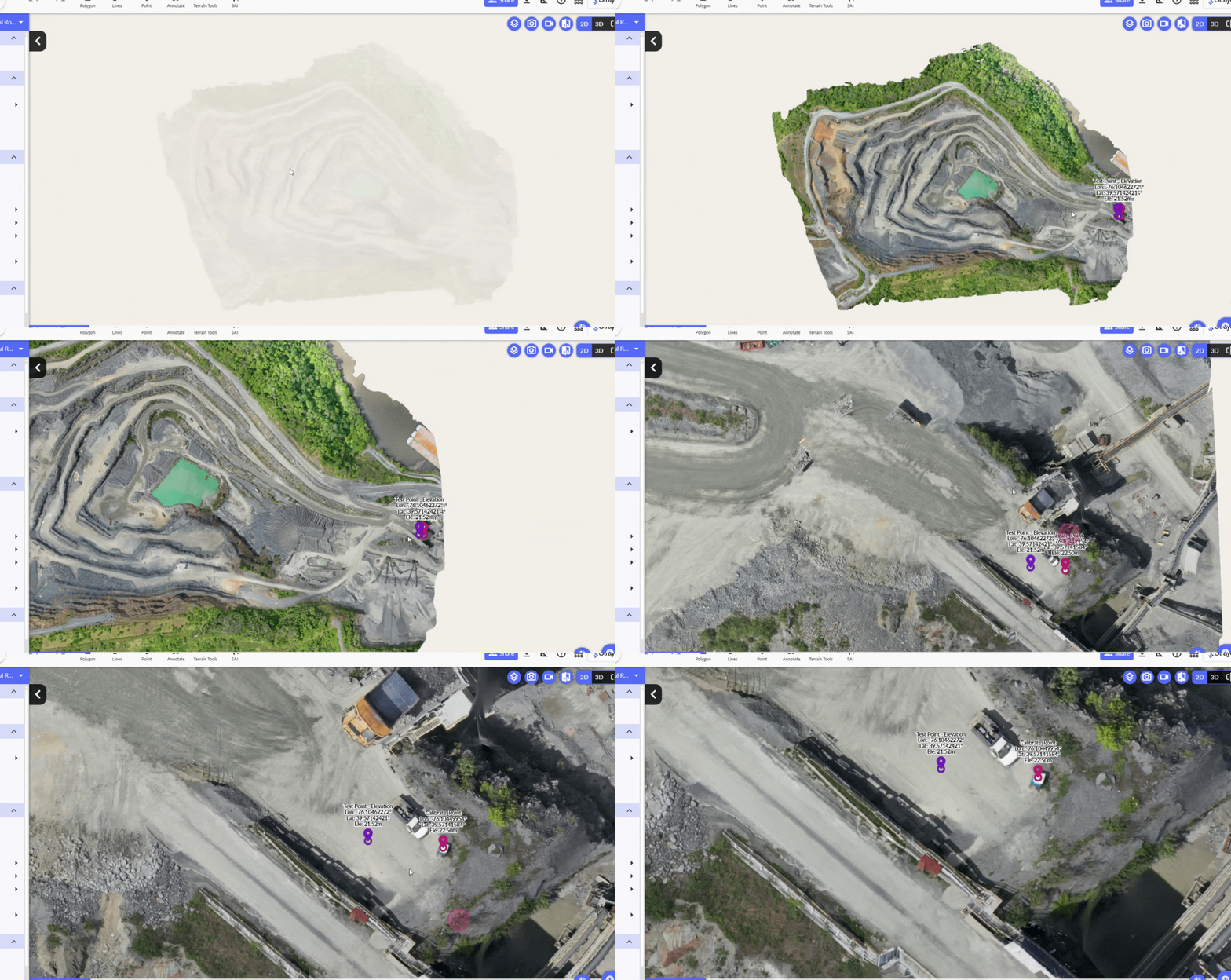
Calibrating elevation in Strayos aligns your models with real-world ground truth, making volumes, cuts, and fills more reliable. Always double-check your reference point and use permanent, verifiable locations for the best results.