Copy of Workflow of SmartDrill Module
Workflow of SmartDrill Module
Files Upload Section
- Click on “Upload Drilled Plan File” to import the Drill Plan file in XML format that consists of the coordinates of the drilled holes
2) Similarly, upload MWD XML/CSV files of holes after the drill hole coordinate details in the respective format of pressures which recorded while drilling.
Multiple files can be chosen and uploaded, after selecting individual files can be deleted and multiple files can be chosen again. After the files are selected, click on the “Upload All” to save the files.
4) Click on the correct coordinate system and click next to analyze the location of holes. It should match the desired location before uploading the files.
5) Click on “Export IREDES for Smart Drill”, to export the planned holes data file in XML format. Three formats of projections are provided as follows
- EPSG code projection
- WebMercator
- World Geodetic System, WGS84

Note: To parse the Drill Plan file properly EPSG code provide need to be the appropriate value. To modify the saved EPSG follow the same procedure.
Visualisations section
Click on “View Drill Data” to render the visualizations created based on the Drill Plan and MWD files uploaded.


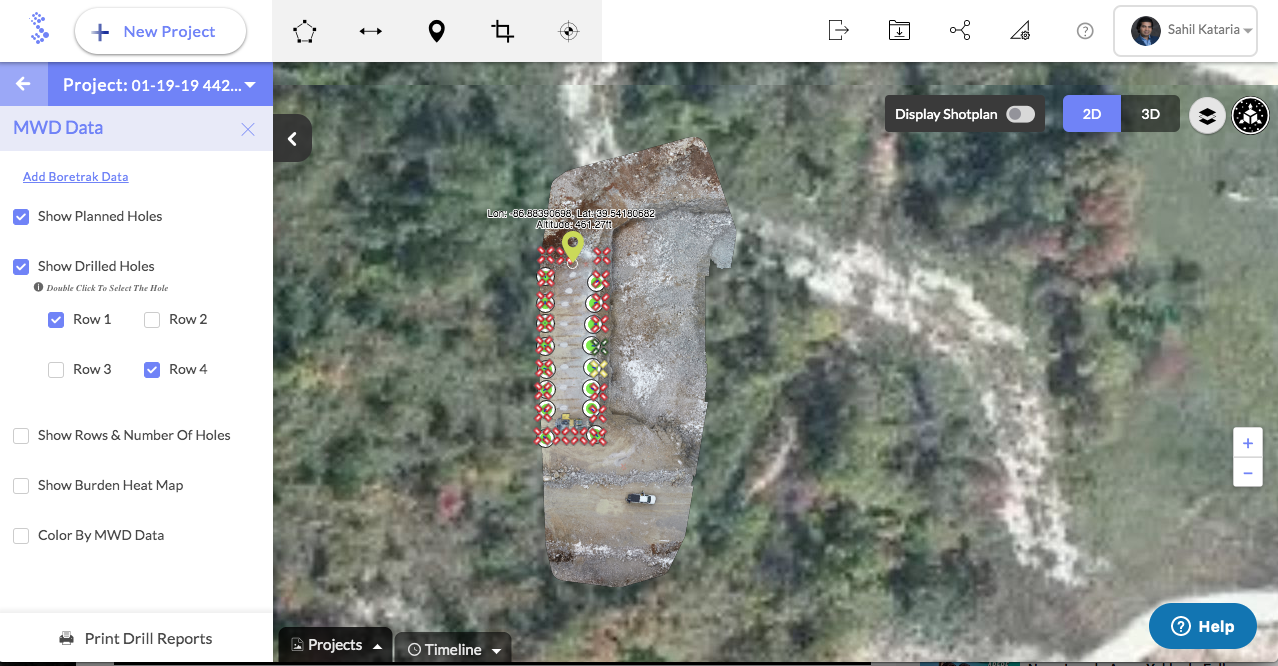
- Check on/off “Show Planned Holes” to toggle the planned holes both in 2D and 3D views
- Check on/off “Show Drilled Holes” to toggle the drilled holes both in 2D and 3D views
- The number of drilled rows are obtained by matching planned holes with drilled holes. Check on/off the “individual rows“ to toggle the respective row holes in 2D map
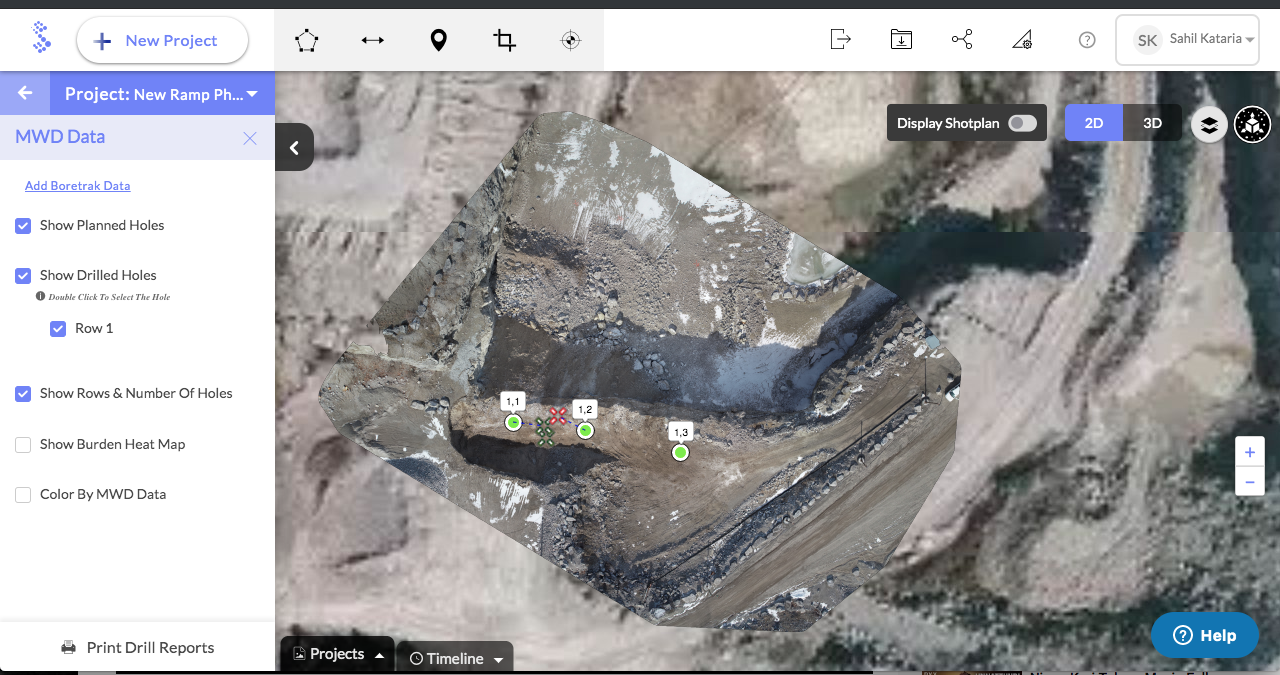
- Check on/off “Show Rows & Number of Holes” to toggle the tooltips indicating the row number and hole number of the drill holes in 2D and 3D views

4) Click on the “Add Boretrak Data”, to link the custom boretrak. A comparison of MWD readings between the Drilled holes and Custom Boretrak holes is rendered in 3D view

Click on the “Remove Boretrak Data” to unlink the custom boretrak
5) Check on/off “Show Burden Heat Map” to toggle the Boretrak of Shotplan in 3D view. Note: Make sure that the boretrak of the corresponding Shotplan exists

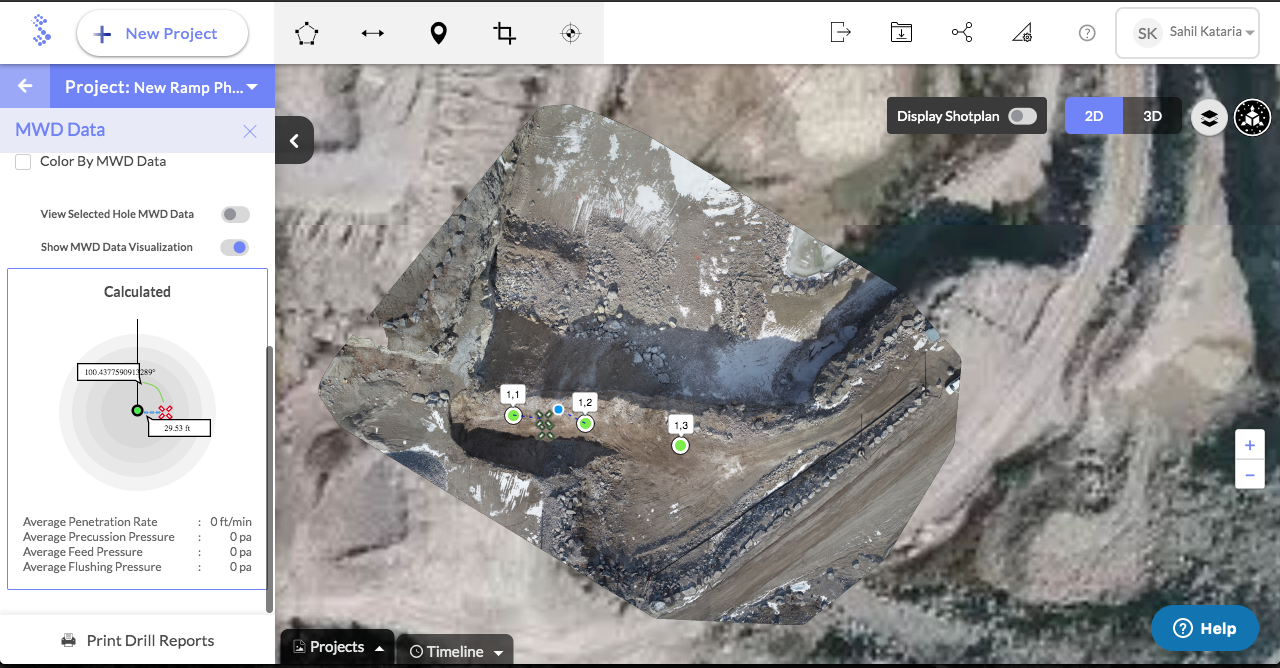
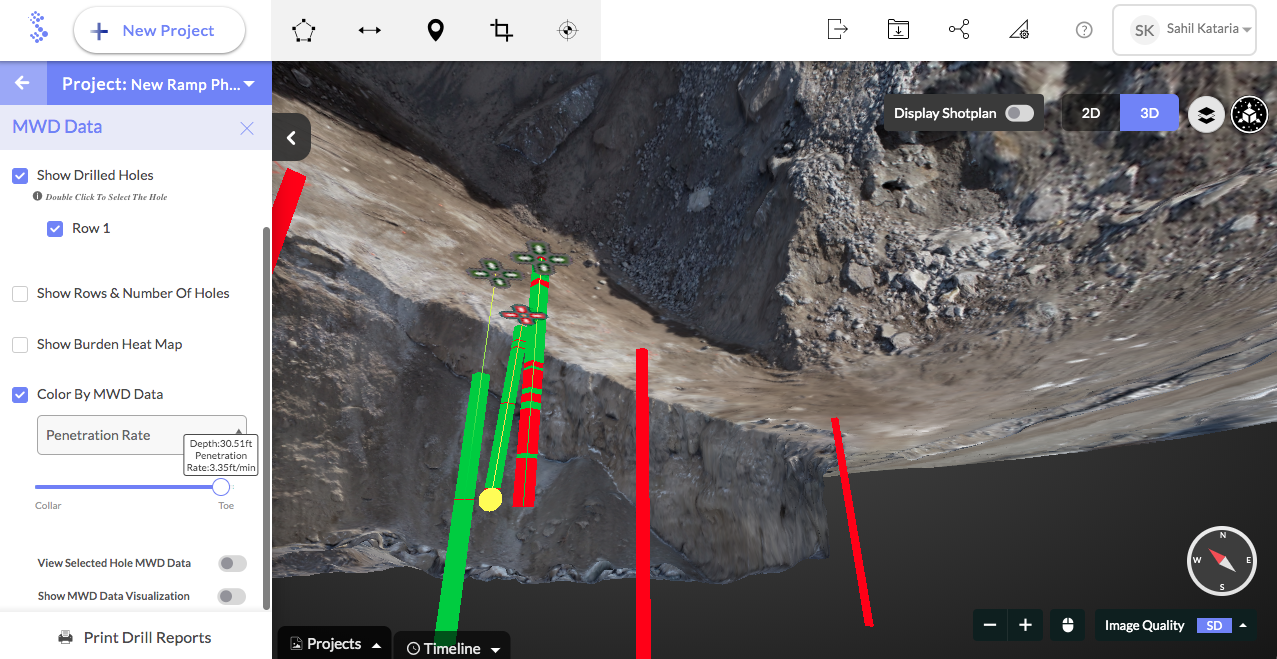
6) Select one drilled hole, the respective “View Selected Hole MWD Data” and “Show MWD Data Visualization” options shows up
7) Check on/off the “View Selected Hole MWD Data” to toggle the textual readings of the selected hole
8) Check on/off the “Show MWD Data Visualization” to toggle the visual readings of the selected hole both in 2D and 3D views

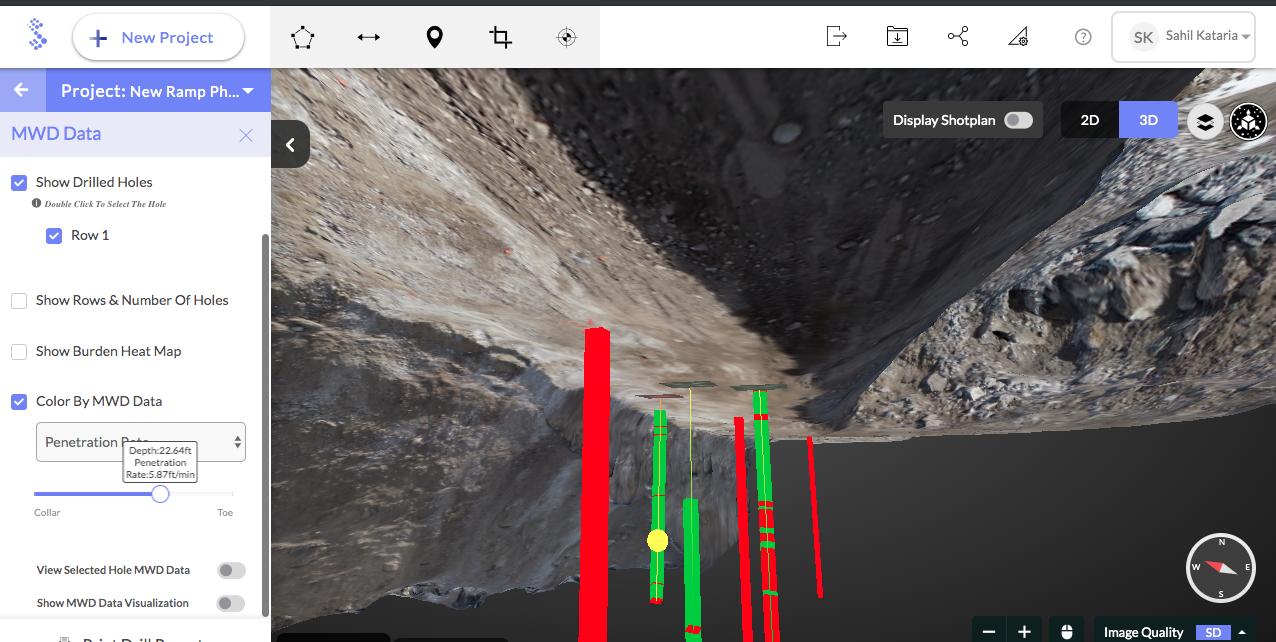
9) After one drilled hole is selected, check on/off the “Color By MWD Data”, to relate the MWD file readings and the visualisations created
- Select the MWD reading to render on the 3D view from the available options in the dropdown
- Shift the range slider to see the “Depth” & selected “MWD Reading” values along with a pointer indicating the 3D depth of the same in 3D view.
10) Click on “Print Drill Reports”, to export the burden report in CSV and PDF formats, with a comparison between shotplan and each of the MWD readings available (Percussion Pressure, Feed Pressure, Deviation etc.,)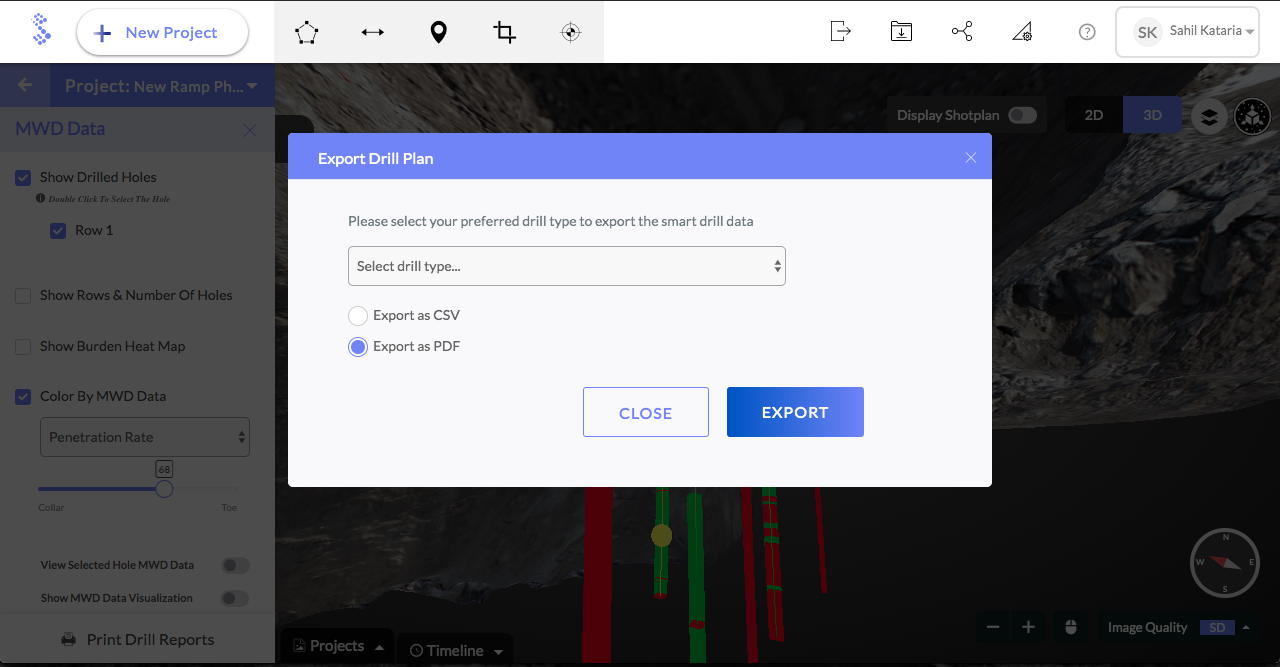
- Without linked custom boretrack, the PDF would be